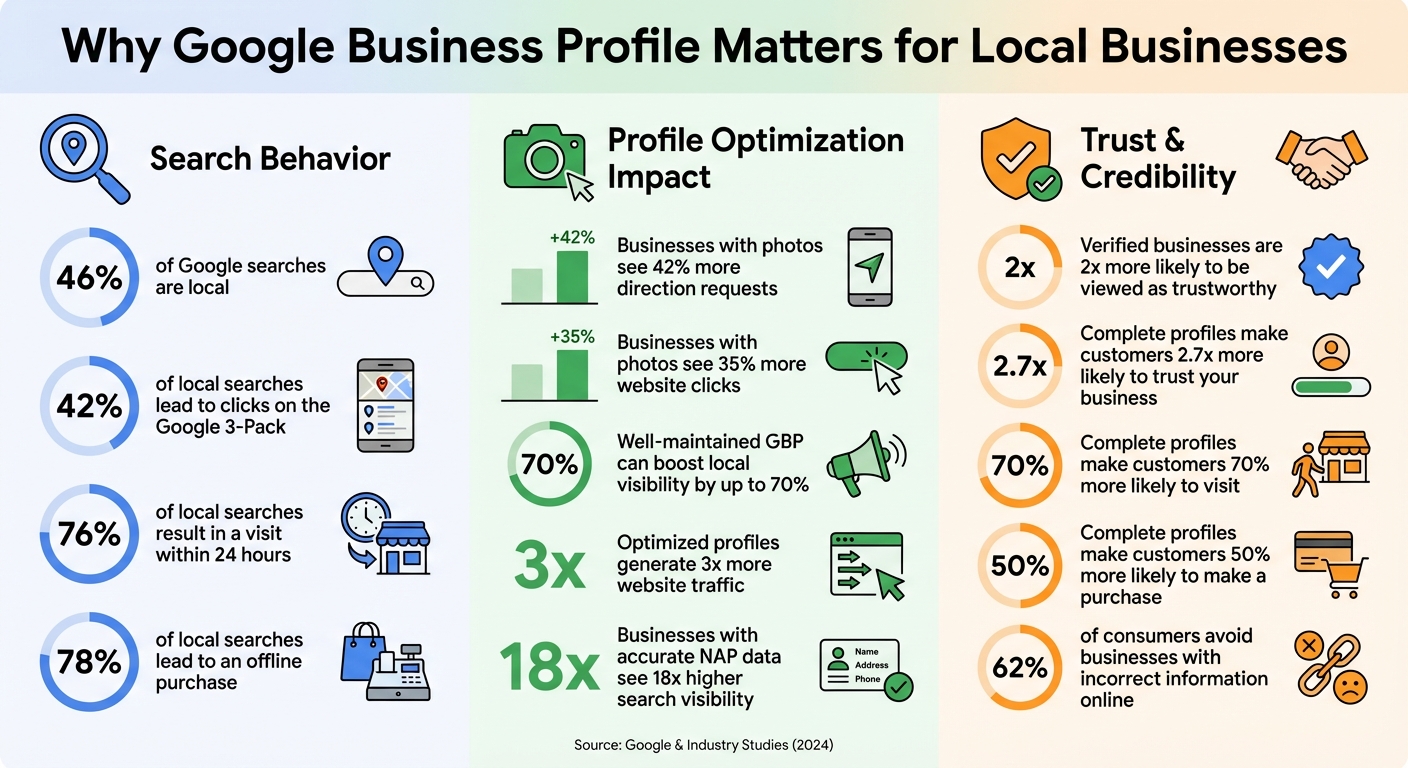
Want to attract more local customers? Your Google Business Profile (GBP) is your digital storefront, often seen by potential clients before your website. With 46% of Google searches being local and 42% of local searches leading to clicks on the Google 3-Pack, ensuring your GBP is optimized and synced with your listings is key to standing out.
Here’s what you need to focus on:
- Keep NAP Consistent: Your business Name, Address, and Phone (NAP) must match across all platforms. Inaccuracies could hurt your rankings.
- Fix Duplicates: Duplicate listings can confuse Google and even cause your profile to disappear.
- Verify Your Profile: Without verification, your profile won’t appear in search or maps.
- Update Key Details: Include accurate business categories, a local phone number, and location-specific URLs with tracking codes.
- Upload Quality Visuals: Businesses with photos see 42% more direction requests and 35% more clicks.
- Monitor & Automate: Regularly check for changes and consider tools like Local SEO Bot to save time on updates, review responses, and ranking tracking.
A well-maintained GBP can boost local visibility by up to 70% and generate 3x more website traffic. Don’t let inconsistent info or missed updates cost you customers. Follow this checklist to stay ahead in local search.
Google Business Profile Optimization Statistics and Impact
How To Optimize A Google Business Profile (Free Checklist For 2025)
Preparation Steps Before Integration
Getting your data ready for integration is essential to ensure your Google profile syncs correctly and avoids common hiccups that can delay visibility. Here’s what you need to double-check: consistent NAP details, elimination of duplicate listings, and proper access setup.
Check NAP Consistency Across All Listings
Your business’s Name, Address, and Phone Number (NAP) must be identical across every platform where your business is listed. Even small inconsistencies can confuse search engines and hurt your rankings.
Start by searching for your business name, phone number, and address on Google to locate all existing listings. Don’t stop there - review major platforms like Bing Places, Facebook, Apple Maps, and Yelp. Your business name should match exactly what’s on your storefront signage and legal documents - avoid adding marketing phrases or keywords unless they’re part of your registered name, like “Houston’s Best Plumber”.
Stick to a single address format consistently. For instance, decide if you’ll spell out “Suite” or use “Ste.” and apply that choice everywhere. Tools like Smarty Streets can help ensure your address is formatted properly. Also, use a local phone number with your area code instead of a toll-free number to strengthen your local presence.
"A single misspelling can have a negative impact, so quality check each of these and make adjustments as needed." - Chris Kirksey, CEO, Direction.com
The effort pays off: businesses with accurate NAP data see 18x higher search visibility compared to those with inconsistencies.
Find and Fix Duplicate Listings
Duplicate profiles for the same business can violate Google’s policies and even cause your listing to disappear from Google Search and Maps altogether. These duplicates often arise from moves, verification issues, or multiple account holders claiming the same location.
To spot duplicates, search Google Maps and Google Search using your business name, address, and phone number. If you find unverified listings, click on "Claim this business". For duplicates controlled by someone else, request access through your Google Business Profile (GBP) dashboard. The current owner has 3 days to respond.
If two profiles represent the same business at the same location, use the "Suggest an edit" tool on Google Maps and choose "Merge with another place". Keep in mind that while reviews will combine during a merge, your replies to those reviews might not carry over. If you’ve accidentally created a duplicate that you already manage, simply select it in your dashboard and use the "Remove" option.
Pro Tip: If your business has moved, update the address on your existing verified profile instead of creating a new one.
Once duplicates are resolved, make sure your profile access is in order.
Confirm GBP Access and Verification
To sync your data, integration tools need Owner or Manager access - Site Manager permissions won’t cut it. Log into your GBP dashboard, confirm your role, and ensure your business entity is listed as the Primary Owner, not an external agency. If someone else owns the profile, use the "Request Access" form at business.google.com/add. The current owner has 3 days to respond, after which you may be eligible to claim the profile yourself.
Verification is a must for integration. Without it, platforms can’t update your Google profile. The process usually takes up to 5 business days, though postcards can take up to 14 days to arrive, and verification codes expire after 30 days. Avoid changing your business name, address, or category during verification, as this will invalidate the code and further delay the process.
Verified businesses are twice as likely to be viewed as trustworthy by users, making this step critical for both integration success and customer confidence.
Creating and Verifying Your Google Business Profile
Once your data is ready and you've confirmed access, it's time to claim or create your Google Business Profile. Start by searching for your business on Google Maps. If you spot an unverified listing, click "Own this business" or "Claim this business." If someone else has already verified it, you'll need to use the "Request Access" option.
If your business isn't listed, sign in using your business email (e.g., info@yourbusiness.com) to establish credibility. Input your exact legal business name, as it appears on your storefront and official documents. Then, choose your primary business category. Indicate whether you operate from a physical location where customers can visit or if you're a service-area business traveling to clients. Include your phone number (preferably local with your area code) and your website URL. Once you've entered these details, proceed to claim and configure your listing with care.
Claim or Create Your GBP Listing
Claiming or creating your profile ensures accurate visibility, which is crucial since nearly half of all Google searches have local intent. Pay close attention to accuracy when entering your business details - errors can hurt your visibility. If you're a service-area business, specify your service areas, keeping the radius within a 2-hour drive. For businesses without a public storefront, turn off the "Show business address to customers" setting to comply with Google's policies.
Complete the Verification Process
Google determines the verification methods available to you based on your business category, location, and public information. You won't be able to select a method if it's not offered. Common verification options include Phone/SMS, Email, Video Recording, Live Video Call, and Postcard.
Postcard verification is the most frequent option and typically takes 1–2 weeks to arrive. Keep in mind that the code expires after 30 days, and any changes to your business name, address, or category during this period will invalidate the code. For video verification, you'll need to record a continuous video (30 seconds to 5 minutes) showing street signs, business signage, equipment or inventory, and proof of management, such as unlocking the premises or accessing your point-of-sale system. Google generally reviews verification requests within 5 to 7 business days.
"A verified Business Profile can help customers find you and build greater trust in your business." - Google Business Profile Help
The benefits are clear: verified businesses are twice as likely to be trusted by users compared to non-verified ones, and 78% of local searches lead to an offline purchase.
Set Up User Roles and Permissions
Once your profile is verified, it's time to set up user roles for secure and efficient management. The business owner should always retain primary ownership to ensure full control. Use domain-based emails (e.g., manager@yourbusiness.com) rather than personal accounts to enhance security and establish authority.
Owners have complete control, including the ability to delete the profile and manage user access. Managers, on the other hand, can edit business details and respond to customer reviews but cannot manage users or delete the profile. If you're working with an SEO agency or consultant, add them as Managers instead of Owners - they should only claim a profile with your explicit permission.
"Authorized representatives must... always encourage the business owner to create an account, own the Business Profile, and add authorized representatives as managers." - Google Business Profile Help
To safeguard access, consider adding a second domain-level email as a backup owner. This can prevent issues if the primary account is compromised or an employee leaves. Regularly review user access and remove anyone who no longer works with your business. Lastly, avoid sharing a single Google account password among team members. Instead, invite each person to join via their own Google account to maintain a clear audit trail.
Updating and Syncing Business Information
Once your Google Business Profile is verified, it's time to ensure that all your business details align perfectly across your website and directories. This consistency is crucial - 46% of Google searches are for local information, and 76% of those searches result in a visit to a physical business within 24 hours. Even small differences like "St." versus "Street" or "Co." versus "Company" can confuse Google's algorithm and negatively impact your rankings. Take the time to update your information carefully and ensure uniformity across all platforms.
Update NAP Details and Business Categories
Make sure your Name, Address, and Phone number (NAP) are accurate and consistent. Use your exact business name as it appears on your signage and legal documents - avoid stuffing it with extra keywords. For your address, stick to a valid physical location; P.O. Boxes or virtual addresses won’t cut it. Tools like Smarty Streets can help format your address correctly, with the street address on the first line and suite numbers on the second. If you're a service-area business, hide your physical address and define your service areas instead.
Use a local phone number with your area code to establish a stronger connection with your community. If you rely on call tracking, place the tracking number in the "Primary Phone" field and your local number in the "Additional Phone" field. When selecting your primary business category, choose one that reflects what your business is (e.g., "Italian Restaurant"), not what it offers. Add secondary categories for specific services, like "Pizza Delivery", to target niche searches, but keep the number of categories minimal and avoid using them as mere keywords.
Once your NAP details and categories are in place, it’s time to connect your online assets.
Add Website URLs and Business Attributes
Instead of linking to your homepage, direct users to dedicated location pages that feature specific NAP details for each branch. This approach helps your business rank in the Local Pack. To track traffic from your Google Business Profile, add UTM codes to your URLs in Google Analytics. Take advantage of the "Appointment URL" field to link directly to your booking system or contact form - this is separate from your main website link.
Regularly check the "Attributes" section, as Google frequently introduces new options tailored to specific business categories, such as "Wi-Fi", "Wheelchair accessible", or "Women-owned". These attributes can help your business appear in filtered search results. Keep an eye on "subjective attributes", which are collected from user feedback. A complete profile significantly boosts your credibility - customers are 2.7 times more likely to trust your business, and they are 70% more likely to visit and 50% more likely to make a purchase.
Upload Photos and Videos
Visual content plays a major role in attracting customers. Upload high-quality photos in JPG or PNG format (10 KB–5 MB, with a resolution of at least 720px). Videos should be under 30 seconds, no larger than 75 MB, and at least 720p resolution. Businesses with photos see 42% more requests for directions and 35% more website clicks compared to those without. Use original images taken at your location - Google prohibits the use of stock photos. Keep text overlays minimal, covering less than 10% of the image area, and position them along the edge.
Aim to include at least three photos for each category: exterior shots (showing different angles and times of day), interior views (highlighting ambiance), products, team members, and action shots of your services in progress. Refresh your photos weekly or monthly to show that your business is active and to reflect seasonal changes. For your logo, upload a square image (1:1 ratio) to ensure it displays correctly, especially when replying to reviews. Tools like TinyPNG or Squoosh can compress your images without sacrificing quality.
sbb-itb-0e6533f
Testing and Monitoring Your Integration
To make sure your business profile is working as it should, start by verifying how it appears to customers. Open an incognito browser window and search for your exact business name. Your Knowledge Panel should show up on the right side of the search results, displaying all the updated details. Don’t forget to check Google Maps as well, ensuring your map pin is accurate. If the pin placement is incorrect, you can fix it directly in your dashboard. Also, keep an eye out for any changes to your profile that you didn’t authorize.
Regular monitoring is key to keeping your profile accurate. Since anyone can suggest edits to your profile, those changes might go live without your immediate approval. To stay ahead of this, check for "Suggested Edits" at least once a week, and make sure to reject any unauthorized changes within 48 hours. Additionally, use the Profile Strength indicator in your dashboard as a guide. A fully optimized profile will show a complete green circle, while yellow or red indicates missing or incomplete information that needs attention.
Matthew Edwards, Founder of Mars Digital, emphasizes the importance of keeping profiles accurate and current during audits:
"The most important things our agency looks for when performing an audit is missing and inaccurate information. It may seem obvious, but the amount of clients we pick up with outdated information on their profiles is astonishing".
To ensure your profile continues to perform well, track key metrics regularly. The Performance tab in your dashboard provides insights into calls, directions, clicks, messages, and bookings. Compare these metrics month over month to measure the impact of your integration. If you’ve added UTM parameters to your website URL (e.g., utm_source=google&utm_medium=organic&utm_campaign=gbp), you can use Google Analytics to track traffic from your listing. This data helps you understand which search terms are driving visibility and how customers are interacting with your profile. Lastly, make it a habit to respond to all reviews within 24 hours. This not only signals to Google that your business is active but also shows customers that you’re engaged and attentive.
Using Automation for Continued Maintenance
Once you’ve established solid testing and monitoring practices, automation can take your Google Business Profile (GBP) management to the next level. Handling your GBP manually can quickly become a time sink. Between weekly updates, responding to reviews promptly, keeping an eye on edits, and tracking your rankings, it’s easy to lose focus on running your business. Automation simplifies these tasks, freeing up your time to concentrate on growth.
Use Local SEO Bot for GBP Management
Local SEO Bot takes the hassle out of repetitive tasks that are essential for boosting your Google rankings. With its one-click optimization, the platform ensures your Name, Address, and Phone (NAP) details are consistent across more than 130 business directories. Why is this important? Because 62% of consumers steer clear of businesses with incorrect information online.
One standout feature is its automated review management. Instead of manually monitoring for new reviews, the system sends you instant alerts and even generates appropriate responses. This helps you meet Google’s recommended 24-hour response window, signaling that your business is active and engaged. Automated posting also keeps your profile updated and relevant, saving you from the grind of daily manual updates.
Another powerful tool is ranking tracking, which provides geo-grid visibility data. This feature shows exactly where your business ranks in search results across different neighborhoods. It highlights areas where you’re performing well and pinpoints locations where improvement is needed - insights that would be nearly impossible to gather manually. Additionally, the system keeps an eye on "Suggested Edits" to your profile, notifying you within the critical 48-hour window to address any unauthorized changes.
For businesses serious about local SEO, automation offers a clear advantage. Local SEO Bot’s Basic plan, starting at $49/month, covers essential GBP management tasks like citation building, review management, ranking tracking, and local SEO audits. These tools ensure your profile remains optimized long after the initial setup, letting you focus on what matters most - growing your business.
Conclusion
Keeping your local listings in sync with your Google Business Profile isn’t a one-and-done task - it’s an ongoing process. This checklist provides a clear path: maintain consistent NAP (Name, Address, Phone) details, claim and verify your profile, keep your business information up to date, and regularly monitor for changes. Each of these steps helps Google better understand and trust your business, which is key to staying visible in local search.
The risks of neglecting this are real. Inconsistent information can lead to profile suspensions, while accuracy builds trust with both Google and your customers, leading to better results.
However, managing these tasks manually can quickly become overwhelming. That’s where automation steps in to save the day. Tools like Local SEO Bot take over repetitive chores like syncing your NAP across 130+ directories, crafting review responses, tracking rankings in different neighborhoods, and flagging suggested edits - all within the critical 48-hour response window.
Think of this checklist as your guide to mastering local SEO. The businesses that will dominate local search in the coming years aren’t making one big effort - they’re staying consistent with small, manageable updates. With the right tools and a commitment to regular maintenance, you can keep your Google Business Profile optimized, accurate, and actively driving customers to your door - all without the constant headache of manual upkeep.
FAQs
Why is it important to keep my business name, address, and phone number (NAP) consistent across platforms?
Maintaining consistent NAP information - your business's Name, Address, and Phone number - across your Google Business Profile, website, and online directories is key to improving local search rankings. Why? Because consistency helps Google verify that your business is legitimate, builds trust with potential customers, and ensures accurate information is displayed wherever people find you online.
When your NAP details match across all platforms, it not only reduces the risk of account suspensions caused by conflicting data but also boosts your chances of appearing in the local pack and knowledge panel. This alignment creates a smooth experience for customers and enhances your visibility in local search results.
What problems can duplicate Google Business Profiles cause?
Having more than one Google Business Profile for the same business can cause unnecessary confusion for your customers and negatively impact your online presence. It often leads to incorrect details being displayed, like outdated addresses or wrong phone numbers, which can turn potential customers away.
On top of that, duplicate profiles go against Google’s policies. This can result in your listings being hidden or even completely removed from Google Search and Maps. In some cases, it could lead to your business losing visibility altogether on these platforms. To keep your online presence strong and accurate, it’s important to routinely review and manage your profiles to ensure there are no duplicates.
How can automation tools simplify managing my Google Business Profile?
Automation tools simplify managing your Google Business Profile (GBP) by taking care of updates and routine maintenance automatically. They ensure details like your business name, address, phone number, and operating hours remain accurate. Plus, they handle seasonal changes like holiday hours and category updates, keeping your profile consistent across Google. This accuracy is key to driving more calls, appointments, and foot traffic to your business.
These tools also help you stay compliant with GBP guidelines by identifying potential issues, such as prohibited content or inaccuracies, before they escalate into account suspensions. Many automation platforms come with review management features, enabling you to track customer feedback, respond quickly, and even analyze sentiment trends. Some go a step further by offering ranking tracking, so you can monitor how well your profile is performing in local search results.
For small businesses, Local SEO Bot is a comprehensive tool that streamlines these processes. It offers features like one-click GBP updates, automated citation building, real-time review notifications, and periodic local SEO audits. By automating these essential tasks, you can focus on growing your business while ensuring your Google presence stays optimized and visible to potential customers.