Your Google Business Profile photos can significantly impact customer engagement and local search rankings. Businesses with photos see 42% more driving direction requests and a 35% increase in website clicks. Adding high-quality, relevant images not only enhances your profile but also builds trust with potential customers. Here’s a quick guide to get started:
- Follow Google’s Photo Requirements: Use JPG or PNG format, with file sizes between 10 KB and 5 MB. Aim for a resolution of 720 x 720 pixels or higher.
- Include Key Photo Categories: Exterior, interior, product, team, and workspace photos help showcase your business effectively.
- Ensure Photo Quality: Use proper lighting, clear focus, and avoid over-editing or stock images.
- Optimize Metadata: Rename files with descriptive, keyword-rich names and geotag images before uploading.
- Regular Updates Matter: Add at least one new photo weekly to signal activity and improve rankings.
How to manage photos or videos for your Google Business Profile
Google Business Profile Photo Requirements
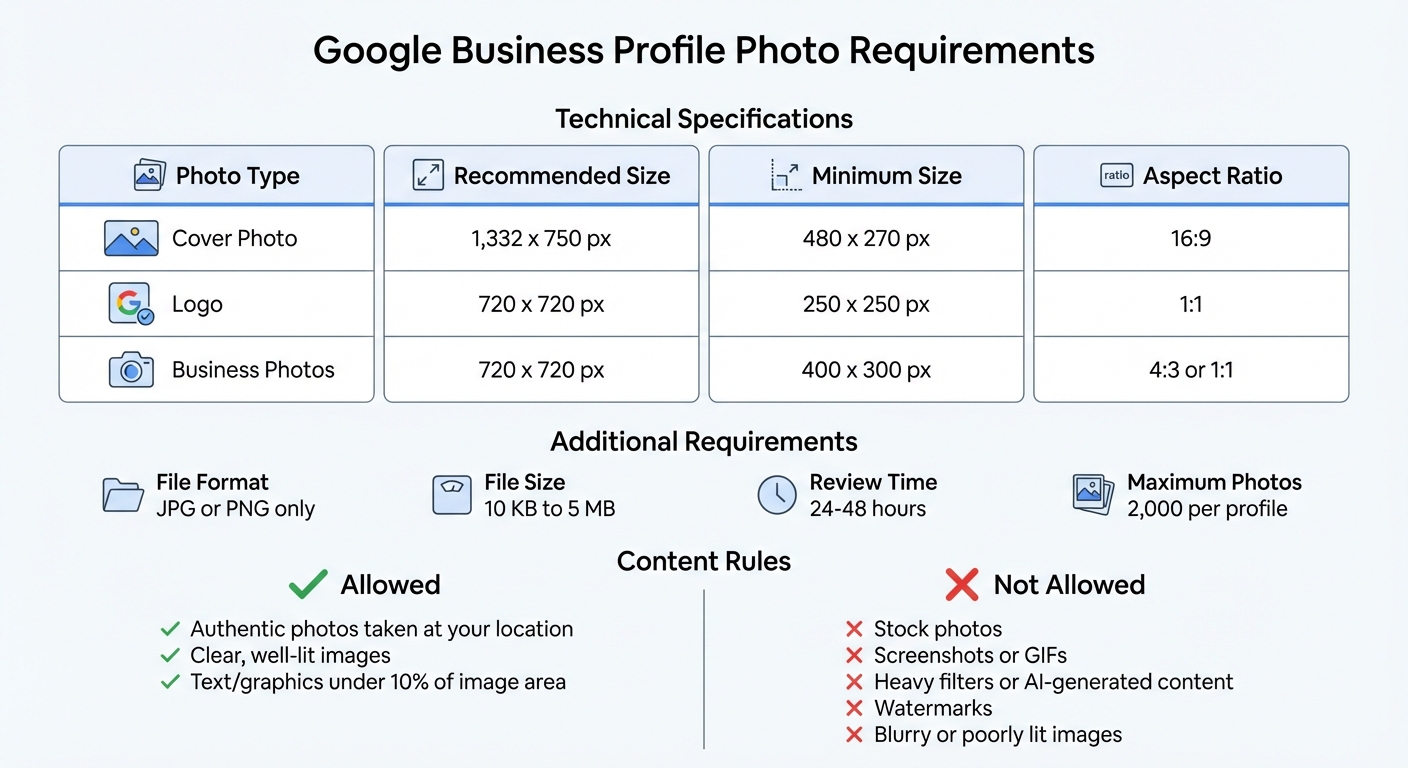
Google Business Profile Photo Requirements and Specifications Guide
Before uploading photos to your Google Business Profile, it's important to follow Google's technical and content rules. This ensures your images display properly and avoid being rejected during the review process.
Technical Specifications
Google has clear technical standards for photos uploaded to your profile. Images must be in JPG or PNG format, with a file size between 10 KB and 5 MB. For sharp results, aim for a resolution of 720 x 720 pixels, though the minimum is 250 x 250 pixels - anything lower risks looking pixelated.
For your cover photo - the main image displayed at the top of your profile - Google suggests dimensions of 1,332 x 750 pixels to ensure it looks good on all devices. For your logo, stick to 720 x 720 pixels with a square 1:1 ratio. Keep the subject centered, as cropping may occur depending on the display.
| Photo Type | Recommended Size | Minimum Size | Aspect Ratio |
|---|---|---|---|
| Cover Photo | 1,332 x 750 px | 480 x 270 px | 16:9 |
| Logo | 720 x 720 px | 250 x 250 px | 1:1 |
| Business Photos | 720 x 720 px | 400 x 300 px | 4:3 or 1:1 |
Content Guidelines
Google enforces strict content rules for photos. Your images must accurately represent reality, meaning no heavy editing, over-the-top filters, or AI-generated content. Screenshots, stock photos, GIFs, and blurry or poorly lit images are not allowed.
If you add text or graphics, they must stay within 10% of the image area and be directly related to your business. Watermarks are prohibited. Additionally, all photos should be taken at your actual business location - Google may remove images that seem to come from other sources or unauthorized third parties.
Photos will only go public after your Business Profile is verified. Once uploaded, images are reviewed within 24 to 48 hours. During this time, their status will show as "Pending", "Not Approved" (if they violate the rules), or "Live" (visible to customers). Up next, explore how to select and prepare photos that meet these criteria.
Choosing and Preparing Your Photos
To make your business profile stand out, focus on selecting images that truly represent your brand. Businesses with well-optimized photo galleries can see an incredible boost: 520% more calls and 2,717% more direction requests. Here's how to choose the right types of photos and prepare them for maximum impact.
Photo Categories to Include
Start with the essentials: your branding photos. This means a high-resolution logo in a 1:1 square ratio and a dynamic cover photo in a 16:9 ratio that captures the essence of your brand. Beyond these, aim to include at least three images in each of the following categories:
- Exterior Photos: Capture your building from various angles and times of day. Include clear shots of signage, the entry door, and suite numbers to help customers easily identify your location.
- Interior Photos: Highlight the ambiance and decor to give potential customers a feel for your space.
- Product and Service Photos: Showcase your popular items or services. For service-based businesses, action shots - like a hairstylist at work or a technician fixing an appliance - can demonstrate expertise.
-
Team Photos: Go beyond formal headshots. Candid, informal photos of your team help build trust and show personality. As one expert notes:
"The most successful businesses don't just post corporate headshots - they showcase their team's personality and passion".
- Common Areas and Amenities: Include images of waiting areas, parking spaces, or accessibility features to highlight convenience for customers.
Here’s a quick reference table to guide your photo selection:
| Photo Category | Minimum Recommended | Purpose |
|---|---|---|
| Exterior | 3 photos | Help customers recognize the building from various angles |
| Interior | 3 photos | Showcase ambiance and decor |
| Product | 3 photos | Highlight popular or representative goods/services |
| Team | 3 photos | Build trust by showing personality |
| At Work | 3 photos | Demonstrate services with action shots |
Once you’ve chosen your photos, follow these tips to ensure they look their best.
Photo Quality Best Practices
When it comes to photos, quality beats quantity every time. Here’s how to make sure your images stand out:
- Lighting Matters: Take photos during the "golden hour" (early morning or late afternoon) for natural, flattering light - especially for interiors.
- Keep It Sharp: Ensure every image is crisp and well-lit. Blurry or dim photos can be rejected, so use your smartphone's center focus feature to keep the subject clear, whether the image is square or rectangular.
- Test Clarity: Use tools like the Cloud Vision API to check if the subject is clear. If it’s not, adjust the angle or lighting.
- Optimize File Size: Compress large files with tools like TinyPNG to stay under the 5 MB limit without losing quality.
- Authenticity Over Perfection: Genuine smartphone photos often resonate more with customers than overly polished stock images, as long as they accurately represent your business.
Once your photos meet these quality standards, take the extra step to optimize them further with geotagging and descriptive file names.
Geotagging and File Naming
Even though Google removes EXIF metadata during uploads, geotagging your photos beforehand can still help verify your location and improve visibility in "near me" searches. Tools like Geoimgr or GeoTagSeo make it easy to add latitude and longitude coordinates to your images.
Equally important is renaming your files. Avoid generic names like "IMG_001.jpg." Instead, use descriptive, keyword-rich names like "boston-coffee-shop-interior.jpg" or "emergency-plumber-chicago.jpg". Search engines rely on file names to understand what an image represents, and this step can significantly improve your ranking in local search results. Considering that 87% of consumers use Google to find and evaluate local businesses, this small effort can make a big difference.
sbb-itb-0e6533f
How to Upload Photos to Your Google Business Profile
Accessing the Photos Section
Before diving in, make sure your Business Profile is verified. Without verification, your photos won’t be visible to the public. Once verified, you can access the photo upload interface in two ways.
On a desktop, open your browser and search for your business name along with the city on Google Search or Google Maps. Your business listing will appear with a management menu. Click on the Photos button to access the upload interface. This feature, called the "New Merchant Experience" (NMX), is conveniently integrated directly into your search results.
On a mobile device, open the Google Maps app or use Google Search. Look up your business name, then tap Photos to start uploading.
Now that you’re in the right place, here’s how to upload and organize your photos effectively.
Uploading and Categorizing Photos
Uploading photos is simple, whether you’re on a desktop or a mobile device. On desktop, click Add photos, then drag and drop your files or select them manually. On mobile, tap Add photos and pick images from your phone’s gallery. Be sure to avoid uploading duplicates, as this could trigger spam flags.
Your photos need to meet Google’s file requirements: they should be in JPG or PNG format, and the size and resolution must align with Google’s standards. You can upload up to 2,000 photos per profile, giving you plenty of space to showcase your business.
When uploading, you can designate images as your Logo or Cover photo using the appropriate buttons. For your cover photo, choose a 1024 x 576px image that looks good in both landscape and square formats, as Google may crop it depending on the device.
While Google no longer provides manual category tabs, its AI-powered Cloud Vision API automatically analyzes and categorizes your images based on their content. To make this process smoother, ensure your photos clearly represent their intended category. For example:
- Exterior shots should prominently showcase your building's facade.
- Interior photos should highlight your space’s layout and ambiance.
- Product images should clearly display what you sell.
Once you’ve uploaded your photos, here’s what happens next.
How Photos Appear on Google
After submission, Google reviews your photos within 24–48 hours. During this time, they’ll be marked as Pending. If a photo violates Google’s content policies, it will be labeled as Not approved. Approved photos will go Live, becoming visible to customers. For new businesses, this process may take up to 14 days.
When your photos go live, they’ll appear on both Google Search and Google Maps. High-quality, owner-uploaded images are given more prominence than customer-submitted ones. Businesses with photos tend to see more engagement, including increased requests for driving directions and clicks to their websites.
To maintain this momentum, consider uploading at least one new photo each week. Regular updates signal activity and keep your profile fresh, which can help attract more customers.
Maintaining and Updating Your Photo Library
How Often to Update Photos
Think of your photo library as a living, breathing part of your business. Adding at least one new photo each week sends a clear signal to Google that your business is active, which can boost your local search rankings. Ideally, aim for 2–5 fresh photos weekly. Here's why it matters: businesses with over 100 photos see 960% more search views and 520% more phone calls than those with fewer images.
Make it a habit to update your gallery monthly. Use this opportunity to showcase seasonal changes, introduce new staff, or highlight updated services. Photographer Kelly Heck puts it simply:
"Update your Google Business Profile with fresh images monthly to show that your business is active and engaged".
Every six months, take a step back and review your entire photo library. Remove any outdated or irrelevant images that no longer reflect your business accurately.
Getting Customer Photos
Customer photos can take your profile to the next level. They add an authentic touch that builds trust and encourages engagement. To collect these, train your team to ask customers for group shots during memorable moments.
Create photo-worthy spaces in your business, like well-lit areas with attractive backdrops. Simple in-store signage with messages like "We’d love to see your photos!" or "Share your experience on Google" can encourage customers to snap and share. You can also browse Instagram for posts tagged with your business name or relevant hashtags. If you spot high-quality images, reach out to the user and ask if they’d upload them to your Google Business Profile.
Keep an eye on the "By Customer" tab to track user-uploaded photos. If you notice any inappropriate or misleading images, use the "Report a problem" tool to request their removal.
Tracking Photo Performance
After updating your gallery and adding customer photos, it’s time to measure the impact. Google Business Profile Insights, found under the Performance tab, can help you analyze how your photos influence customer actions. While individual photo view counts are no longer available, you can still track broader metrics like website clicks, driving direction requests, and phone calls tied to your profile.
To stay competitive, compare your photo performance with local businesses using Insights. If your metrics lag behind, consider increasing your posting frequency to 2–5 photos per week. Regularly review both the "By Owner" and "By Customer" tabs to identify which types of images resonate most with your audience. Fine-tune your strategy to keep up with changing customer preferences and behaviors.
Conclusion
To make the most of your Google Business Profile, focus on three key areas: meeting technical standards, using authentic, high-quality images, and keeping your photo library fresh. Start by ensuring all your images meet Google's technical requirements. Include a variety of genuine photos showcasing your exterior, interior, products, and team to give potential customers a clear sense of your business.
Once you've nailed the technical and quality aspects, stick to a consistent update routine. Regularly adding new photos not only keeps your profile engaging but also signals activity to Google, which can improve local rankings. Businesses with over 100 images tend to receive significantly more calls and direction requests. In fact, profiles with photos see 42% more driving direction requests and a 35% increase in website click-throughs.
Aim to upload at least one new photo each week. Steer clear of stock images - Google prioritizes real, location-specific photos that help build trust with potential customers.
Don’t forget to monitor your photo library regularly. Review both owner and customer-uploaded images, removing outdated ones every six months. Flag any content that no longer aligns with your brand. By following these steps, you'll ensure your Google Business Profile stays relevant, visually appealing, and impactful.
For an extra edge, consider using tools like Local SEO Bot to automate photo management and keep your profile dynamic and optimized.
FAQs
What are Google's requirements for photos on a Business Profile?
To make sure your photos align with Google's guidelines for Business Profiles, keep these essentials in mind:
- File format: Stick to JPG or PNG files for compatibility.
- File size: Ensure the image size is between 10 KB and 5 MB.
- Resolution: Aim for at least 720 × 720 pixels, though higher resolutions work too.
- Quality: Use sharp, well-lit images without excessive filters or blurriness.
- Text and logos: If you include text or logos, make sure they cover no more than 10% of the image area.
Following these tips will help your photos display correctly and make your Google Business Profile more appealing.
Why should I update photos on my Google Business Profile regularly?
Keeping your Google Business Profile updated with fresh photos is a smart way to make your listing stand out. By showcasing your latest products, services, or even the vibe of your space, you create a more engaging and trustworthy presence for potential customers.
Fresh, high-quality images can also give your local SEO a boost. Businesses that regularly update their photos tend to perform better in Google Maps and search results. This can lead to more clicks, increased direction requests, and, ultimately, more people walking through your doors.
What kinds of photos should I upload to my Google Business Profile?
Photos are a game-changer when it comes to making your Google Business Profile stand out and grabbing the attention of potential customers. To make the most of your profile, focus on uploading these must-have types of images:
- Cover photo: Choose a sharp, visually appealing image that captures the essence of your business.
- Logo: Upload a clear, square version of your logo to ensure your brand is instantly recognizable.
- Exterior and interior shots: Include images of your building, signage, parking area, and key interior spaces to help customers feel familiar with your location before they visit.
- Team photos: Share warm, approachable images of your staff to add a personal and trustworthy touch.
- Product or service photos: Showcase your top-selling products, menu items, or key services to highlight what makes your business special.
Google also suggests adding industry-specific photos. For example, restaurants can feature their dishes, while retail stores might display their best setups or seasonal promotions. Regularly updating your photos and keeping them optimized can increase clicks, direction requests, and overall customer engagement. Feeling overwhelmed by the process? Local SEO Bot can take the hassle out of it by automating photo uploads and ensuring they align with Google’s guidelines.