Prove Local ROI With GBP UTM Tagging and Copy Ready Templates
Published August 28, 2026
Prove Local ROI With GBP UTM Tagging and Copy Ready Templates

Tag every clickable link in your Google Business Profile with a consistent UTM scheme, starting with utm_source=google&utm_medium=organic&utm_campaign=gbp, so GA4 stops lumping that traffic into “direct” or “organic.” Swap that string onto your website, booking, and menu links today. Then confirm it worked by watching GA4 DebugView for a page_view event carrying utm_campaign=gbp.
TL;DR:
- UTM tagging should be applied to your main website link and posts first, as they generate the most traffic and preserve parameters reliably.
- Ensure your UTM scheme follows a consistent, lowercase structure with hyphenated words to enable accurate filtering and comparison over time.
- Verify UTM links do not get stripped or altered during redirects by testing in incognito mode and monitoring GA4 DebugView before publishing.
- Without proper tagging, GBP traffic often appears as “direct” or “organic,” underreporting the actual influence of your profile on conversions.
- Using a shared UTM registry and automated tools like Localseobot can streamline tagged link creation, maintain consistency, and improve tracking accuracy across multiple locations.
Table of Contents
- What GBP UTM Tagging Actually Fixes
- Where to Add Tagged Links in Your Google Business Profile
- Building a Standard UTM Naming Convention for GBP
- Building and Validating Your Tagged URLs
- Reading GBP Traffic in GA4 and Search Console
- Keeping UTM Data Clean Across Multiple Locations
- Tracking Calls, WhatsApp, and Booking Clicks That Skip Your Website
- Fixing the Most Common GBP UTM Problems
- Ready-to-Use UTM Examples for Common GBP Fields
- Why Most Local Businesses Are Flying Blind on GBP Performance
- Let Localseobot Handle Your GBP Tagging and Reporting
- Sources
What GBP UTM Tagging Actually Fixes
Google Business Profile shows you clicks, calls, and direction requests inside its own Insights dashboard, but it doesn’t tell you what those visitors did once they landed on your site. That’s the gap UTM parameters close. A UTM tag is a short string appended to a URL (?utm_source=google&utm_medium=organic&utm_campaign=gbp) that tells GA4 exactly where a visit originated, letting you separate GBP clicks from unlabeled organic or direct traffic.
Without tagging, someone who clicks your GBP website link usually shows up in GA4 as “Direct” or “Organic Search,” indistinguishable from someone who typed your URL from memory or found you in a regular Google search result. That blending is a real problem. Community discussions among local marketers suggest adoption of UTM tracking on GBP listings remains low, which means a lot of businesses are underreporting exactly how much revenue their Google Business Profile generates.
UTMs don’t replace GBP Insights. They complement it. Insights tells you how many people saw your call button; UTM-tagged links tell you what those people did after they landed on your site, booked an appointment, or filled out a form. Together they give you:
- Source clarity: a clean split between GBP-driven sessions and everything else labeled “organic.”
- Campaign-level detail: separate tracking for your website link, your Posts, and your booking button.
- Conversion attribution: the ability to tie a GA4 goal or event back to a specific GBP field.
- Comparability: a foundation for benchmarking one location’s GBP performance against another.
Where to Add Tagged Links in Your Google Business Profile
Not every field in your profile behaves the same way once you drop a query string onto it. Some preserve the parameters cleanly; others route through a redirect and can strip them if you’re not careful. Here’s where tagging actually pays off, roughly in order of priority:
- Primary website link: your highest-traffic field and the first one to tag. This is the link most customers click when they want more than the phone number.
- Google Posts: each post supports its own call-to-action link, so you can track which post types (offers, events, updates) actually drive clicks.
- Booking and appointment links: critical for service businesses, but test these first since many route through third-party scheduling tools that sometimes drop query strings.
- Menu links: useful for restaurants, though some menu providers rewrite URLs on their end.
- Order links: for food delivery or e-commerce integrations, tag these to see how much revenue traces back to GBP specifically.
- Products tab links: lower priority but worth tagging if you’re running a retail catalog through GBP.
If you’re short on time, tag your website link and Posts first. Those two fields see the most volume and preserve UTM strings most reliably. Booking links deserve a second look because some scheduling integrations strip or alter query parameters during their own redirect chain, and you don’t want to discover that after a month of missing data.
Building a Standard UTM Naming Convention for GBP
Consistency is what separates a useful UTM system from a spreadsheet of one-off guesses nobody can filter later. The naming convention itself is simple, but skipping it is the single most common reason GBP UTM data becomes unusable within a few months.
Stick to a canonical parameter set: utm_source=google (some practitioners prefer google-business for extra clarity), utm_medium=organic or local, utm_campaign=gbp or a purpose-specific variant like gbp-booking, and utm_content to note the specific location, post, or call-to-action. A recommended baseline structure uses utm_source=google, utm_medium=organic, utm_campaign=gbp, with utm_content distinguishing branches or post types.
Formatting matters more than it seems like it should. Always use lowercase, since GA4 treats GBP and gbp as two different campaigns. Replace spaces with hyphens, never underscores or camelCase. Avoid special characters that might get URL-encoded and turn your clean report into a mess of %20 symbols.
- Pick one term for “medium” (organic or local) and use it everywhere. Don’t mix the two across locations.
- Keep location slugs identical across every campaign string for that branch, not just similar.
- Reserve
utm_termfor granular testing (different CTAs on the same post type), since most GBP setups don’t need it.
Building and Validating Your Tagged URLs
Getting the string right on paper is one thing. Making sure it survives contact with Google Business Profile’s own redirect logic is another. Follow this sequence every time you tag a new link:
- Generate the URL using Google’s Campaign URL Builder or a shared spreadsheet template so the formatting stays consistent across your team.
- Test the link in an incognito browser tab before touching GBP, checking that the page loads normally and the URL bar still shows your full UTM string.
- Check for redirects by watching whether the URL changes on load. A redirect chain can silently strip parameters, especially with booking or menu providers.
- Paste the validated link into the GBP edit dashboard, replacing the existing field exactly rather than appending to it.
- Confirm capture in GA4 DebugView, watching for a session where
utm_campaignmatches what you just set.
Pro Tip: Bookmark your Campaign URL Builder output before pasting it into GBP. If a redirect later strips the parameters, you’ll have the original string saved to rebuild it fast instead of reconstructing it from memory.
The most common mistake isn’t a typo. It’s forgetting that a URL already ending in a question mark (from an existing tracking pixel or affiliate tag) needs an ampersand, not a second question mark, to add UTM parameters correctly.
Reading GBP Traffic in GA4 and Search Console
Once your tagged links are live and clicks start coming in, GA4’s standard reports are where you confirm the setup is working and where you start pulling real insight out of it.
Open Traffic acquisition and filter by Session campaign containing “gbp.” This isolates every session that arrived through a tagged GBP link, regardless of which field it came from. From there, build an Exploration to break that traffic down by utm_content, which shows you whether your Posts, booking link, or main website field is doing the heavier lifting. Guides on GBP tracking commonly recommend filtering GA4 by campaign or source/medium and using Explorations to compare GBP sessions against other organic channels, which is the fastest way to see if GBP is outperforming your general organic listing.
DebugView is your validation layer, not your reporting layer. Use it immediately after publishing a new tagged link to confirm the parameters are landing correctly, then move to the standard reports for ongoing tracking.
To connect this traffic to actual business outcomes:
- Mark relevant events (form submissions, phone clicks, booking completions) as conversions in GA4’s Admin settings.
- Build a segment or Exploration filtered to
utm_campaign=gbpand layer in your conversion events to see completion rates specifically from GBP traffic. - Check Search Console separately for landing pages that include your GBP query strings. This confirms Google is indexing and crediting the tagged URL correctly rather than treating it as duplicate content.
If you’re already tracking broader visibility metrics, pairing this data with GBP Insights analysis gives you both sides of the funnel: what Google shows searchers, and what those searchers do next.
Keeping UTM Data Clean Across Multiple Locations
A single-location business can get away with a loose naming habit for a while. A ten-location brand cannot. Once you’re managing GBP listings for multiple branches, a single inconsistent slug (downtown on one profile, Downtown-Branch on another) fractures your reporting into pieces that can’t be compared or rolled up.

The fix is a central UTM registry, maintained as a shared spreadsheet or a lightweight internal tool, that every person editing a GBP listing checks before creating a new link. Standardizing UTMs across locations keeps the data filterable and comparable at scale instead of turning into a pile of one-off strings nobody can reconcile later.
Practical rules for that registry:
- Store the canonical location slug once, then reference it everywhere. If “Downtown Seattle” becomes
downtown-seattle, that string never changes, not even for a rebrand. - Decide upfront whether location lives in
utm_contentorutm_campaign. Most setups keep campaign focused on purpose (gbp-booking) and content focused on location, which keeps campaign-level reports clean while still allowing location-level filtering. - Version campaign names when a promotion changes (
gbp-post-spring26vs.gbp-post-summer26) so historical Posts data doesn’t blend into current performance. - Limit who can edit live GBP links to a small group, and require a second person to verify the tagged URL in DebugView before it goes live.
A shared generator, whether a Google Sheet with a formula or an internal tool built for the purpose, removes the guesswork that leads to inconsistent tagging in the first place.
Tracking Calls, WhatsApp, and Booking Clicks That Skip Your Website
UTM parameters only work as long as the visitor stays on a web page GA4 can measure. The moment someone taps “Call” or opens WhatsApp directly from your GBP listing, that session leaves the browser, and a standard UTM string has nothing left to attach to. This is where most GBP tracking setups quietly fail, and it’s also where the fix is genuinely underused among local marketers.
The pattern that works: capture the UTM parameters the instant a visitor lands on your page, store them in sessionStorage or a first-party cookie, then fire a GA4 event that carries those stored parameters whenever a non-website action happens. This lets you attribute phone clicks, WhatsApp messages, and appointment flows back to the exact GBP field that generated the visit, even though the conversion itself happens off-site.
- Capture on page load: a small script reads the URL’s UTM parameters as soon as the page renders and writes them to
sessionStorage. - Attach to interaction events: when a visitor clicks your phone number or WhatsApp button, fire a GA4 event (
phone_click,whatsapp_click,appointment_click) that includes the storedutm_source,utm_medium, andutm_campaignvalues as event parameters. - Add a lead identifier: include a
lead_idor timestamp parameter so you can reconcile this event against a CRM entry later if a call converts into an actual customer. - Layer in call tracking: for phone-heavy businesses, dynamic number insertion paired with a webhook to your CRM lets you match an inbound call to the exact session and UTM string that generated it.
Pro Tip: Name your GA4 events consistently across every location using the same three verbs, click, submit, call, so agency dashboards and multi-location reports don’t require constant relabeling.
Fixing the Most Common GBP UTM Problems
Most GBP UTM failures fall into a handful of predictable categories, and all of them show up the same way: traffic that should be tagged appears as “direct” or “organic” instead.
- Redirect chains strip parameters: booking providers and some menu platforms redirect through their own domain before landing on the final page, silently dropping your query string.
- Case sensitivity breaks filtering:
GBPandgbpregister as separate campaigns in GA4, fragmenting your reports even when the traffic is identical. - App launches lose the UTM: when a mobile user taps a link that opens a native app (Maps, a delivery app) instead of a browser, the UTM context often doesn’t carry through.
- Double question marks: adding
?utm_source=to a URL that already has a query string creates a broken URL instead of an additional parameter.
Diagnose by reproducing the click yourself, watching GA4 DebugView in real time, and checking whether the landing page URL still shows your full string. If it doesn’t, trace the redirect chain to find where it dropped. The fix is usually one of three things: insert a simple intermediate landing page that preserves parameters before redirecting, contact your booking provider about UTM passthrough, or rebuild the link with corrected casing and republish it in GBP.
Ready-to-Use UTM Examples for Common GBP Fields
Copy these directly and swap in your own domain and location slug. Each one follows the same canonical structure so your reports stay comparable from day one.
- Change
utm_campaignwhen the purpose of the link changes (booking vs. general website). - Change
utm_contentwhen the location or specific creative changes, not the underlying purpose. - Reserve
utm_termfor split-testing different CTA wording on otherwise identical links. - Test every string in an incognito tab before publishing it to GBP, every time.
Why Most Local Businesses Are Flying Blind on GBP Performance
Most local marketers treat Google Business Profile like a static listing rather than a live traffic source worth measuring the way they’d measure a paid campaign. That’s backwards. GBP often drives more qualified local intent than a generic organic listing, yet it gets none of the tagging discipline that same marketer would insist on for a Google Ads campaign.
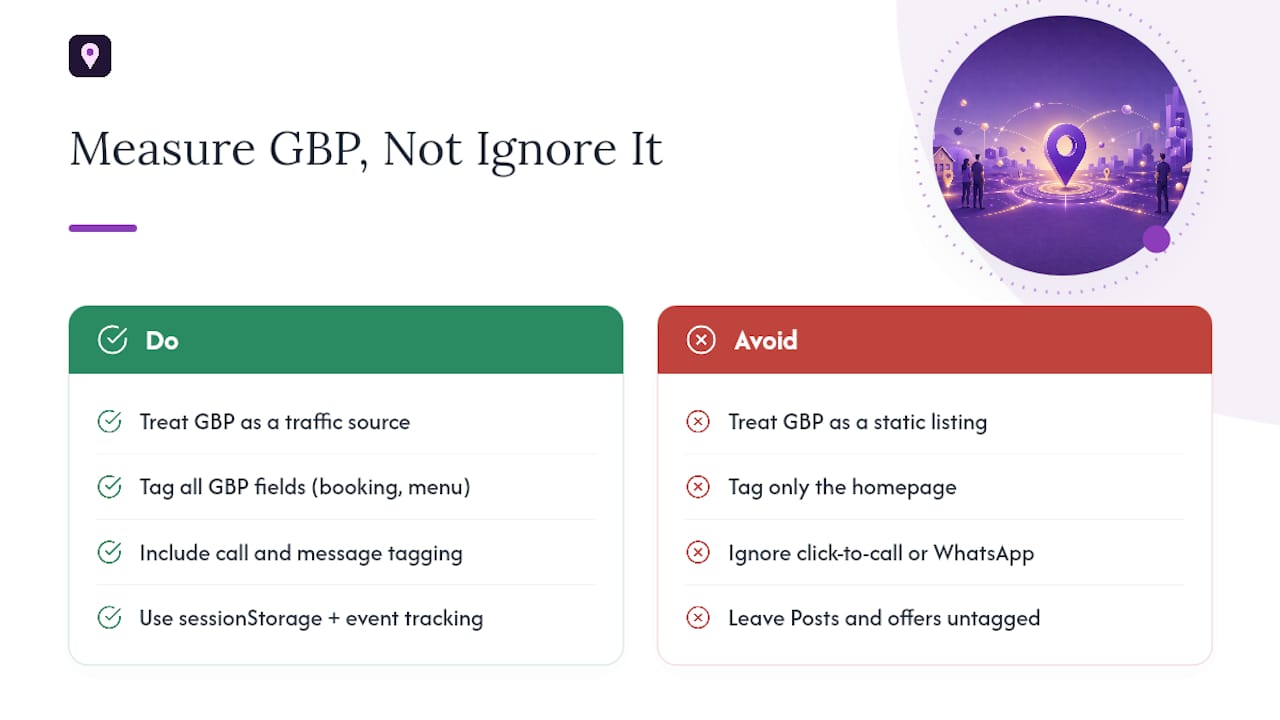
The overlooked piece isn’t the tagging itself. It’s the governance. Plenty of businesses tag their website link once, feel good about it, and never touch the booking link, the Posts, or the menu field. Then six months later nobody can explain why “direct traffic” spiked. A UTM scheme that only covers one field is barely better than no tagging at all, because it leaves your most persuasive content (Posts, offers, seasonal updates) completely unmeasured.
The other blind spot is treating UTMs as a website-only tool. Local businesses live and die by phone calls and messaging apps, and a tagging strategy that ignores click-to-call and WhatsApp is measuring maybe half the actual conversion activity your GBP profile generates. The sessionStorage-plus-event pattern isn’t optional complexity. It’s the difference between knowing GBP works and being able to prove exactly how much it’s worth.
— Local
Let Localseobot Handle Your GBP Tagging and Reporting
Building and maintaining a clean UTM registry across every GBP field, and multiple locations, eats hours most small business owners and agencies don’t have. Localseobot’s Google Business Profile Optimizer automates the GBP fields readers just learned to tag by hand, applying consistent naming across your website, booking, and post links so your GA4 reports stay filterable instead of fragmented.
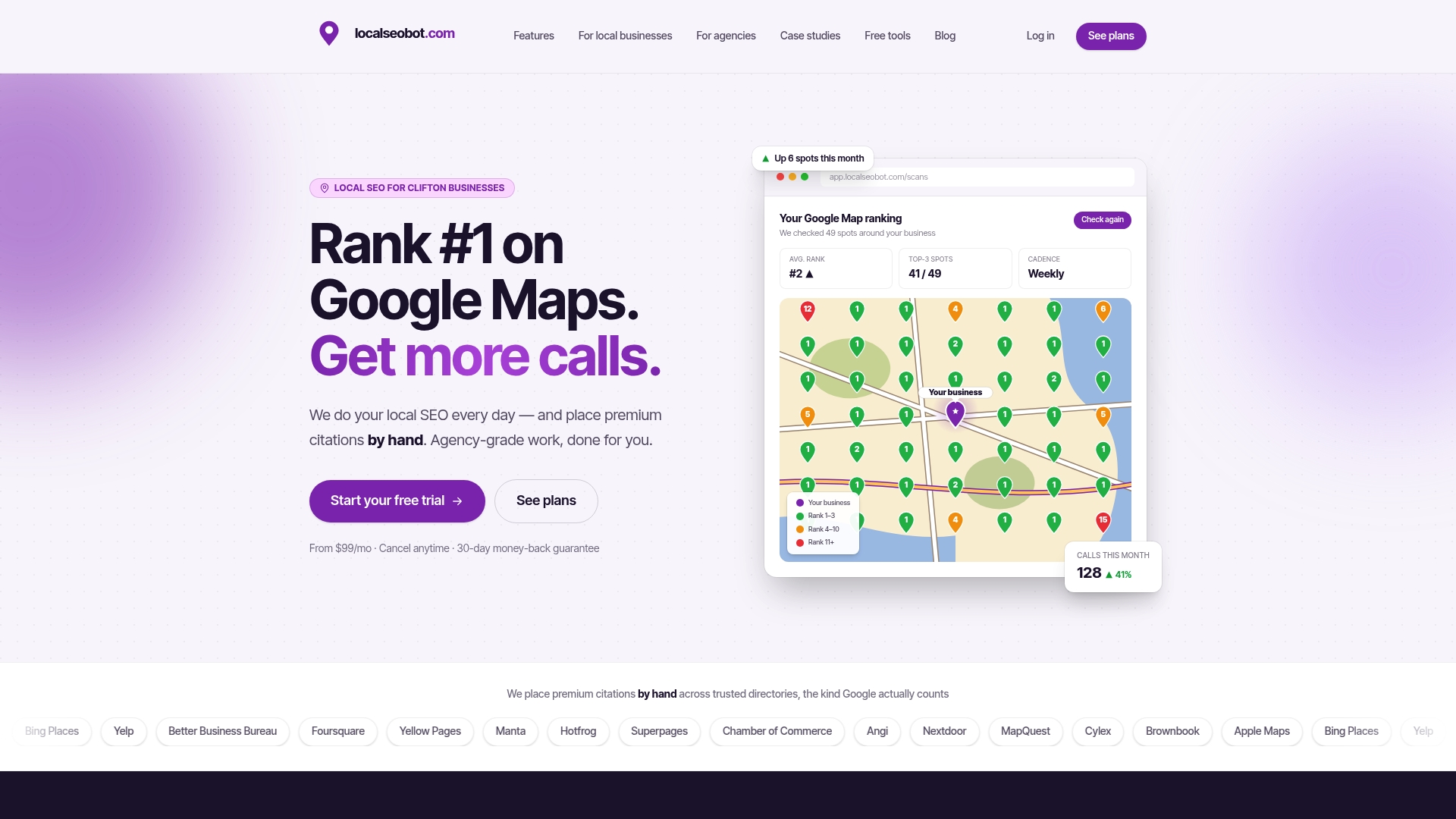
If you manage several locations, that consistency compounds. Localseobot’s local SEO platform pairs GBP optimization with rank tracking and monthly reporting, so the tagged traffic you’re now capturing gets tied directly to ranking movement and call volume, not scattered across disconnected spreadsheets. The platform backs its results with a 30-day money-back guarantee if your Maps rankings don’t improve.
Start with a single location as a pilot: learn more about how Localseobot works and see whether managed GBP optimization and tagging saves you the setup time this guide just walked through.
Sources
- UTMs for Google Business Profile: Track clicks smarter — Search Engine Land
- UTM Code Template for Tracking Google Business Profile Traffic - Whizz People
- Google My Business Tracking: UTM and GA4 Guide — Agencia Roco