Set the Right Google Business Categories to Rank Faster
Published August 23, 2026
Set the Right Google Business Categories to Rank Faster

Set one precise primary category that describes exactly what your business is, add 2 to 4 genuine secondary categories, and stop treating this field as a place to list everything you do. Google Business Profile allows one primary category plus up to nine secondary categories, but the businesses that actually rank well rarely use more than five total. The primary category is the single strongest relevance signal on your entire profile, stronger than most owners realize.
Here’s the practical rule to apply right now:
- Pick the most specific primary category available. “Italian restaurant” beats “restaurant” every time.
- Add 2 to 4 secondary categories that reflect services you genuinely offer, not ones you wish you offered.
- Change one category at a time, then watch your visibility for about a week before making another move.
That last point matters more than most guides admit. Category changes are testable. Treat them that way instead of guessing once and walking away.
Key Takeaways
The single most effective local SEO adjustment is choosing the most specific primary Google Business category available, paired with 2 to 4 genuinely relevant secondary categories.
| Point | Details |
|---|---|
| Know the limit | Profiles allow 1 primary and up to nine secondary categories, but 3 to 5 total works best for most businesses. |
| Primary category rules | Choose the most specific option that describes what your business is, not everything it does. |
| Secondaries need to be real | Only add secondary categories tied to services that generate actual, ongoing revenue. |
| Test one change at a time | Record baseline visibility, change a single category, then track results for about a week before iterating. |
| Use official sources for exact matches | Confirm category strings through the dashboard picker or the categories.list API rather than guessing. |
| Speed up audits with Localseobot | The Google Business Profile Optimizer flags category mismatches and pairs with visibility tracking to test changes safely. |
Table of Contents
- What Are Google Business Categories and How Does Google Use Them?
- How Many GBP Categories Should You Actually Use?
- How Do You Choose the Best Google Business Categories?
- Where Do You Find the Official Google Business Category List?
- How Do You Add or Edit Categories in Your Business Profile?
- Common Category Mistakes and a Quick Audit Checklist
- What the Official Rules and Real-World Testing Show
- Why Category Work Beats Bigger Investments Early On
- Skip the Guesswork With Automated Category and Visibility Checks
- Sources
What Are Google Business Categories and How Does Google Use Them?
Google Business categories come from a closed, Google maintained taxonomy. You cannot type in your own custom category, no matter how unique your business feels. If an exact match doesn’t exist, Google’s own guidance tells you to pick the closest relevant option rather than force-fitting something misleading.
Your primary category tells Google what your business fundamentally is, and it carries more ranking weight than any secondary category you add. Secondary categories widen your eligibility for related searches without carrying the same relevance weight. A bakery with “Bakery” as primary and “Coffee shop” as secondary shows up strongly for bakery searches while still catching some coffee shop queries. Flip the two and you dilute the exact signal that gets you found for the thing customers actually search first.
Categories also unlock or restrict features that appear directly on your profile. Consider what changes based on selection:
- Booking links appear for categories tied to appointment based industries, like salons or medical practices.
- Menu links activate for food service categories, letting you attach a digital menu directly to the profile.
- Service area badges display differently depending on whether your category is typically location based (a retail store) or mobile (a plumber).
- Attributes like “outdoor seating” or “online estimates” only surface as options when your category supports them.
Choose the wrong category and you’re not just losing search relevance. You’re locking yourself out of features that make your listing more clickable in the first place, a point Google’s own guidelines on representing your business reinforce directly.
How Many GBP Categories Should You Actually Use?
Google’s limit is fixed: one primary category and up to nine secondary categories. That’s ten total slots. Almost nobody should fill all of them.
Here’s the mismatch that trips up a lot of business owners: Google gives you room for ten categories, but the practical recommendation from experienced local SEO practitioners sits at 3 to 5 total. Filling every slot doesn’t multiply your visibility. It tends to blur it.
Why more categories can work against you: Google interprets your category list as a description of your business’s core identity. Load it up with ten loosely related categories and you’re telling Google your business is a little bit of everything, which usually means it doesn’t excel at any one thing. Search algorithms respond to focus. A profile with “Plumber” as primary and four tightly related secondaries (Drain cleaning service, Water heater installer, Hydro jetting service, Emergency plumber) reads as a coherent, credible plumbing business. Add “Contractor,” “Handyman,” “Home improvement store,” and “Hardware store” on top of that, and you’ve diluted a clear signal into a confusing one.
A practical prioritization approach:
- Rank every service you offer by revenue and search demand.
- Keep only the categories tied to your top 3 to 5 services.
- Drop any category that represents less than 5% of your actual business, even if it’s technically available.
- Revisit the list quarterly as your services shift.
Pro Tip: If you’re unsure whether a secondary category is pulling its weight, check your Google Business Profile insights for the specific search terms driving views. If a category isn’t showing up in any of your discovery queries after a few months, it’s probably just noise.
How Do You Choose the Best Google Business Categories?
Choosing categories well comes down to a repeatable four-step process, not a gut feeling about what sounds impressive.
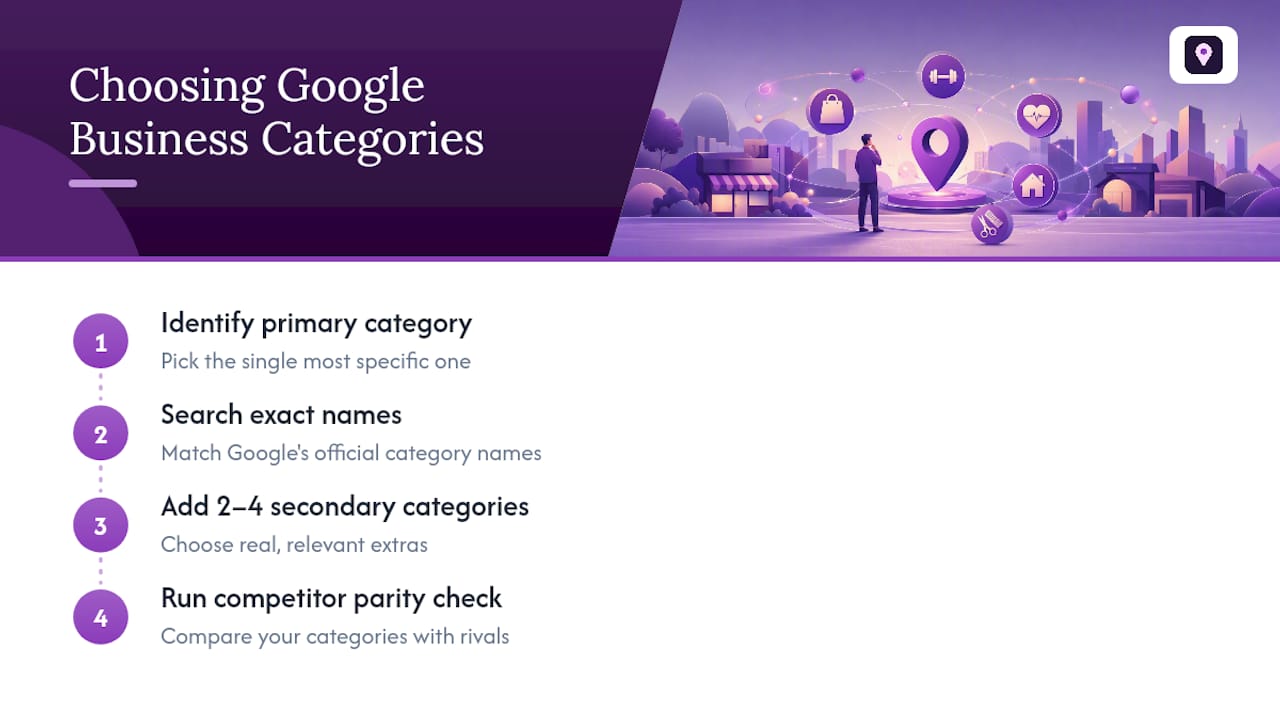
Step 1: Identify your single best primary category
Ask what your business is, not what it does. This distinction, drawn directly from Google’s own category guidance, trips up more business owners than any other part of this process. A yoga studio that also sells branded apparel is still, fundamentally, a “Yoga studio.” It is not a “Clothing store” that happens to teach yoga. Specificity wins here every time: “Nail salon” outperforms “Beauty salon” for a business that exclusively does nails, because it matches searcher intent more precisely and faces less competition in the process.
Step 2: Search exact display names, not approximations
Open the category picker in your Google Business Profile dashboard and type in exact service terms rather than broad industry labels. Typing “dentist” surfaces general options, but typing “pediatric” or “cosmetic” alongside it often reveals more specific matches like “Pediatric dentist” or “Cosmetic dentist” that better represent a specialized practice. The dashboard only shows you categories that exist in Google’s taxonomy, so anything you select is automatically a valid, recognized match.
Step 3: Add 2 to 4 real secondary categories
Every secondary category should represent a service that generates meaningful business, not a hopeful aspiration. A home cleaning company might reasonably add “Carpet cleaning service” and “Window cleaning service” as secondaries if those are genuine offerings. Adding “Pressure washing service” because you did it once for a neighbor is filler, and filler categories dilute your profile’s overall relevance without adding real discovery value.
Step 4: Run a competitor parity check
Search your primary keyword phrase in Google Maps and look at the businesses ranking in the top three results. Their category choices are visible on their profiles and function as a real world signal of what Google considers a strong match for that search. This isn’t about copying a competitor. It’s about confirming your instinct against what’s already succeeding in your specific market. Localseobot’s guide on comparing competitor Google Business Profiles walks through exactly how to pull this data efficiently.
Category examples by industry
Different industries lend themselves to different category structures, and seeing a few sides by side clarifies the pattern faster than abstract rules do.
A family owned Italian restaurant does best with “Italian restaurant” as primary, then “Pizza restaurant” and “Caterer” as secondaries if catering is a real revenue line. A pediatric practice should use “Pediatrician” as primary rather than the generic “Doctor,” with “Vaccination service” added only if that’s a distinct offering patients search for separately. An HVAC company benefits from “HVAC contractor” as primary and “Air conditioning repair service” plus “Furnace repair service” as secondaries, matching the two most common searches customers actually run. A boutique clothing retailer does better with “Women’s clothing store” than the vague “Clothing store,” adding “Shoe store” only if footwear is a substantial part of inventory rather than a small accessory rack. A solo accounting practice should choose “Accountant” or “Tax preparation service” based on which reflects the bulk of client work, then add “Bookkeeping service” only if it’s billed as its own line item.

The pattern across every example: primary matches the core identity precisely, and secondaries earn their place through actual revenue, not ambition.
Where Do You Find the Official Google Business Category List?
There’s no single downloadable master list Google publishes for public browsing, but there are three reliable ways to search the taxonomy depending on your technical comfort level.
The dashboard picker is the fastest option for most business owners. Inside your Google Business Profile, the category field only returns valid, existing categories as you type, which means you can’t accidentally select something that isn’t real. Type broad terms first, then narrow with modifiers like “emergency,” “mobile,” or “commercial” to surface more specific matches.
The Business Information API is the developer route, and it’s the more current of Google’s two documented endpoints. Sending a request to the categories endpoint with the right parameters returns structured data rather than a visual list. The older but still active categories.list method in the Google Business Profile APIs works similarly and supports the same core filtering logic.
| Parameter | What it controls | Typical use case |
|---|---|---|
| regionCode | Limits results to categories valid in a specific country | Confirming a category exists in your target market |
| languageCode | Returns display names in a specific language | Multilingual businesses managing profiles in several markets |
| pageSize | Controls how many results return per request | Bulk category audits across many locations |
| filter | Narrows results by displayName match | Verifying an exact category string before automating updates |
Third-party category finder tools compile the same taxonomy into a searchable format, which can be faster for a quick lookup. The catch: these lists go stale. Google updates and retires categories periodically, so before you rely on a third-party list for something important, check whether the tool notes a recent update date or, better, cross-reference it against the live dashboard picker.
One more distinction worth understanding if you’re managing categories programmatically: every category has both a categoryId and a displayName. The Business Profile API’s category resource confirms that the ID stays stable across languages while the display name can change by region. If you’re automating updates across multiple locations or languages, always reference the categoryId. If you’re a single business owner clicking through the dashboard, the displayName is all you’ll ever interact with.
How Do You Add or Edit Categories in Your Business Profile?
Changing your categories takes about two minutes inside the dashboard, but the sequence matters more than the mechanics.
- Sign in to your Google Business Profile and select the location you want to edit.
- Navigate to the Edit profile section, then find the Business category field, usually grouped near your business name and contact details.
- Review your current primary category. Confirm it still matches your core service before changing anything else, since a lot of drift happens gradually over years without anyone noticing.
- Update the primary category if needed, searching for the most specific term available rather than settling for the first reasonable match.
- Add or remove secondary categories one at a time, checking each against the “is this a real, revenue generating service” test from earlier.
- Save the changes and note the date. You’ll need this reference point for measuring impact.
Google occasionally flags a profile for re-verification after a significant category change, particularly if the new category shifts the business into a different regulated or sensitive industry (medical, financial, legal services). This isn’t punitive. It’s Google confirming the business legitimately operates in that space before granting the added trust signals some categories carry.
Pro Tip: Screenshot your category setup before making changes. If a new combination underperforms, you want to revert to the exact prior configuration, not a rough guess at what it used to be.
Service area businesses (plumbers, cleaners, mobile mechanics) should pay particular attention to how categories interact with their service area radius settings, since some categories carry different default expectations for physical visibility versus service range. Public-facing storefronts don’t face this complication, since the address itself anchors the location clearly regardless of category.
Once changes are live, give it 7 to 14 days before drawing conclusions. Track rank position, profile views, and call clicks daily if you can, weekly at minimum. If visibility climbs, you’ve found a stronger match. If it drops and stays down past a reasonable test window, revert to the prior setup and reconsider your options.
Common Category Mistakes and a Quick Audit Checklist
Three mistakes account for most of the category problems Localseobot sees across client audits.
Overly broad primary categories top the list. “Store” instead of “Hardware store,” or “Restaurant” instead of “Sushi restaurant,” might feel safer because it seems to cast a wider net. It does the opposite: broad categories put you in direct competition with every other broad-category business in your area, most of which have been established longer or invested more in citations and reviews.
Irrelevant secondary categories come in second. Business owners sometimes add categories based on what they’d like to expand into someday rather than what they currently do. Google doesn’t reward ambition here. It rewards accuracy.
Departmental category misuse shows up mostly with larger or multi-service businesses. A single physical location shouldn’t claim categories for services handled by an entirely separate department or that require a distinct physical setup you don’t actually have on-site.
Run this ten-minute audit on your own profile right now:
- Does your primary category describe what your business fundamentally is, in the most specific terms available?
- Does every secondary category represent a service generating real, ongoing revenue?
- Are any category-linked features (booking, menu, service area) missing that should be showing based on your current categories?
- Do the top three competitors in your Map Pack use similar primary categories to yours?
- Has your category list been reviewed in the last 90 days?
If you change a category and rankings drop rather than improve, don’t panic and start swapping variables randomly. Revert to your prior category configuration first, confirm visibility returns to baseline over the following week, and only then test a different single change. If a legitimate category change triggers a re-verification request that seems stuck or incorrect, that’s the point to escalate directly to Google Business Profile support rather than continuing to guess.
What the Official Rules and Real-World Testing Show
Google’s own documentation is unambiguous about the mechanics, even if it stays quiet on strategy. The support article on managing business categories confirms the one primary, nine secondary limit, and the categories.list API method confirms that the underlying taxonomy is queryable, filterable, and paginated, which tells you Google treats this as structured data, not a loose suggestion field.
Practitioners who test category changes methodically tend to see faster shifts in local ranking from a single, well-chosen primary category swap than from almost any other single change to a profile. The effect isn’t universal or instant, but the pattern holds often enough that a controlled test, baseline visibility recorded first, one change made, results tracked daily, is worth running before touching anything else on a struggling listing.
A few practical notes worth carrying into your own testing:
- Record baseline visibility (rank position, profile views, call clicks) for at least a week before changing anything.
- Change one category at a time. Changing your primary and three secondaries simultaneously makes it impossible to know which change caused which result.
- Give each test enough time to show a real pattern rather than daily noise, generally a week or more.
Tools like the Google Business Profile Optimizer exist specifically to shorten this feedback loop, flagging category mismatches and inconsistencies across a profile without requiring a manual line by line review every time.
Why Category Work Beats Bigger Investments Early On
Most local SEO advice pushes business owners toward the expensive stuff first: link building campaigns, content calendars, review generation systems. Category optimization gets treated as a formality, something you set once during onboarding and never touch again. That’s backward.
A category audit takes ten minutes and often produces a visibility shift within days, not the months typical of content or backlink strategies. Fold a quick category check into whatever monthly local SEO review you’re already running, right alongside citation checks and review monitoring. It costs almost nothing and the downside risk is minimal if you test changes properly.
What should you actually expect? Not a miracle. A well-chosen primary category swap tends to move the needle for searches that were already borderline, businesses sitting just outside the map pack rather than nowhere at all. Measure it through profile views and call clicks over two weeks, not gut feeling.
— Local
Skip the Guesswork With Automated Category and Visibility Checks
Manually cross-referencing your categories against competitors, tracking rank changes across a testing window, and staying current on Google’s taxonomy updates adds up to hours most small business owners don’t have between running the actual business and managing its search presence. Localseobot’s Google Business Profile Optimizer flags category mismatches automatically and surfaces which secondary categories are actually contributing to discovery versus sitting dormant.
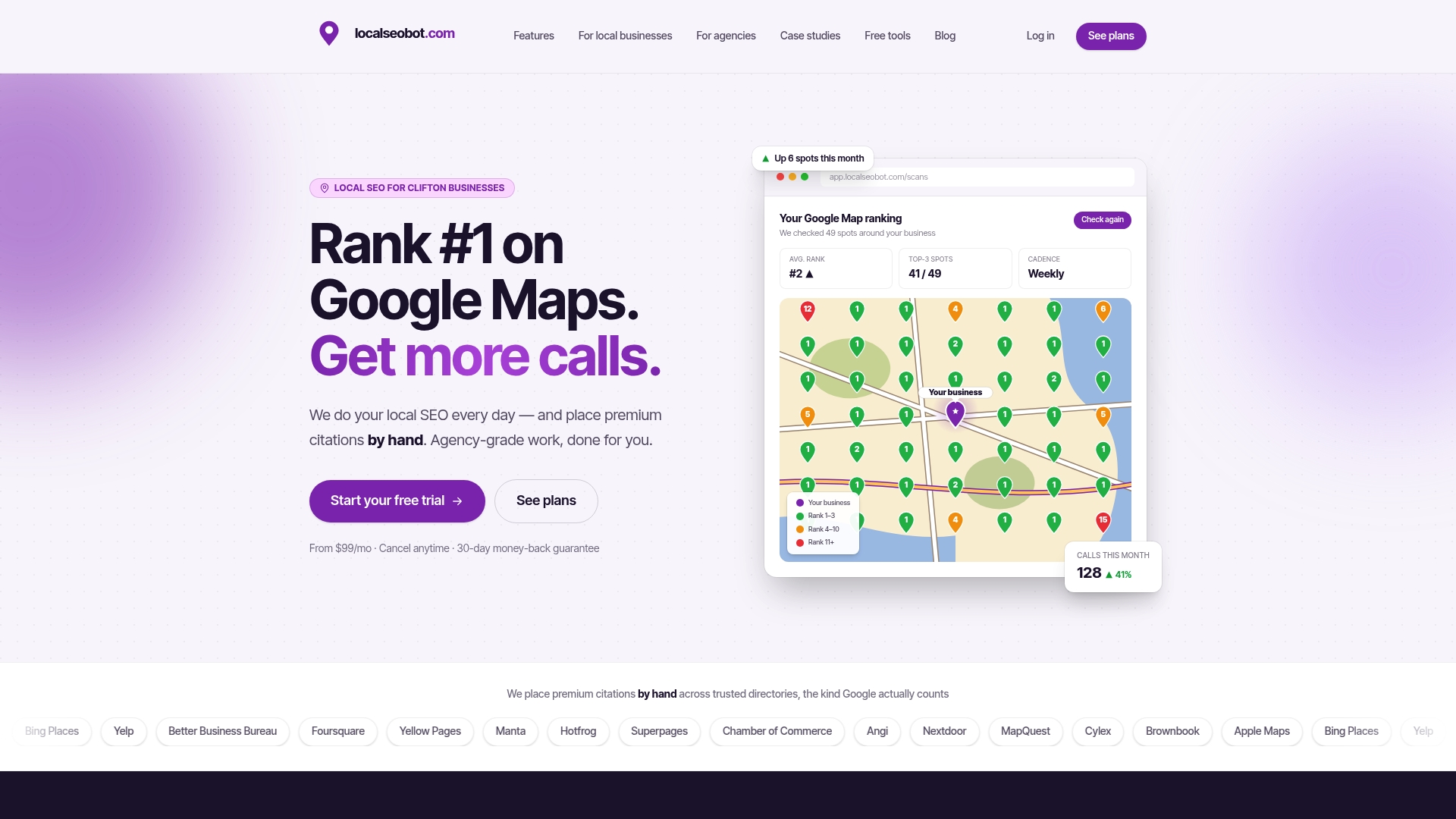
Pairing that with the Google Maps Visibility Estimator gives you the before and after numbers a proper category test requires, without building a manual tracking spreadsheet yourself. And because Localseobot builds citations manually across high authority directories rather than automating placements the way most tools do, the profile foundation underneath your category choices stays consistent across every directory that references your business. Start with a free profile check at Localseobot to see exactly where your current category setup stands before you make a single change.
Sources
Three sources cover nearly everything you’ll need to verify a category decision or automate one.
Start with Google’s support article on managing your business category for the authoritative word on limits, selection guidance, and the core “choose the most specific match” principle. For developers building automated category checks or bulk updates, the categories.list method documentation explains the request parameters, including regionCode and languageCode filtering, along with pagination behavior for large result sets.
If you’re working directly with category IDs rather than display names, the categories REST resource reference documents the structure of each category object, including the stable categoryId field that automation workflows should rely on instead of the language-dependent displayName.
Third-party category list tools can speed up a manual search, but treat the official sources above as the final word whenever a discrepancy shows up. Google’s taxonomy changes periodically, and a list that was accurate six months ago may already be missing newer, more specific category options that better match your business today.
- Manage your business category - Google Business Profile Help
- Method: categories.list | Google Business Profile APIs