Service Businesses: Add Google Business Profile Services for Free, Safely
Published October 1, 2026
Service Businesses: Add Google Business Profile Services for Free, Safely

Eligible businesses can add services to their Google Business Profile for free, and doing so lets services and pricing show up directly on Search and Maps. That visibility helps customers compare what you offer before they ever call or click through to your website, often shortening the path from search to sale.
TL;DR:
- Listing core services with accurate prices and descriptions improves relevance for specific searches more than adding multiple categories or vague offerings.
- Few, well-chosen categories that match customer search intent outperform broad or excessive categorization, especially when paired with specific service entries.
- Managing profile updates via API can replace entire service lists at once, so owners should be aware of how structured and free-form options work.
- Profiles must meet eligibility rules, including verified contact information and real-world presence, to avoid suspension and maintain visibility.
- Ongoing profile maintenance, including removing outdated services and refining descriptions, significantly impacts local search performance over time.
Table of Contents
- How the services editor works
- Steps to add services from Search, Maps, or Profile Manager
- Adding service details: descriptions, price, and grouping
- Organizing services into categories that make sense
- Eligibility rules and ownership guidelines to know
- Rules for agencies and third-party managers
- Performance metrics for verified profiles
- Quick troubleshooting and where to get help
- When managed help makes sense
- What actually moves the needle here
- Matching a plan to your profile needs
- Where this information comes from
- Sources
- FAQ
How the services editor works
The services editor lets you list what your business offers in two formats. Google gives category-matched suggestions for many business types, but you are not limited to those.
- Structured service items come from Google’s own list for your category, with set names you select rather than write.
- Free-form service items are custom entries you write yourself, useful when your offering does not match a suggested option.
- Some profiles show a field called
canModifyServiceList, which flags whether you have permission to edit services directly. - Businesses managing profiles through the developer docs for services should note that updates often replace the entire service list rather than editing one item at a time.
Most owners will never touch the API, but knowing that structured and free-form options exist helps explain why some categories show more pre-built choices than others.
Steps to add services from Search, Maps, or Profile Manager
Adding a service takes a few minutes once you find the right menu.
- Search your business name on Google or open it in Maps, then look for the Edit profile or Services option.
- Select Services, then choose a category-suggested item or tap Add custom service to write your own.
- Save the entry, then group related services under clear headings so customers can scan them quickly.
- Preview how the list appears on both Search and Maps before confirming the changes.
- If the services editor is not visible, confirm your profile is verified and that your business category actually supports services. Some categories do not.
Changes typically appear within minutes, though occasional delays happen during high traffic periods.
Adding service details: descriptions, price, and grouping
Each service entry can carry a short description and, where supported, a price or price range. Keep descriptions specific enough that a customer understands what they are paying for without reading your whole website.
- Write descriptions in plain language, naming the service and what it includes.
- List prices as flat rates, ranges, or “starting at” figures, matching what you actually charge.
- Group related services under one heading, such as “Repairs” or “Installation,” so the list does not read as a jumble.
- Remove or hide outdated services promptly so customers never see offerings you no longer provide.
Google’s policies prohibit misleading claims or fake pricing, and profiles that misrepresent services risk removal.
Pro Tip: List your three most-searched services first. Most customers scan only the top of the list before deciding to click or call.
Organizing services into categories that make sense
Grouping services under clear categories helps customers find what they need faster, and it keeps your profile from looking cluttered as you add more listings.
- Choose Google-suggested categories first, since they tend to match what customers search for.
- Create a custom category only when no suggested option fits your offering.
- Use the fewest categories that accurately describe your business, since over-categorizing can confuse both customers and Google’s own matching.
- Run separate profiles for genuinely separate businesses or locations rather than cramming unrelated services into one listing.
Specificity matters more than volume. A plumber who lists “drain cleaning” and “water heater installation” separately will likely show up for more relevant searches than one who lists a single vague “plumbing services” entry.
Eligibility rules and ownership guidelines to know
Not every business qualifies for a full-featured profile, and the rules matter more than most owners expect. Google requires in-person contact with customers during stated hours, either at a physical location or by visiting customers directly. Online-only businesses and lead-generation agents do not qualify under this standard.
- Verification is required before you can access performance insights or reply to customer reviews.
- Your business name, address, and category must match your real-world operation exactly.
- Each business should have one profile only, never duplicates for the same location.
- Violating these rules can lead to suspension, which cuts off your visibility on Search and Maps entirely until resolved.
Profiles that are free to create and manage can be set up directly through Google’s Business Profile portal, with no cost for standard features. Most suspensions trace back to mismatched business information or duplicate listings rather than anything complicated.
Rules for agencies and third-party managers
If you hire an agency or consultant to manage your profile, Google’s third-party policies set clear expectations for how that relationship has to work.
- Managers must get your express consent before claiming or managing your profile on your behalf.
- Management fees must be disclosed in writing, and a “working with a third party” notice should be clear to you as the client.
- You must be able to disassociate a manager from your profile within 7 business days of requesting it.
- Managers should never conceal actions taken on your profile or claim it preemptively without your knowledge.
Pro Tip: Ask any manager for written confirmation of fees and access terms before handing over profile control. It protects you if the relationship ends.
Performance metrics for verified profiles
Once your profile is verified, Google gives you access to performance insights that show how customers interact with your listing.
- Views and searches show how often people find your profile and through what terms.
- Actions include calls, direction requests, and website clicks generated from your listing.
- Bookings and product or menu views show interest in specific services you have listed.
- These numbers combine organic search and ad interactions, so they are not a direct measure of ranking position.
Use the data practically: a service with high views but few bookings may need a clearer description or a visible price. Reports can be downloaded and compared across locations, which helps multi-location businesses spot which profiles need attention first.
Quick troubleshooting and where to get help
When something is not working, run through a short checklist before escalating.
- Confirm your profile is verified and that you have admin or manager access.
- Check whether
canModifyServiceListis enabled for your account; if not, you may lack edit permissions. - Verify your business category actually supports a services list, since not all do.
- Use Google’s ownership request process if you have lost access or spot incorrect content on a profile you do not control.
- For API-driven workflows, review the developer documentation before escalating to Google support or bringing in a professional manager.
When managed help makes sense
Some owners handle their own profile without issue. Others, especially those juggling multiple locations or limited time, benefit from a managed approach. Some managed local SEO services build citations across directories to strengthen how a business ranks on Google Maps over time.
- Users of citation-building services have reported improvements in Google Maps positioning and increased customer calls.
- Some services offer a money-back guarantee if a business does not see a ranking increase.
- A managed plan tends to make more sense once you are juggling several locations, frequent service updates, or review management on top of everyday operations.
- DIY management works fine for a single location with a straightforward service list and the time to keep it current.
Onboarding typically starts with an audit of your current profile and citation footprint before any changes go live.
What actually moves the needle here
Most advice on this topic treats the services editor like a checkbox: fill it in once and move on. That undersells it. A profile with accurate, well-priced services listed competes for more specific searches than a bare-bones listing with just a name and category, and it keeps doing so without further effort once it is set up correctly.

Where conventional advice falls short is on categories. Owners tend to pile on extra categories hoping for broader reach, when the opposite usually helps more: fewer, more specific categories and service entries that match what people actually search for. Google’s own guidelines on representing your business back this up, favoring accuracy over volume.
If you take one thing from this, prioritize getting your core services listed with real prices before worrying about anything else, including reviews or posts. Everything downstream, from click-through to calls, depends on customers understanding what you offer in the first few seconds of looking at your profile.
— Local
Matching a plan to your profile needs
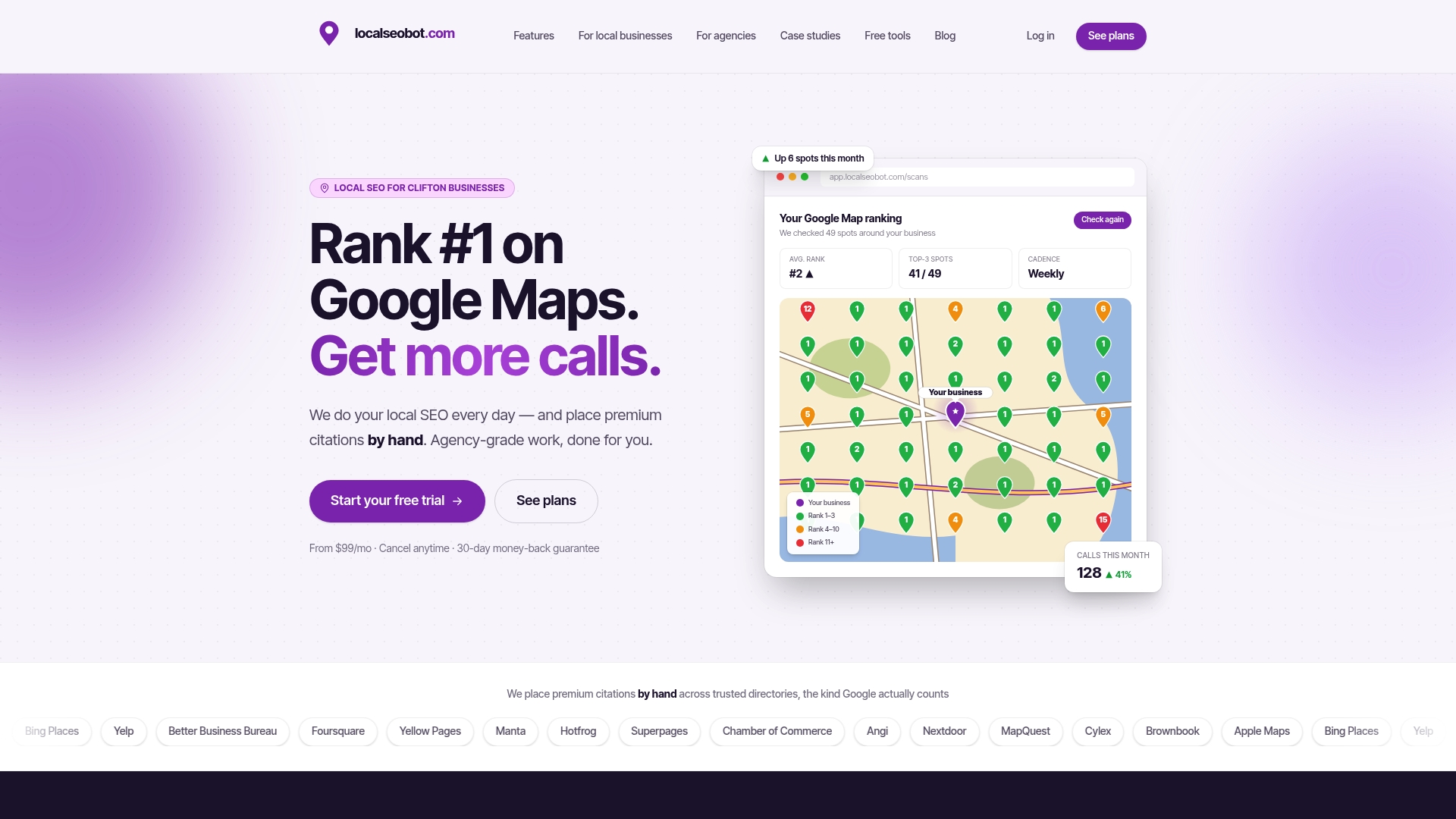
Setting up services correctly is free, but keeping a profile accurate, well-categorized, and competitive across citations takes ongoing attention many owners do not have time for. Local SEO Bot’s Foundation and Growth plans cover profile optimization, citation building, and review management for single or growing locations, while the Pro plan adds white-label features for agencies managing multiple client profiles.
- Entry-level plans may include citation building, profile optimization, and review management for individual businesses.
- Advanced plans may extend features with agency dashboards and white-label reporting for resellers.
- Geo-grid rank trackers can show how Maps positions shift across a service area over time.
Some plans offer money-back guarantees if rankings do not improve, and clients generally retain rights to disassociate from management within required timeframes. If you want a lower-friction starting point, the Local SEO Checklist Tool audits your current profile for free before you commit to anything.
Where this information comes from
- Google Business Profile
- Eligibility and ownership guidelines
- Developer docs for services
- Third-party management policies
- For posting workflows, see this Google Business Profile posting guide.
Sources
- Get Listed on Google - Google Business Profile
- Business eligibility and ownership guidelines - Google Business Profile Help
- Google Business Profile developer docs — Services
- Business Profile third-party policies - Google Business Profile Help
FAQ
How do I speak to a Google representative?
Google offers support through the Business Profile help center, where you can request a callback or chat for verification and policy issues. Access depends on your account status and region, so check your profile’s support options directly rather than searching for a general phone line.
How much does a Google Business Profile cost?
Creating and managing a Google Business Profile is free for eligible businesses. If you choose a managed service instead, plans like Local SEO Bot’s Foundation start at $99 per month per location, with Growth at $199 and Pro at $399.
How do I list services on my Google Business Profile?
Open your profile through Search or Maps, select the services section, and choose a suggested item or add a custom one with a description and price. Save your changes and preview how the list appears before confirming it is complete.
Do you need an LLC to have a Google Business Profile?
No, a Google Business Profile does not require any particular business structure. It does require that you meet eligibility rules, including in-person contact with customers during stated hours.