How to Create and Share a Google Review Link
Published August 10, 2026
How to Create and Share a Google Review Link
You can get a working Google review link and a matching QR code in under five minutes. The fastest route: log into Google Business Profile Manager, select your location, and copy the short link from the “Ask for reviews” panel. If you need the direct URL format, build it as https://search.google.com/local/writereview?placeid=YOUR_PLACE_ID using your Place ID from Google’s Place ID Finder. Then:
- Copy the link from your Business Profile dashboard or build it with your Place ID.
- Generate a QR code using Google’s desktop QR generator (desktop browser only) or any HTTPS-based QR tool after shortening the link.
- Test on a phone not signed into your management account to confirm the review form opens correctly.
- Shorten or brand the link for SMS and email; use the QR code for receipts, signage, and in-person asks.
- Never offer incentives in exchange for reviews. Google’s policy prohibits it, and violations can result in review removal or profile restrictions.
The sections below cover each step in detail, from the official Google method to Place ID fallbacks, QR print specs, message templates, and when automation pays off.
Key Takeaways
A working Google review link, tested on a phone and shared through the right channels, is the single fastest way to build consistent review volume for your business.
| Point | Details |
|---|---|
| Use Google Business Profile first | Copy the short link from the “Ask for reviews” panel at business.google.com for the fastest setup. |
| Place ID as a stable fallback | Build https://search.google.com/local/writereview?placeid=YOUR_PLACE_ID for multi-location or agency use. |
| Brand links, test QR codes | Use a vanity redirect for SMS trust; scan QR codes on cellular with two phone models before printing. |
| No incentives, ever | Google prohibits rewarding reviews; violations risk removal of reviews or Business Profile restrictions. |
| Automate with Localseobot | Use Localseobot’s review management tool for per-location links, scheduled outreach, and AI reply drafts at scale. |
Table of Contents
- How to get your Google review link from Business Profile
- How to build a direct review URL using your Google Place ID
- What free review-link generators do (and a security checklist)
- How to size and place a print-ready QR code
- Where to share the review link and ready-to-use message templates
- How to test your review link and fix common problems
- Google review policy: what you must not do
- When does it make sense to automate review requests?
- The most effective path forward for small businesses
- Localseobot makes review automation straightforward
- Sources
How to get your Google review link from Business Profile
The official method is the right starting point for most small businesses. It takes fewer than three minutes and produces a link Google itself supports.
- Go to business.google.com and sign in with the Google account that manages your profile.
- Select the location you want to collect reviews for (if you manage more than one).
- On the Home dashboard, find the “Get more reviews” or “Ask for reviews” card and click it.
- A pop-up appears with your short review link. Click “Copy link” to grab it.
- To download a QR code, click “Download QR code” from the same pop-up. This option is only available in a desktop browser, as Google’s QR generator does not work on mobile.
- Save the QR code as a PNG file for digital use or as an SVG if you plan to print it at large sizes.
Pro Tip: Copy the link directly from the “Ask for reviews” pop-up, not from your browser’s address bar while viewing your listing. The listing URL and the review link are different. Sending customers the listing URL makes them hunt for the “Write a review” button, which cuts your conversion rate.
A verified Google Business Profile is required to access this flow. If your profile is unverified, the “Ask for reviews” card may not appear. Verification also unlocks reply tools and analytics, both of which matter once reviews start coming in.
How to build a direct review URL using your Google Place ID
The Place ID method is the most stable long-term option, especially for agencies or businesses that manage multiple locations programmatically. Place IDs rarely change, while short g.page links can be updated by Google without notice.
The direct review URL format is:
https://search.google.com/local/writereview?placeid=YOUR_PLACE_ID
This writereview URL drops customers directly into the review composer. They do not need to search for your business or scroll to find the “Write a review” button.
How to find your Place ID:
- Go to Google’s Place ID Finder at developers.google.com/places/place-id.
- Type your business name and select it from the autocomplete results.
- Your Place ID appears below the map. It typically starts with “ChIJ.”
- Copy the full ID, paste it into the writereview URL above, and replace
YOUR_PLACE_IDwith it. - Paste the completed URL into a browser and open it on your phone to confirm the review form loads with the correct business name and address.
Multi-location warning: Each location has a unique Place ID. If you manage five locations, you need five separate links. Sending the wrong link to a customer means their review lands on the wrong listing, which is difficult to fix after the fact. A scalable approach for agencies is to store each Place ID alongside its location record and generate links programmatically.
What free review-link generators do (and a security checklist)
Free online generators find your Place ID, build the writereview URL, and often produce a short link and downloadable QR code in a single step. They are a reasonable shortcut when you need a link quickly and do not want to use the developer tools.
Before you use one, run through this checklist:
- Use HTTPS-only tools. Any generator that serves over plain HTTP should be skipped.
- Never grant account access. A legitimate generator needs only your business name or Place ID, not your Google login credentials.
- Test every link before sending. Open the generated URL on a phone to confirm it reaches the correct review form.
- Check the short link destination. Some generators use generic shorteners that look suspicious in SMS. Customers are less likely to tap an unfamiliar shortened URL.
For SMS and email, branded short domains reduce click hesitation compared with generic shorteners. A redirect like yoursite.com/review is more trustworthy and lets you update the destination later without reprinting QR codes. Bitly’s branded link feature or a simple 301 redirect on your own domain both work well. Using separate short links per channel (one for SMS, one for email, one for receipts) also lets you measure which channel drives the most clicks.
How to size and place a print-ready QR code
A QR code that is too small to scan, or placed where customers never look, collects nothing. These specs keep it functional:
- Minimum 1 inch for receipt footers.
- 1.5–2 inches for counter cards and table tents.
- Larger for posters or window clings where customers scan from a distance.
- PNG format for digital assets; SVG format for any print job where the code will be scaled up.
Use a short or vanity URL as the QR destination. If Google ever changes your review link, you update the redirect once and every printed QR code still works.
Placement ideas that actually get scanned:
- Receipt footers with a one-line instruction: “Scan to leave us a Google review.”
- Counter cards at checkout or the front desk.
- Staff business cards left with customers after a service call.
- Invoice footers for service businesses.
- Packaging inserts for product sellers.
- Technician clipboards for field service businesses.
Before printing a large batch, scan the QR code with at least two different phone models on cellular data (not your store Wi-Fi) and confirm the review form opens with the correct business name. High contrast between the code and background is required; avoid placing brand graphics over the QR pattern itself, as overlapping elements reduce scan reliability.
Where to share the review link and ready-to-use message templates
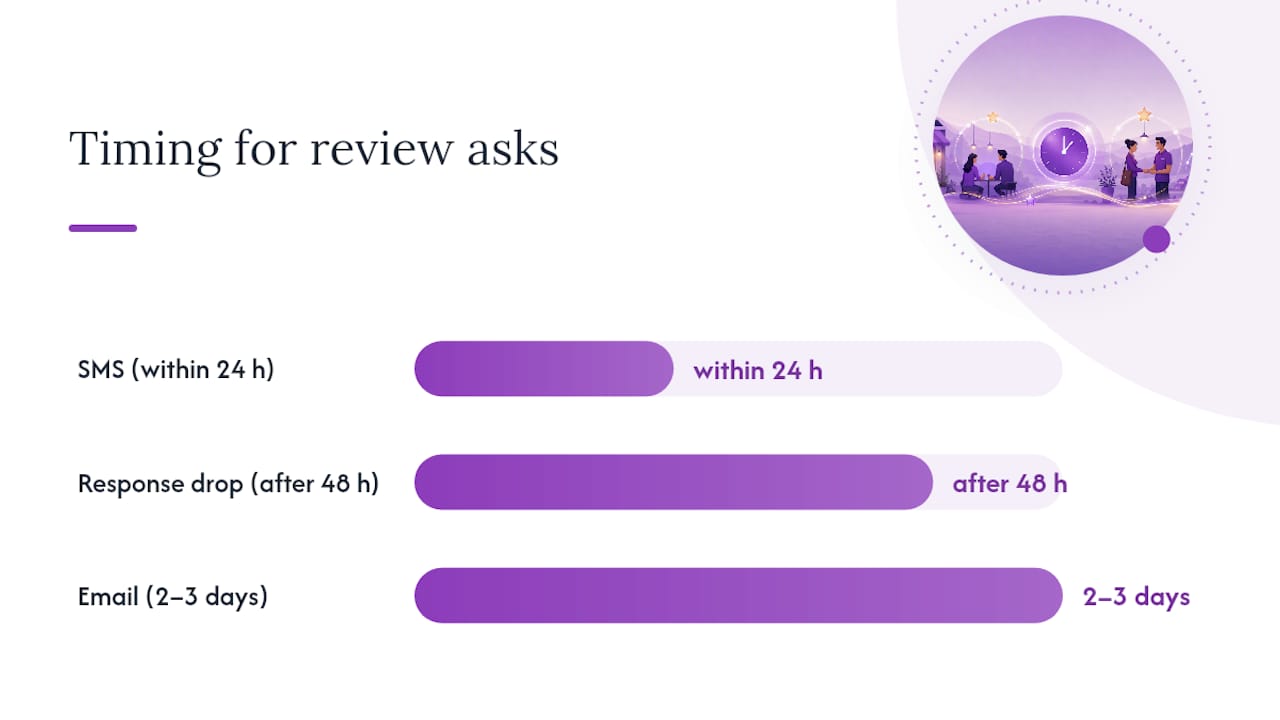
Channel choice and timing affect response rates more than most business owners realize. Matching the format to the context keeps the ask natural and the link trustworthy.
High-conversion channels and timing:
- SMS within 24 hours of a completed service or purchase. Response rates drop sharply after 48 hours.
- Post-purchase email 2–3 days after delivery, once the customer has had time to use the product or reflect on the service.
- Receipts and packaging at the point of sale for immediate, in-person asks.
SMS template (keep it under 160 characters):
Hi [First Name], thanks for choosing [Business Name]! Would you mind sharing a quick Google review? [yoursite.com/review] — it means a lot to us.
Email template:
Subject: A quick favor, [First Name]
Hi [First Name],
Thank you for your recent visit to [Business Name]. If you have 60 seconds, a Google review helps other customers find us and helps us keep improving.
[Leave a Google review →] (link button)
Thanks so much, [Your Name]
Permanent placements worth setting up once:
- A “Leave us a Google review” button on your post-purchase or thank-you page.
- A review link in staff email signatures.
- A QR code on your invoices and service completion forms.
Do not offer discounts, freebies, or any reward in exchange for a review. Google prohibits incentivized reviews, and the natural ask above consistently outperforms incentive-based requests in long-term review volume because it attracts genuine feedback rather than transactional responses.
How to test your review link and fix common problems
Run this checklist before any campaign goes live.
Testing steps:
- Open the link on a phone that is not signed into your management Google account.
- Confirm the review composer opens and shows the correct business name and address.
- Verify the star-rating selector appears and the form is functional.
Common issues and fixes:
- Copied the listing URL instead of the review link. Re-copy from the “Ask for reviews” pop-up in Business Profile Manager.
- Wrong Place ID for a multi-location setup. Return to the Place ID Finder and confirm the ID matches the specific address.
- Outdated g.page short link. If Google updated the short link, your old one may redirect incorrectly. Re-copy from the dashboard and update your short-link redirect.
- Review form won’t open at all. Check your profile’s verification status at business.google.com. An unverified profile often blocks the review composer from loading.
Community forums for Business Profile managers confirm that the most common real-world problem is finding the review link when it is not obvious in the dashboard. If the “Ask for reviews” card is missing, try searching “Ask for reviews” in the Business Profile search bar or use the Place ID method as a fallback.
Google review policy: what you must not do
Google’s rules on reviews are clear, and the consequences of breaking them are real.
- No incentivized reviews. Offering discounts, gift cards, free products, or any reward in exchange for a review violates Google’s review policy. Violations can result in review removal or restrictions on your Business Profile.
- No fake or solicited reviews. Posting reviews from your own accounts, asking employees to leave reviews, or using review farms all fall under prohibited conduct.
- Do ask transparently. Sending a polite, honest request with no strings attached is fully compliant.
- Respect opt-in rules for SMS and email. When collecting customer contact information for review follow-ups, follow U.S. CAN-SPAM and TCPA requirements. Customers must have opted in to receive marketing texts, and every email must include an unsubscribe option.
- Store contact data responsibly. If your business serves California customers, CCPA applies. Keep a simple internal policy on how customer contact data is collected, stored, and used for review outreach.
Train any staff member who asks customers for reviews on these rules. A single well-meaning employee offering a discount for a five-star review can trigger a policy violation that affects the entire profile.
When does it make sense to automate review requests?
Manual sending works fine at low volume. Once transaction volume climbs, locations multiply, or team bandwidth tightens, automation pays for itself quickly.
Signs it is time to automate:
- You are completing more transactions per week than your team can follow up on manually.
- You manage two or more locations, each needing its own review link and tracking.
- You are an agency handling review outreach for multiple clients.
- Reviews are coming in inconsistently because follow-ups depend on individual staff members remembering to send them.
Features to look for in a review-management tool:
- Timed SMS and email campaigns triggered by transaction completion.
- Per-location link management so each location gets its own tracked URL.
- Short-link handling with analytics per channel.
- Review monitoring that alerts you when new reviews arrive.
- A reply workflow, including AI-drafted responses, to keep response time short.
- Data security: the tool should not require credentials beyond what is necessary and must keep customer contact data secure.
Pro Tip: Create separate short links for each channel and each location before you automate. Tracking clicks per link lets you correlate channel performance with actual review counts, which is far more useful than raw click totals alone.
Localseobot’s Google review management tool covers all of these features in one platform, including automated request scheduling, per-location link management, and AI-driven reply drafts. It is the integrated choice for businesses that want to scale review collection without adding manual overhead.

The most effective path forward for small businesses
The official Google Business Profile method is the right first step for almost every small business. Copy the link, download the QR code on a desktop browser, test both on a phone, and send your first SMS or email request within the same day. That single action, done correctly, produces results faster than any other approach.
From there, track which channel drives the most clicks by using separate short links for SMS, email, and print. Adjust your message timing based on what you observe. SMS within 24 hours of a completed service consistently outperforms email sent a week later.
When volume or locations make manual sending impractical, move to an integrated tool rather than patching together separate generators, shorteners, and spreadsheets. Localseobot handles per-location link management, scheduled outreach, and review replies in one place, which reduces the risk of sending the wrong link to the wrong customer and keeps your team focused on the work that actually generates revenue.
Localseobot makes review automation straightforward
Getting your first Google review link live is a five-minute task. Keeping a steady flow of reviews coming in across multiple locations, channels, and team members is where most small businesses stall.
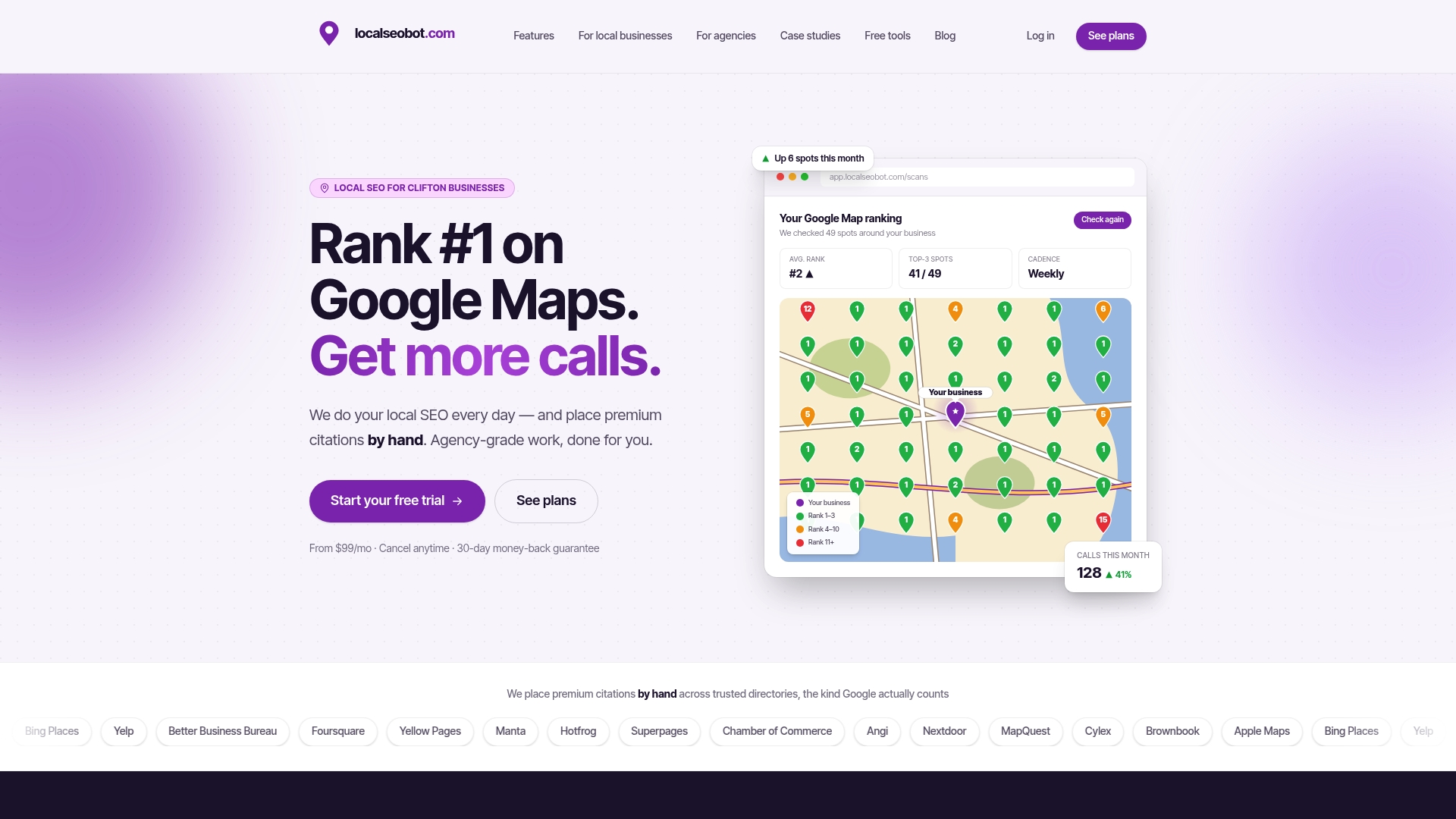
Localseobot’s review automation handles the parts that break down at scale: timed SMS and email campaigns triggered by completed transactions, per-location short links with click analytics, review monitoring across all your locations, and AI-drafted reply suggestions so no review sits unanswered. You control the branded short domain, which means your QR codes never go stale and your SMS links look trustworthy to customers. There are no agency retainers and no long-term contracts. Run your local SEO checklist to confirm your profile is review-ready, then start a free trial at Localseobot to see how review automation fits your workflow.
Sources
- Google Business Profile Manager