Embed Google Reviews for Small Businesses: Widgets, Caching & Schema
Published September 5, 2026
Embed Google Reviews for Small Businesses: Widgets, Caching & Schema

For most business owners, a no-code Google Reviews widget is the fastest, most reliable path: connect your Google Business Profile, customize the display, paste one script, and you’re live. Reach for the Google Places API only if you have developer resources and need full custom control. Skip iframe tricks and manual screenshots. They break, look dated, and create more upkeep than they save.
TL;DR:
- Third-party review widgets are the fastest and most reliable way for small businesses to embed Google Reviews with minimal effort and maintenance.
- Using the Google Places API offers full customization but requires significant development time, API billing, and careful data management.
- Manual methods, such as screenshots or iframes, are outdated, violate Google’s terms, and demand ongoing manual updates, creating long-term hassle.
- Proper placement of review widgets on homepage or product pages boosts their impact, while schema markup must match visible reviews to prevent penalties.
- Loading the widget once in your site header and avoiding duplicate scripts prevents slowdowns and errors, ensuring reviews display correctly over time.
Table of Contents
- Embed Google Reviews: Widget vs. API vs. Manual
- How Do You Set Up a No-Code Google Reviews Widget?
- Should You Use the Google Places API Instead?
- Where Do You Paste the Review Widget on Your Site Builder?
- Where Should Reviews Go, and Do You Need Schema?
- Why Won’t My Google Reviews Widget Show Up?
- Why This Guide Leans on Local SEO Expertise
- What Actually Matters When You Embed Google Reviews
- Get Your Google Reviews Displayed and Your Maps Ranking Reviewed
- Sources
Embed Google Reviews: Widget vs. API vs. Manual
Three real methods exist to display Google Reviews on your website, and they are not equally good uses of your time.
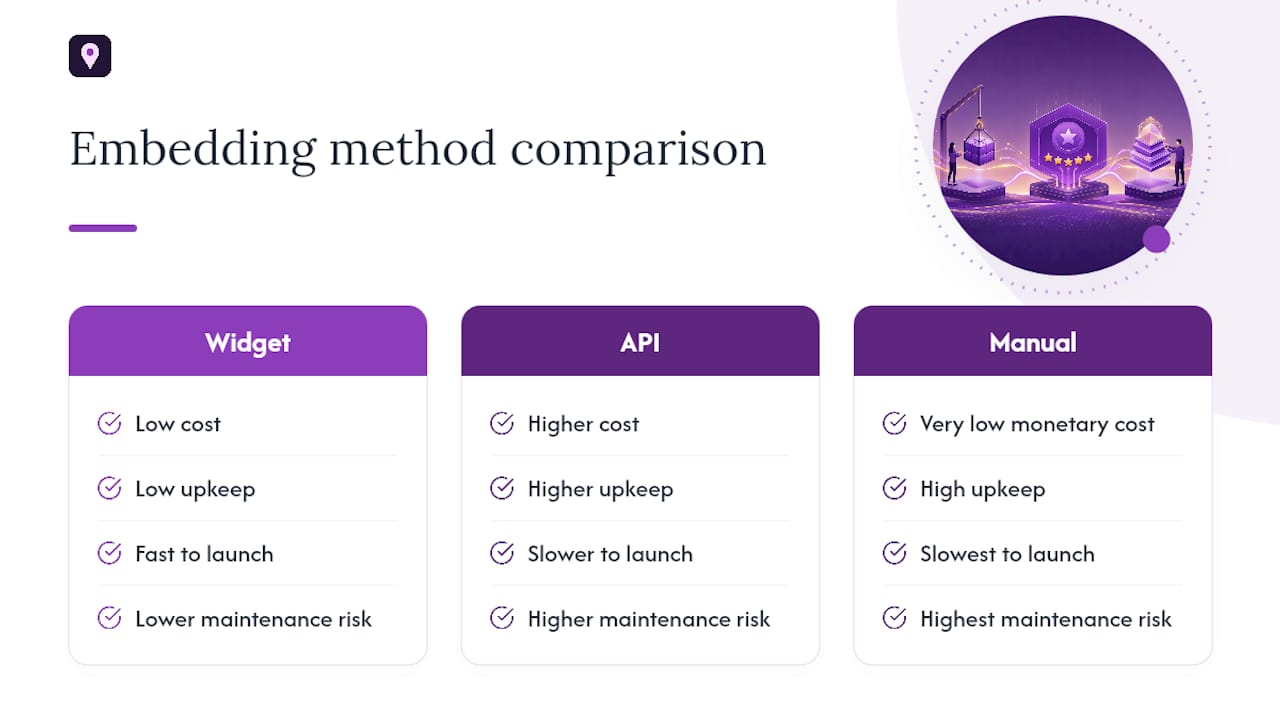
A third-party widget connects to your Google Business Profile, refreshes automatically, and drops onto your site with a single script snippet. This is the fastest way to embed Google reviews because the vendor handles hosting, rendering, and Google’s branding rules for you. The Google Places API gives developers raw control over layout and data, but it demands a Cloud project, billing setup, and custom code to fetch and render results. Manual methods (screenshots, copy-pasted text, or iframe attempts) look cheap because they cost nothing upfront, but they age fast and often violate Google’s display terms outright.
Here’s how the three stack up on the factors that actually matter to a small business:
- Setup effort: Widget, low (minutes). API, high (hours to days, requires a developer). Manual, low but repeats forever.
- Ongoing maintenance: Widget, near zero, since it syncs automatically. API, moderate, since you own the caching and error handling. Manual, constant, since every new review means another screenshot.
- Cost: Widget, usually a small monthly fee. API, pay-per-request billing through Google Cloud. Manual, free but expensive in time.
- Customization: Widget, moderate templates and filters. API, unlimited, since you control the markup. Manual, none, since text is frozen the moment you post it.
- Compliance risk: Widget, low, since vendors bake in attribution. API, low if you follow Google’s display rules. Manual, high, since screenshots and edited text often break Google’s terms.
If you run a single-location business with no in-house developer, the widget path wins on nearly every axis except raw customization. If you’re building a multi-location platform or need review data to feed into a CRM or dashboard, the API earns its complexity. If you’re still relying on manual screenshots, you’re trading a one-time setup cost for a permanent maintenance headache, and one that a Google Reviews template can eliminate in an afternoon.
How Do You Set Up a No-Code Google Reviews Widget?
Getting Google Reviews onto your site without touching code takes less time than writing a single blog post. Here’s the sequence that works across nearly every reputable widget provider.
- Create an account or start a free trial with a widget provider that supports Google Business Profile integration. Most offer a trial period long enough to test the display on a staging page before committing.
- Authorize your Google Business Profile inside the vendor’s dashboard. This step confirms ownership and pulls in your live star rating, review count, and review text.
- Choose your layout. Common options are a grid of review cards, a rotating carousel, or a compact badge showing your average rating. Pick filters, such as a minimum star rating, if you want to highlight only four and five-star feedback.
- Add a call-to-action. Most widgets let you include a “Leave a Review” button that links straight to your Google Business Profile review form, which turns a trust signal into a review-generation tool at the same time.
- Copy the generated snippet. This is typically a small script tag paired with a container
divwhere the reviews render. You never touch the review content directly. The vendor’s library does that work. - Paste the snippet into your site’s editor, whether that’s a Custom HTML block, a widget area, or a theme section, depending on your platform (covered in detail below).
- Publish and verify. Load the live page on desktop and mobile, confirm the reviews render correctly, and check your browser’s page source to make sure the script only appears once.
That last step matters more than it sounds. Duplicate script instances are one of the most common reasons a widget slows down a page or throws console errors, since the same rendering library loads twice and fights itself for the same container.
Pro Tip: If you’re adding reviews to more than one page (homepage, about page, and a services page, for example), load the vendor’s core script once in your site header, then place a unique container div on each page where you want reviews to appear. This avoids loading the same library file three separate times and keeps your pages lighter.

Most vendors provide a live preview before you publish, so use it. Small businesses skip this step constantly and end up debugging a broken layout in production instead of catching it in five seconds on a preview screen. Once you’re live, the widget typically syncs new reviews on its own, meaning you never have to touch the code again unless you want to change the design.
Should You Use the Google Places API Instead?
Developers who want full control over how reviews look and behave should build against the Google Places API rather than relying on a hosted widget. The trade-off is real engineering work in exchange for real flexibility.
The setup starts with a Google Cloud project. Inside it, you enable the Places API, generate an API key, and immediately restrict that key to your domain so it can’t be lifted and abused elsewhere. From there, you retrieve your business’s Place ID and call the Place Details endpoint, which returns review data as raw JSON that your front end has to parse and render yourself.
Two limits shape how you design the UI:
- Google typically returns up to five reviews per request, not your full review history.
- Those five are chosen by relevance, not most recent, so don’t design a layout that assumes chronological order.
Because API calls are billed and rate-limited, a production setup should never fetch live on every page load. A server-side scheduled pull, maybe once a day, that caches results and serves the cached version to visitors protects both your Google Cloud bill and your page speed. Pick the API when you need a custom UX Google’s own widgets can’t replicate, or when you’re merging review data with other systems, like a CRM or an internal dashboard. For everyone else, a hosted widget delivers the same visible result with far less engineering overhead.
Where Do You Paste the Review Widget on Your Site Builder?
Every major site builder handles embedded HTML slightly differently, and the same script snippet works everywhere once you know where the door is.
- WordPress: drop the snippet into a Custom HTML block inside the block editor, or place it in a widget area if you want it in a sidebar or footer. A plugin alternative exists if you’d rather manage the widget from inside your WordPress dashboard.
- Shopify: paste the code into a Custom HTML section within your theme editor, or add it to a specific page template if you only want reviews on one page. Some store owners prefer a review app for deeper storefront integration.
- Wix: use the Embed HTML element from the Wix editors Add panel, then drag it to the section of the page where you want reviews to display.
- Squarespace: add a Code Block to any page section, paste the snippet inside, and save. Squarespace renders the script the same way it would any custom code.
- Webflow: use the HTML Embed component, paste the snippet, and remember to publish the site afterward. Changes inside Webflow’s designer don’t go live until you hit publish.
- Google Sites: you can use the “Embed from web” option, but be aware of the limits. A basic Maps iframe will show your map location but not review text, so it doesn’t accomplish the same goal as a true review widget.
Where Should Reviews Go, and Do You Need Schema?
Placement decides whether reviews actually influence a buying decision or just sit there looking decorative. The strongest spots are your homepage near the primary call-to-action, individual product or service pages, and anywhere in your checkout or booking funnel where a visitor is deciding whether to trust you.
Structured data adds another layer, but only when used correctly. Add AggregateRating JSON-LD schema only if the rating and review count in your markup exactly match what’s visibly displayed on the page. Mismatched schema is one of the more common triggers for a manual action or a stripped rich result.
- Load the widget asynchronously so it doesn’t block your main content from rendering.
- Lazy-load the widget if it sits below the fold, since visitors scrolling past it don’t need it fetched immediately.
- Add descriptive alt text to any reviewer images or star icons so screen readers can interpret them.
- Confirm your review count updates in both the visible widget and any schema markup at the same time.
Pro Tip: Never add review schema to a page section that doesn’t visibly show the matching reviews. If the schema says 4.8 stars from 212 reviews but the widget on that page only shows five reviews with no average listed, that gap is exactly what triggers scrutiny.
Why Won’t My Google Reviews Widget Show Up?
Most widget problems trace back to a handful of predictable causes, and nearly all of them are fixable in minutes once you know what to check.
Iframe attempts fail by design. Google sets an X-Frame-Options header of “sameorigin” on its pages, which blocks any attempt to frame Google’s own review pages inside your site. If you’ve tried an “iframe hack” you found in an old forum post, that’s why it never worked. It isn’t a bug on your end. Google actively prevents it.
Broken widgets usually come down to three culprits:
- Duplicate script tags loaded on the same page, which can cause the widget to render twice or not at all.
- A Content Security Policy (CSP) header on your site blocking the vendor’s external script domain.
- Console errors from a missing or malformed container
divthat the script expects to find.
Stale reviews aren’t a bug either. Widgets sync on a schedule, commonly every 24 to 72 hours, rather than instantly. If a brand-new review hasn’t appeared after a few hours, that’s expected behavior, not a broken integration.
On compliance: never edit review text or alter a star rating, and always keep clear attribution to Google visible on the widget. Reputable vendors handle this automatically, but if you’re customizing CSS yourself, don’t strip out the Google branding element to save space. Most vendor dashboards also include a moderation or filtering tool, useful if you ever need to hide a specific review while a dispute with Google is in progress.
Why This Guide Leans on Local SEO Expertise
Local SEO Bot spends its time on one problem: getting small businesses to show up, and stand out, on Google Maps. That focus matters here because review display isn’t a standalone design choice. It’s tied directly to Google Business Profile optimization and citation consistency across directories, the same signals that determine whether your business ranks well enough to earn the reviews you’re trying to display in the first place.
Businesses that clean up their citation profile and optimize their Google Business Profile listing commonly report stronger Maps positioning and more inbound calls as a result. This article is editorial. Nothing above was written to sell you anything, but if you’d rather have someone audit your current setup than piece it together solo, that option exists.
What Actually Matters When You Embed Google Reviews
Most guides on this topic treat every method as equally valid and let readers pick based on preference. That’s the wrong frame. For the overwhelming majority of small business sites, the decision isn’t close: a reputable widget beats the API and beats manual methods on cost, upkeep, and speed to launch, and pretending otherwise just delays a business owner from getting reviews live.
Where conventional advice actually falls short is on maintenance. Plenty of articles walk through the initial setup and stop there, as if the job ends once the snippet is pasted. It doesn’t. Sync intervals, schema accuracy, and script duplication are the things that quietly break a review display six months later, and almost nobody talks about them upfront.
If you take one thing from this guide, prioritize placement and accuracy over polish. A plain widget showing real, current reviews near your call-to-action outperforms a beautifully designed one running on stale data or mismatched schema. Get the fundamentals right first. Customize the design later.
— Local
Get Your Google Reviews Displayed and Your Maps Ranking Reviewed
A widget solves the display problem. It doesn’t solve the visibility problem underneath it, which is whether your business shows up in Google Maps results in the first place so people find your profile to leave those reviews at all. A service exists for that second half of the equation: manual citation building across directories, ongoing Google Maps rank tracking, and Google Business Profile optimization that supports the exact review-display strategy covered in this guide.
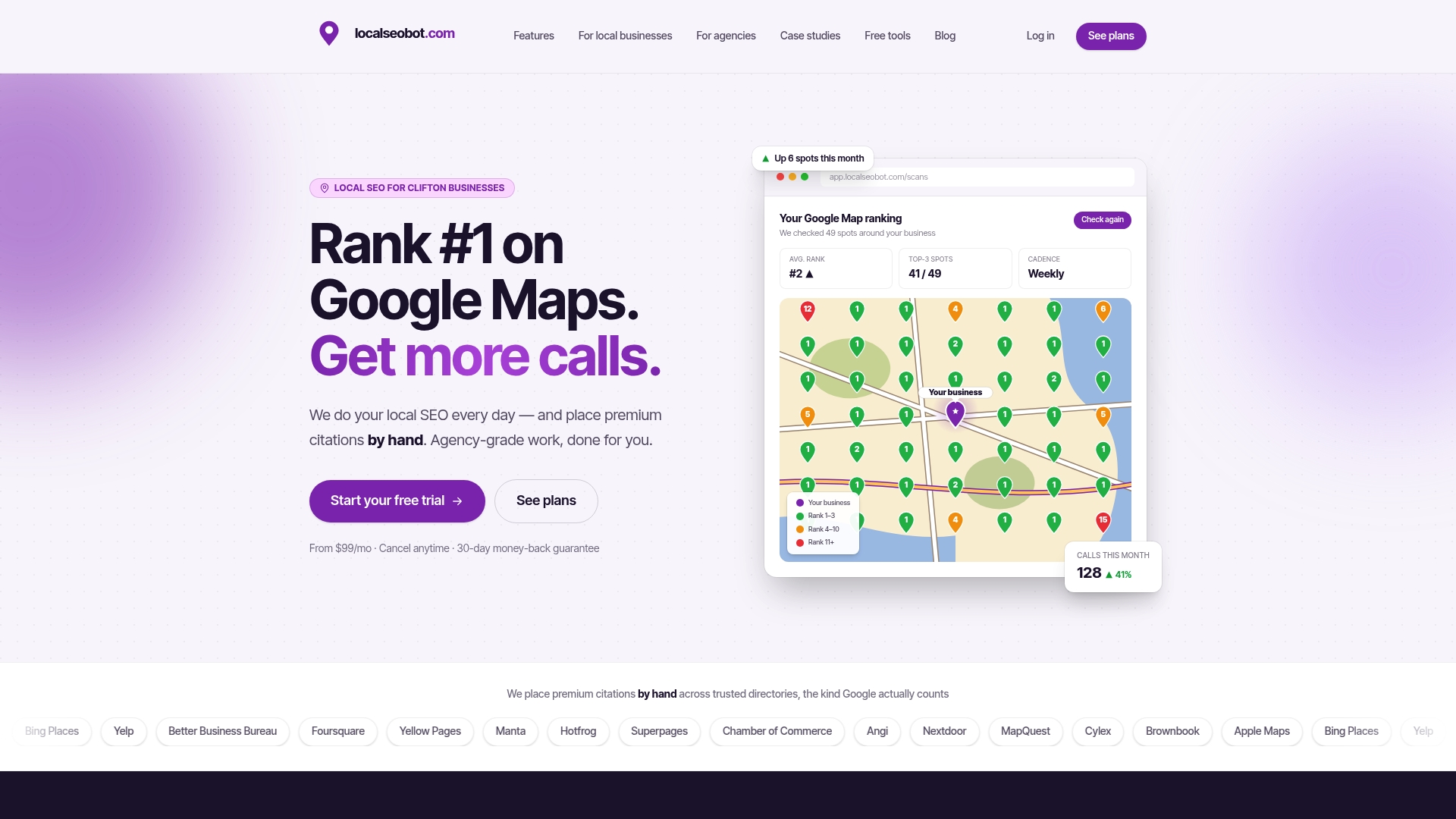
If your citations are inconsistent or your Maps listing is buried past the first page, a widget full of great reviews won’t fix that on its own. This service backs its work with a 30-day money-back guarantee if your rankings don’t improve. Start by checking your current standing with the Google Maps Visibility Score Calculator, or request a full audit to see exactly where your listing and citations stand today.
Sources
- How to Embed Google Reviews on Your Website (3 Methods, 2026) | Common Ninja
- How to Embed Google Reviews on Your Website (3 Methods, 2026) | Shoutjar
- Testimonial
- Place reviews | Google Maps Platform Documentation
- Google reviews HTML embed: what the snippet really does | JustReview