Two Step Playbook to Keep Google Business Profile Hours Accurate for Small Businesses
Published September 11, 2026
Two Step Playbook to Keep Google Business Profile Hours Accurate for Small Businesses

Edit your business hours through Google Search by clicking “Edit profile” on your listing, or through business.google.com under the Hours tab. Either method saves instantly, but the published change can lag behind your edit by a few hours to a couple of days while Google reviews it. Use special hours for holidays and temporary closures, and treat “more hours” (delivery, happy hour) as a separate field you’ll likely need to set per location.
TL;DR:
- Bulk updates of regular hours are supported for multiple locations, but “more hours” and special hours often require individual adjustments.
- Conflicting data from third-party directories and community edits are the main causes of delays or rejection when updating hours on Google Business Profile.
- Always verify your hours in an incognito window after saving, since published changes can take several hours to a few days to appear publicly.
- Regularly auditing citations across major directories helps prevent overwrites and ensures your stored hours stay consistent across platforms.
- To minimize errors, update main hours and special hours simultaneously and follow a structured workflow, especially for multi-location management.
Table of Contents
- How to Update Regular Hours in Google Business Profile
- When Should You Use Special Hours Instead of Changing Regular Hours?
- Can You Bulk Update Hours Across Multiple Locations?
- Why Won’t Google Publish Your Updated Hours?
- How Accurate Hours Improve Customer Experience and Local Visibility
- A Practitioner’s Two-Step Workflow for Keeping Hours Accurate
- What Actually Matters Here (and What Doesn’t)
- Let Local SEO Bot Handle the Hours That Keep Slipping
- Sources
- FAQ
How to Update Regular Hours in Google Business Profile
Updating your main hours takes less than five minutes once you know where to click. Here’s the exact path:
- Search your business name on Google, or go to Business and select the correct location from your account.
- Click “Edit profile,” then select the “Hours” tab.
- Adjust each day individually. Click the “+” icon next to a day if you need to split hours, like a lunch closure or a morning and evening shift.
- Mark a location “Temporarily closed” or “Permanently closed” from the same menu if operations have stopped entirely.
- Click “Save.” Google’s own support documentation confirms the change is recorded immediately, though publication to the live listing can take longer.
Watch for a small banner or confirmation message after saving. That’s the signal your edit is queued, not necessarily live. If you don’t see that acknowledgment, the save didn’t register, and you’ll need to repeat the process.
Pro Tip: Always enter hours in the timezone your business actually operates in, not the one your browser defaults to. Then open an incognito window and search your business name to confirm what a stranger sees, since your logged-in view can show cached or pending data that hasn’t published yet.
When Should You Use Special Hours Instead of Changing Regular Hours?
Special hours exist for a reason: they let you flag a temporary deviation without touching your permanent schedule. Mixing the two up is one of the most common ways small businesses confuse their own customers.
- Use special hours for anything one-off or dated: Thanksgiving closures, a snow day, a one-week holiday schedule, or an early close for a staff event.
- Use regular hours edits only when the change is permanent, like a new weekday closing time that will stay in effect going forward.
- Add special dates by opening the Hours tab, scrolling to “Special hours,” and entering the specific date along with either adjusted hours or a closed status. Google recommends setting these in advance rather than waiting until the day arrives, as noted by BrightLocal’s guidance on GBP hours.
- Remember that “more hours,” things like delivery windows or happy hour, live in a separate section and typically need per-location edits even when your main hours are managed in bulk.
Set holiday hours weeks ahead, not the night before. A published special-hours entry gives customers a reliable answer before they ever pick up the phone to ask if you’re open.
Can You Bulk Update Hours Across Multiple Locations?
Yes, for the fields that matter most. Google supports bulk uploads via CSV or Business Profile Manager for regular hours across multiple locations at once, as explained in their documentation here. That’s the right tool if you’re standardizing weekday hours across a franchise or correcting a chain-wide error.
Here’s where bulk workflows hit a wall:
- “More hours” fields (delivery, drive-through, happy hour) are often not exposed to bulk CSV uploads and need individual edits per location.
- Some special-hours types behave the same way, particularly when locations have different holiday schedules.
- Third-party GBP-syncing tools can centralize a lot of this work, but you should verify every location individually after a sync, as EmbedSocial’s multi-location guide points out.
- The GBP API offers more granular control for developers, but it comes with its own permission and sync quirks that can silently fail if account roles aren’t set correctly.
If you’re managing more than a handful of locations, a tool built specifically for GBP field monitoring, like the Google Business Profile Optimizer, can flag which locations still show stale hours after a bulk push.
Why Won’t Google Publish Your Updated Hours?
Nothing is more frustrating than saving a correct edit and watching Google keep showing the old hours. Usually the cause is one of four things, and each has a specific fix.
- Community edits are overriding you. Google allows suggested edits from users, and if enough people flag a discrepancy, it can override your saved hours. Check your dashboard for pending suggestions and reject the ones that are wrong.
- A third-party directory is feeding Google bad data. Yelp, Facebook, and other listings sometimes get scraped, and conflicting hours across the web confuse Google’s algorithm about which version is correct, per BrightLocal’s troubleshooting notes.
- Account permissions are the real problem. If you’re not listed as an owner or manager, your edits might not carry the authority to override existing data. Confirm your role, and re-request ownership if it’s unclear who controls the listing.
- It just needs time. A short pending window is normal. If a week passes with no change, use “Report a problem” inside your dashboard or escalate to Google Business Profile support directly.
Pro Tip: Before you assume Google is broken, audit your top five directory listings for hour mismatches. Fixing the source data usually resolves the “Google won’t update” complaint faster than any support ticket does.
How Accurate Hours Improve Customer Experience and Local Visibility
Correct hours do more than prevent a wasted trip. They cut down on the single most common friction point in local search: the “are you open right now?” phone call that pulls staff away from paying customers.
- Test your published hours in an incognito browser window and cross-check the same listing on Google Maps, since the two surfaces don’t always update in perfect sync.
- Expect a propagation window that may last from several hours to multiple days after saving, according to Google’s own hours editing documentation.
- Set a recurring calendar reminder for seasonal hour changes, such as summer schedules or holiday weeks, to proactively manage your business hours updates.
- Turn on Business Profile notifications so you’re alerted when a suggested edit or update needs review.
- Audit your top directory listings quarterly to catch drift before it reaches Google.
Businesses that keep hours current tend to see fewer status-check calls and improve local search visibility, as more accurate hours help establish customer trust, according to insights shared by BrightLocal. Track call volume and foot traffic for two weeks before and after a hours update. That comparison tells you more about real-world impact than any ranking check.
A Practitioner’s Two-Step Workflow for Keeping Hours Accurate
Our approach to hours maintenance comes down to two steps, applied in order every time a client’s schedule changes.
Step one: update both main hours and any relevant special hours in the same session, so there’s no gap between the permanent schedule and the holiday exception. Step two: audit citations across major directories and schedule a follow-up verification 48 to 72 hours later to confirm the change actually published and no third-party edit overwrote it.
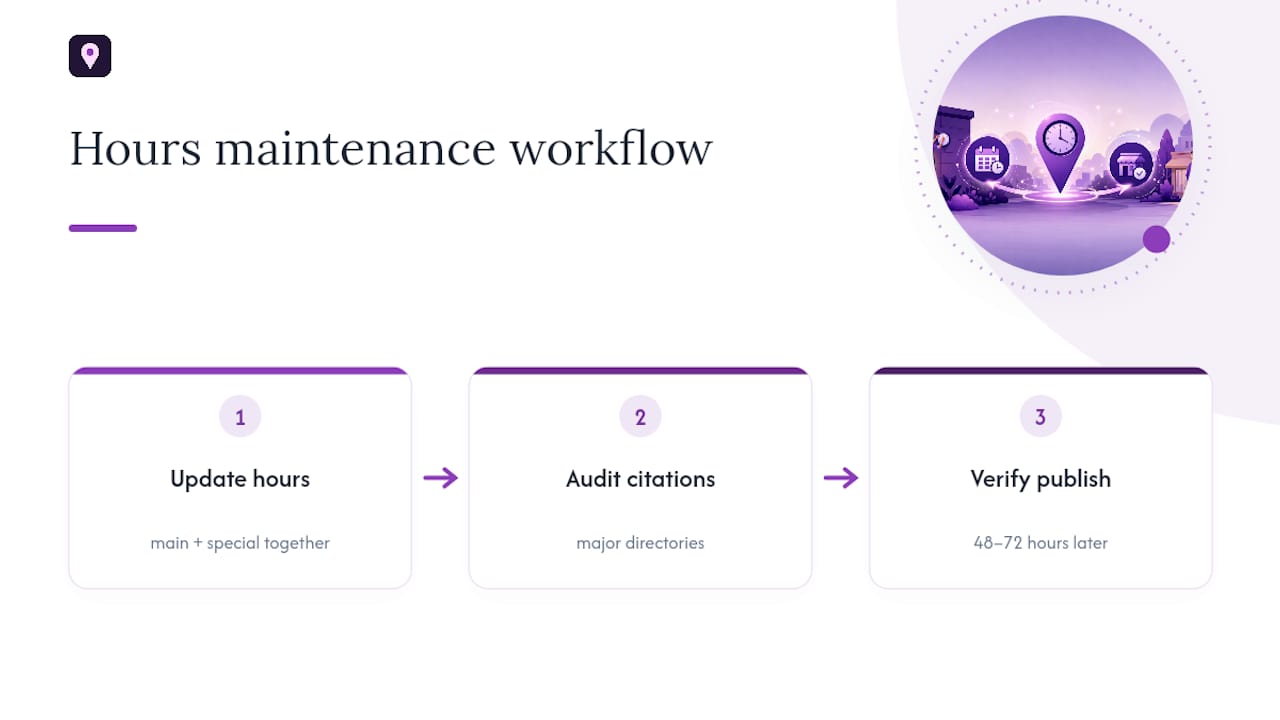
Businesses that follow this sequence may see better positioning in Maps results and a noticeable uptick in customer calls, particularly around holiday periods when stale hours do the most damage to trust. The pattern holds across single locations and multi-location accounts alike.
Escalate to a managed service once you’re dealing with more than a few locations, repeated overwrites you can’t explain, or citation inconsistency that keeps resurfacing no matter how often you fix it. At that scale, manual monitoring may stop being a good use of your time.
What Actually Matters Here (and What Doesn’t)
Most advice on this topic treats every hours update as equally risky, and that’s not how it works in practice. A single-location retail shop changing its Sunday hours faces almost no real threat of overwrite. A ten-location chain with inconsistent citations across Yelp, Facebook, and industry directories is a different story entirely, and that’s where most of the published “GBP hours won’t update” complaints actually originate.
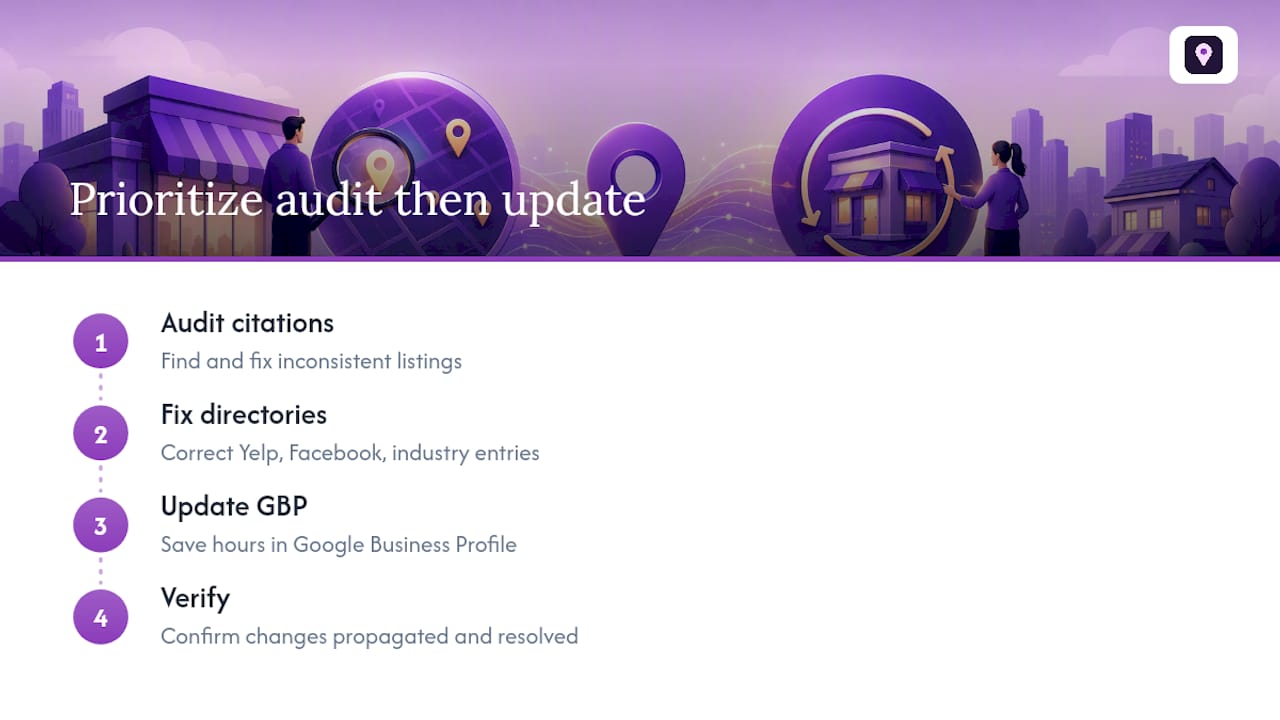
The conventional advice, “just save your hours and wait,” undersells how often the real problem sits outside Google altogether. If your citations disagree with each other, you’re not fighting a Google bug. You’re fighting your own inconsistent data.
Prioritize the audit before the edit. Fix conflicting directory listings first, then update GBP, then verify. Skipping straight to the GBP edit without checking what else is publishing your business information is the single most avoidable mistake in this entire process, and it’s the one that keeps businesses stuck in update loops for weeks.
— Local
Let Local SEO Bot Handle the Hours That Keep Slipping
Automated citation building and GBP optimization tools can help keep your hours consistent everywhere Google looks for confirmation, reducing the need to manually re-check every directory every time your schedule changes.
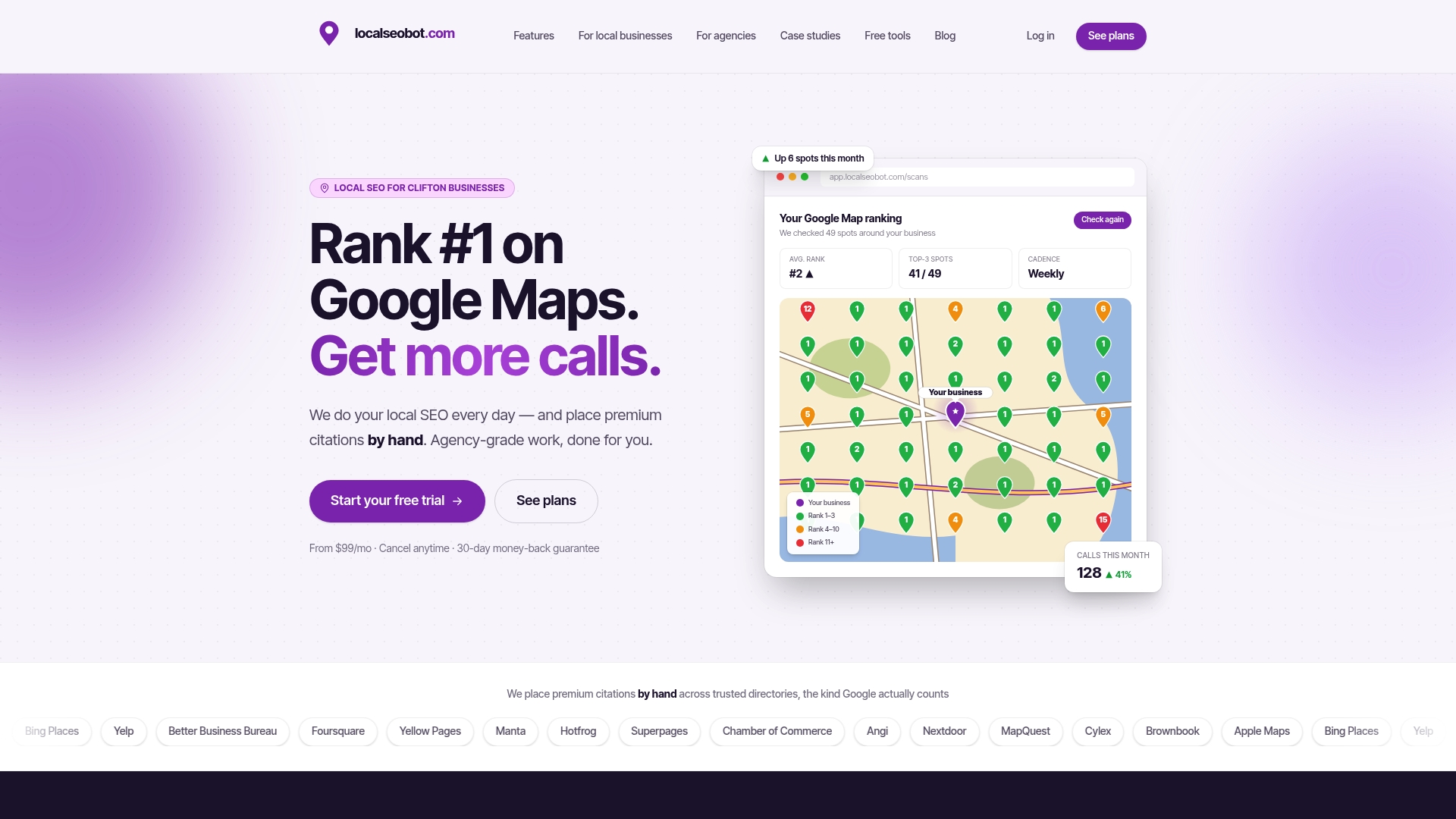
That matters most for multi-location accounts and any business that’s been burned by a third-party overwrite. Manually building premium citations on high-authority directories helps ensure the data Google scrapes to double-check your listing matches what you actually published, not outdated third-party listings. Using tools like the Google Business Profile Optimizer for ongoing field monitoring can reduce the effort needed to keep hours accurate.
If you’ve been fighting stale hours for more than a week, run a check through our Google Maps SEO services page and see what’s actually publishing to your profile. Some services offer a money-back guarantee if you don’t see a ranking increase, reducing the risk of trying them.
Sources
- Edit your business hours - Google Business Profile Help
- How to Change Business Hours on GBP In One or Multiple Locations? - EmbedSocial
FAQ
Why is Google changing my business hours?
Google sometimes accepts community-suggested edits or pulls conflicting data from other directories, which can override what you saved. Check your dashboard for pending suggestions and audit outside listings for mismatches.
How do I update Google business hours?
Search your business name and click “Edit profile,” or go to business.google.com and open the Hours tab for your location, then save your changes there. The edit saves immediately, though it may take time to appear publicly.
Why is Google not updating my business hours?
The most common causes are unresolved community edits, conflicting data from third-party directories, or account permission issues that prevent your edit from taking priority. Give it a short pending window first, then use “Report a problem” if nothing changes after several days.
How do I change my business hours on the Google Maps app?
Open the Google Maps app, tap your business profile, select “Edit profile,” then “Hours,” and adjust the days and times before saving. The change follows the same review and publication timeline as edits made through Search or the desktop dashboard.
How long does a GBP hours update take to publish?
Most edits publish within a few hours, though Google’s own documentation notes the review window can extend to a couple of days in some cases. Verify with an incognito search once that window passes.