4 Exact GBP Photo Sizes: Copyable Table and 10% Safe Margin
Published September 16, 2026
4 Exact GBP Photo Sizes: Copyable Table and 10% Safe Margin
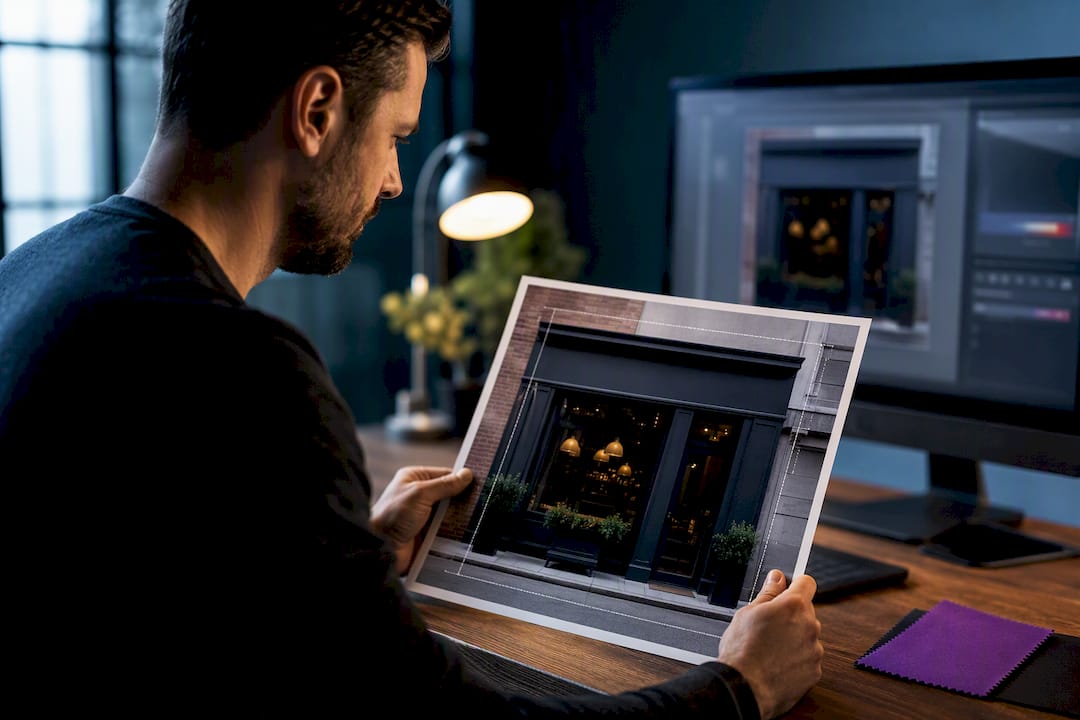
Google’s minimum photo resolution for a Business Profile is 250 x 250 pixels, but the recommended size is 720 x 720 pixels, and every file must land between 10 KB and 5 MB as a JPG or PNG. For sharper results across covers, posts, and product shots, export larger than that recommended minimum whenever your file size allows, and always keep images in focus and true to what customers will actually see.
TL;DR:
- Using recommended sizes like 1024 x 576 pixels for cover photos and 720 x 720 pixels for logos ensures optimal display and prevents cropping issues.
- Export photos at 80 to 90 percent JPEG quality in sRGB, and keep critical elements at least 10 percent away from edges to avoid unwanted auto-cropping.
- Keep logos and text centered with ample margin before upload to prevent clipping in circular thumbnails or mobile crops.
- Prioritize updating your cover photo and top three product images first, as they attract the most customer attention and engagement.
- Employ tools like Localseobot’s profile optimizer and Maprank to measure whether photo improvements translate into better visibility and rankings.
Table of Contents
- What Is the Right GBP Photo Size for Each Image Type?
- Why Do GBP Photo Dimensions Vary by Type?
- How Do You Save Files Without Losing Quality?
- How Do You Avoid Bad Crops on Google Business Profile?
- How Do You Upload GBP Photos and Where Do They Appear?
- Your Quick Publisher Checklist for GBP Photos
- Where Should You Spend Your Time First on GBP Photos?
- Get More Out of Your GBP Photos With Automated Optimization
- Sources
- FAQ
What Is the Right GBP Photo Size for Each Image Type?
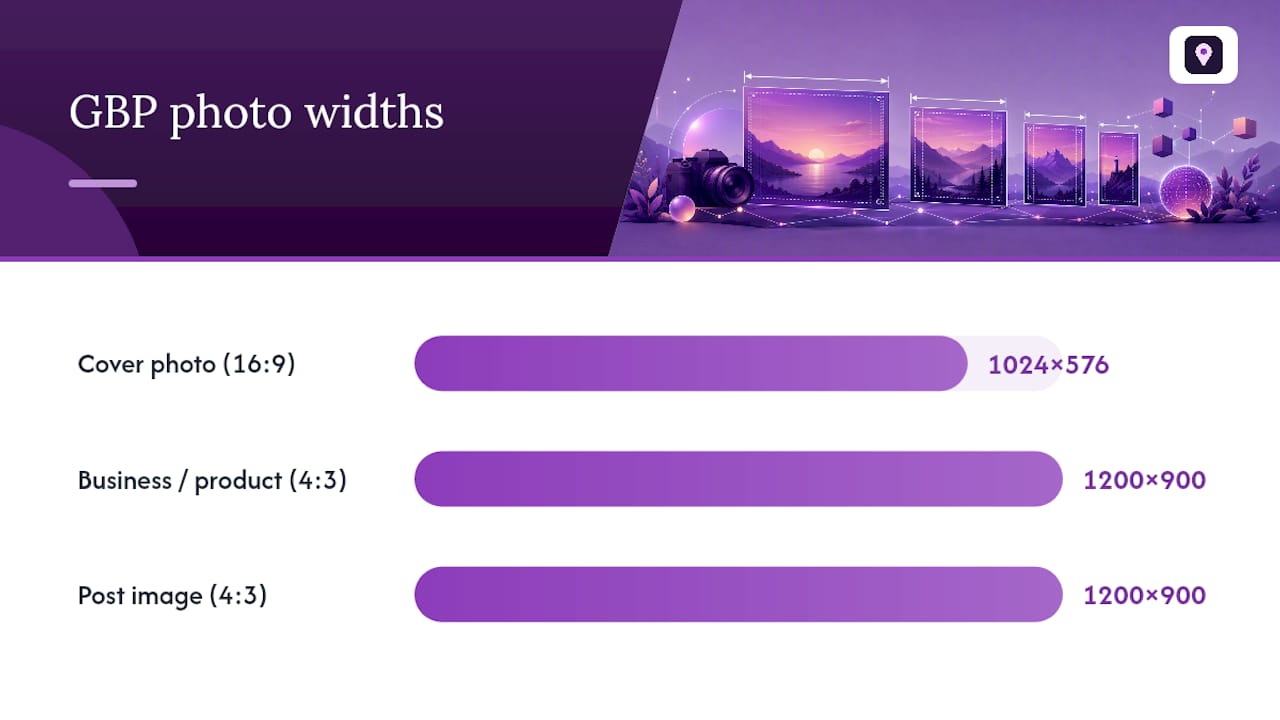
Google Business Profile doesn’t treat every photo slot the same way, and the pixel dimensions that work for a cover photo will look stretched or cropped wrong in a logo box. The table below covers the four image types you’ll upload most often, with the recommended size, the bare minimum, the aspect ratio to shoot for, and a quick format note for each.
| Image Type | Recommended Size | Minimum Size | Aspect Ratio | Format Notes |
|---|---|---|---|---|
| Cover photo | 1024 x 576 px or larger | 480 x 270 px | 16:9 | JPG or PNG, under 5 MB |
| Profile/logo | 720 x 720 px | 250 x 250 px | 1:1 (square) | PNG preferred for transparency |
| Business/product photos | 1200 x 900 px | 720 x 720 px | 4:3 or square | JPG for photos, well lit |
| Post images | 1200 x 900 px | 480 x 270 px | 4:3 | JPG, avoid heavy filters |
Video uploads follow separate specs (Google caps most videos at 30 seconds and 100 MB), so don’t apply these photo dimensions to video files. These figures reflect Google’s official photo guidance plus the larger export targets many publisher guides recommend for sharper on-screen results.
Why Do GBP Photo Dimensions Vary by Type?
Each photo slot serves a different purpose on your profile, and that’s exactly why Google doesn’t apply one blanket size rule across the board.
Cover photo. This is the wide banner customers see first, so it rewards a landscape shape. A 16:9 ratio around 1024 x 576 pixels fills that space cleanly on both desktop and mobile. Go narrower and you’ll get letterboxing; go too small and the image turns soft when it stretches to fill a wide hero banner.
Profile photo and logo. This slot appears as a circle in search results and a square thumbnail elsewhere, so center your mark and leave breathing room around the edges. If your logo has transparent background elements, export as PNG. Photographs of a storefront or team can use JPG.
- Keep the logo or wordmark centered, not edge-to-edge
- Use PNG when transparency matters, JPG for anything with a full background
- Test the circular crop before you finalize the file
Business and product photos. These populate your gallery and often appear full screen when a customer taps through. A 4:3 or square crop avoids the awkward slivers that happen with ultra-wide shots, and exporting closer to 1200 x 900 pixels (well above the 720 x 720 minimum) keeps detail sharp on high-resolution phone screens, a point practical GBP guides back up consistently.
Post images. Posts appear in a feed format that crops aggressively at the edges. A 4:3 ratio, exported around 1200 x 900 pixels, gives Google enough image to work with without slicing off a product label or a person’s face at the frame’s edge.
How Do You Save Files Without Losing Quality?
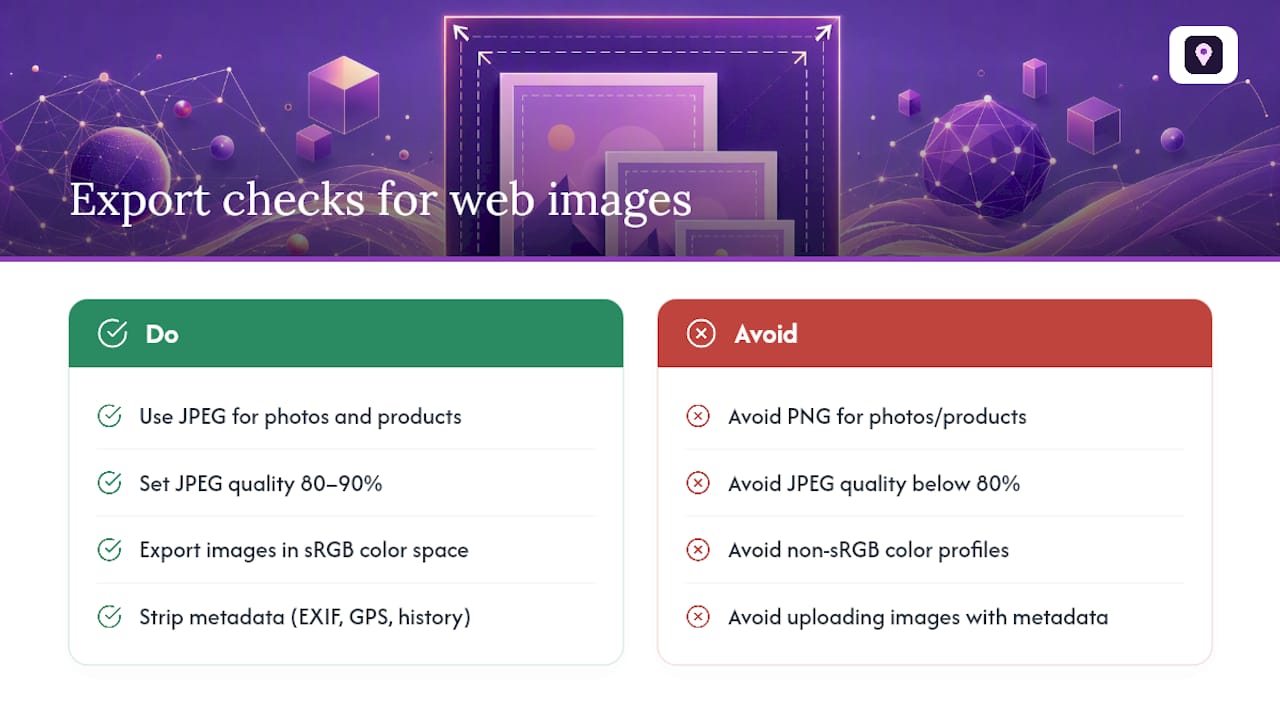
Format choice comes down to content type. Use JPG for anything photographic, storefronts, food, staff, products, because it compresses efficiently without ballooning file size. Reserve PNG for logos, icons, or any graphic that needs a transparent background; PNG handles flat color and sharp edges better than JPG ever will.
For JPEG exports, aim for a quality setting around 80 to 90 percent. That range keeps you comfortably under Google’s 5 MB ceiling while avoiding the blotchy artifacts that show up when compression gets too aggressive. Export in the sRGB color space rather than Adobe RGB or CMYK, since sRGB is what browsers and phone screens actually render, and mismatched profiles can shift your colors duller or off-tone. Strip unnecessary metadata (camera EXIF data, GPS tags, editing history) before upload. It trims file weight and has zero effect on how the image looks, a habit social image guides recommend across platforms, not just Google.
Pro Tip: Export two versions of your best photos, one at the recommended size and one about 20 percent larger, and keep the larger file on hand. If Google’s compression ever makes an image look soft after upload, you can swap in the bigger version without reshooting anything.
How Do You Avoid Bad Crops on Google Business Profile?
Google auto-crops your images depending on where they display, and that’s where a lot of otherwise-good photos get ruined. Your map pin shows a circular crop. Search result thumbnails often go square. Full-profile views show more of the frame, but even there, mobile layouts trim the edges more than desktop does.
- Keep faces, logos, and text at least 10 percent away from every edge as a safe margin
- Never place critical text or a phone number near the corners of a photo
- Check how your logo looks in a circular crop before uploading, not after
- Avoid centering a subject too close to the top or bottom edge, since square crops cut there first
The most common mistake is a logo designed edge-to-edge with no padding. It looks fine in your design software and gets clipped the moment Google turns it into a circular thumbnail. The fix is simple: add margin around your subject before export, not after something already looks wrong online.
How Do You Upload GBP Photos and Where Do They Appear?
- Sign in to your profile through Google Business Profile or directly from Search or Maps once your listing is verified.
- Open the Photos tab and choose the correct slot, cover, logo, or gallery, since uploading to the wrong one won’t display correctly.
- Upload your export and preview it immediately; Google sometimes takes a few hours to process new images and apply moderation checks.
- Confirm placement across contexts: the cover photo shows as the profile hero, the logo appears on the map pin and in search snippets, and gallery photos populate the swipeable image carousel.
Unverified profiles can’t upload photos at all, so confirm verification status first if uploads aren’t going through.
Your Quick Publisher Checklist for GBP Photos
Before you upload anything, run through this: export at recommended size (not the bare minimum), confirm the file sits under 5 MB, double-check JPG or PNG format, verify safe margins around logos and text, and name the file something descriptive rather than a generic camera filename like IMG_4213.
- Re-export at a higher resolution if an uploaded photo looks blurry or pixelated
- Bump JPEG quality up a notch if compression artifacts show around text or edges
- Track calls, clicks, and direction requests for two to three weeks after a photo refresh to see if the change actually moved the needle
Pro Tip: If you manage several locations, standardize your export sizes across all of them so franchise or multi-location profiles look consistent when customers compare listings side by side. For a deeper technical walkthrough of image metadata and compression settings, this image SEO guide covers the workflow well.
Where Should You Spend Your Time First on GBP Photos?
If you only fix two things, fix the cover photo and your top three product shots first, since those get the most visual attention on the page. A single paid photo retouch or one short professional shoot usually beats a dozen phone snapshots. After you swap images, watch your call and click numbers for a few weeks to see if the upgrade actually moved anything.
Get More Out of Your GBP Photos With Automated Optimization
Getting the pixel dimensions right is only half the job. Knowing whether those new photos actually moved your visibility is the part most business owners never measure. Localseobot’s Google Business Profile Optimizer scans your profile’s image slots alongside your other GBP fields and flags what’s missing or undersized, so you’re not guessing which photo type needs attention next.
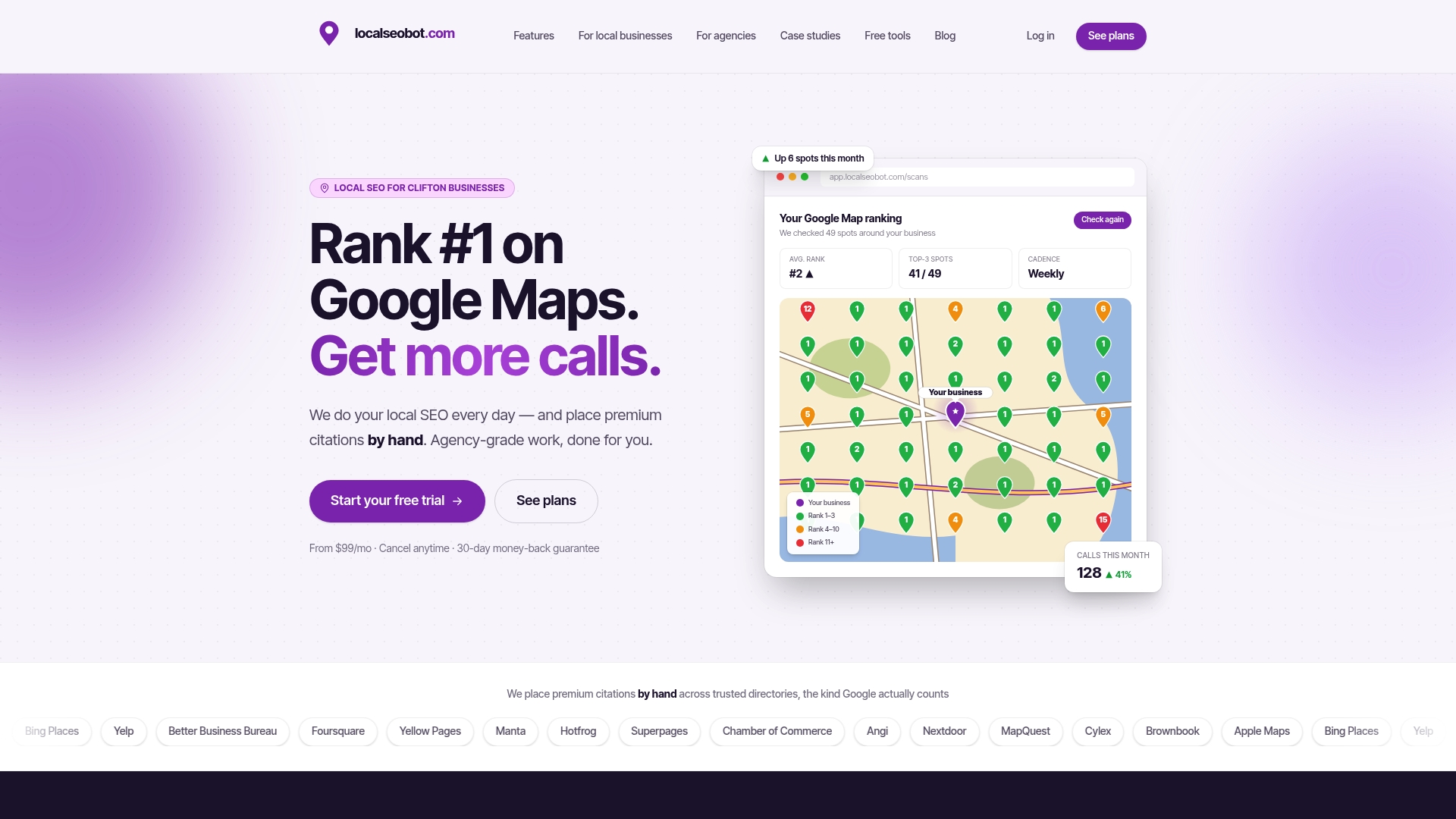
Once your images are updated, Maprank tracks your Google Maps position across a geo-grid, so you can see whether a sharper cover photo or a better product gallery actually correlates with more map pack visibility in your service area. Both tools are available through Localseobot’s Foundation and Growth plans, starting at $99 per month per location, with a 30-day money-back guarantee if your rankings don’t improve. Agencies managing multiple client profiles can check the Pro plan pricing for white-label options. Check the plans and start tracking your profile’s visibility today.
Sources
- Manage your Business Profile photos & videos
- Google Business Profile Photo Size Guidelines (+ Image Tips)
FAQ
What is the recommended aspect ratio for a GBP post image?
A 4:3 ratio works best for post images since it matches how Google displays them in the feed without awkward cropping at the edges.
Should my photos be 4:3 or 16:9?
Use 16:9 for cover photos, since that wide format fills the banner space correctly, and 4:3 for gallery, product, and post images to avoid slivers of cropped content.
What is the recommended size for a Google Business Profile post image?
Google’s minimum is 480 x 270 pixels, but exporting closer to 1200 x 900 pixels at a 4:3 ratio produces a noticeably sharper result in the feed.
What size should product images be?
Product photos should be at least 720 x 720 pixels to meet Google’s recommendation, though 1200 x 900 pixels in a 4:3 or square crop looks sharper when customers view the image full screen.
Does Localseobot help with GBP photo optimization?
Yes. The Google Business Profile Optimizer checks your image slots against best practices and flags gaps, and Maprank tracks whether visibility changes follow your photo updates.