GBP Products Optimization: 4 Paths for Shops and Service Businesses
Published October 12, 2026
GBP Products Optimization: 4 Paths for Shops and Service Businesses

GBP products optimization means choosing the right Google tool to show what you sell, from manually listed items to synced in-store inventory, then filling it out with clear copy, tagged links, and images that convert. The fastest first step: open Google Business Profile, pick Product Editor or Local Inventory based on your setup, and publish one product with a UTM-tagged link so you can measure it. Tools like local SEO automation software can take this off your plate entirely.
TL;DR:
- Service businesses should use Services Editor; Local Inventory requires a verified storefront, UPC or EAN barcodes, and a supported point of sale system.
- For small catalogs without barcodes or live stock feeds, Product Editor supports manual listings; Merchant Center free listings can complement an existing Google Shopping feed.
- Choose specific categories, lead with customer benefits, use clean real photos, and add CTA links with UTM parameters; leave prices blank when they vary.
- Connected Local Inventory feeds can supersede manual listings, while unlinking a delivery partner removes its inventory within 48 hours.
- Track product views separately from sales, use UTM links to measure conversions, and test one change for at least two weeks before judging results.
Table of Contents
- Which GBP product option fits your business
- Step-by-step: add and optimize GBP products using the Product Editor
- Imagery, copy, and Product Studio: practical tips that improve clicks and visits
- Local Inventory app vs manual Product Editor: when to automate and what to watch for
- Measure, test, and iterate: tracking product views to real business outcomes
- Maintenance, compliance, and a short troubleshooting checklist
- How Local SEO Bot supports GBP products optimization
- Examples of successful product optimization campaigns on GBP
- Integration of GBP products with overall local SEO strategy
- Automating updates and inventory syncing between GBP and other platforms
- Practical perspective: quick priorities for owners with limited time
- How Local SEO Bot can help
- FAQ
- Sources
Which GBP product option fits your business
Google gives you several ways to show products, and picking the wrong one wastes hours. The decision comes down to your catalog size, whether you have barcodes, and whether you sell goods or services.
- Product Editor: best for small, manually managed catalogs where items lack barcodes or a live stock feed, since Google’s Product Editor is built for adding products by hand.
- Local Inventory app: fits stores with UPC or EAN barcodes and a point-of-sale system, since eligibility for in-store products requires a verified storefront and supported POS integration.
- Services Editor: the right call for service-area businesses with no physical inventory, letting you add services for free instead of forcing products into a goods-based format.
- Merchant Center free listings: worth layering on top if you already run a product feed for Google Shopping and want that data to flow into Search.
Run through this order: do you sell a service, not a product? Use Services. Do you have barcodes and a POS? Use Local Inventory. Neither? Product Editor is your path.
Step-by-step: add and optimize GBP products using the Product Editor
Once you know Product Editor is the right fit, the setup is quick if you follow a consistent order.
- Open your Business Profile and find Products under the editing menu, sometimes labeled Product sources in the newer Business Profile experience.
- Click Add product and enter the product name first, since this drives how it matches search queries.
- Choose the most specific category Google offers rather than a broad catch-all.
- Enter price if you want it visible to shoppers; leaving it blank is fine for variable pricing.
- Write a short description focused on the benefit, not just a spec list.
- Upload a clean, well-lit image sized for both mobile and desktop display.
- Add your call-to-action URL with UTM parameters, for example using
utm_source=gbp,utm_medium=product, and a campaign name tied to the item. - Publish, then check back within a day to confirm the product shows as approved rather than flagged.
Google’s policy guidance warns that violating Shopping ads policy can get uploaded products removed, so keep claims factual and avoid prohibited categories.
Pro Tip: Standardize your UTM naming now, before you add a second product, so every listing feeds the same clean report later.
Do a quick QA pass after publishing: view your profile on a phone and a desktop browser to confirm the image and price render the way you expect.
Imagery, copy, and Product Studio: practical tips that improve clicks and visits
Products with weak images get scrolled past. A few habits make a measurable difference in how listings perform.
- Use real photos of the actual item, not stock photography or any image carrying a watermark.
- Check how the image crops on mobile before publishing, since phone screens cut edges differently than desktop.
- Keep descriptions benefits-first and short: lead with what the product does for the customer, not a spec dump.
- Show price when it is competitive or likely to drive clicks, and leave it off when pricing varies by customer.
Google’s Product Studio generative scene tool is available to merchants in the Product Editor, which can help smaller catalogs get consistent-looking imagery without a photo shoot. For deeper photo guidance, our photo optimization guide covers lighting and framing specifics.
One sourced note: Google’s own guidance confirms Product Studio scene generation is currently limited to merchants in the United States, so availability elsewhere may vary.
Test one variable at a time: swap a static image for a short GIF, or try two CTA phrasings, and watch which one earns more clicks over a few weeks before locking in a winner.
Local Inventory app vs manual Product Editor: when to automate and what to watch for
Automating your product feed saves time but changes how much control you keep.
- Eligibility: the Local Inventory app requires a verified physical storefront, UPC or EAN barcodes on items, and a supported point-of-sale system.
- What it replaces: once connected, automatic feeds take over from manual uploads, so items you added by hand in Product Editor may be superseded.
- Delivery partners: services like Instacart, DoorDash, and Uber Eats can add inventory automatically, and opting out or unlinking that source removes the inventory within 48 hours.
- Restricted categories: some product types carry display limitations or are excluded entirely, so check policy before assuming full-catalog sync.
If your stock changes daily, automation is worth the setup time. If it rarely changes, manual entry stays simpler to control.
Measure, test, and iterate: tracking product views to real business outcomes
Product listings only matter if they lead somewhere. Treat product views as a top-of-funnel signal, not a finish line.
- Check product views and profile actions in GBP Insights regularly, since Google counts views separately from actual sales.
- Tag every product CTA URL with UTM parameters and pull the results into Google Analytics or GA4 for a clearer conversion path.
- Compare product views against calls, website conversions, or bookings for the same period to judge real impact, a method covered in our Insights analysis guide.
- Run small tests: a new image, a shorter description, or a different CTA wording, one change at a time.
Pro Tip: Give each test at least two weeks before judging results, since product view counts can swing with normal weekly traffic patterns.
Maintenance, compliance, and a short troubleshooting checklist
Products drift out of date fast, so a simple cadence keeps listings accurate and approved.
- After any edit, do a quick check that the product still displays correctly within a day.
- If you run Local Inventory, confirm weekly that synced items still match your actual stock.
- Once a month, audit the full catalog: prices, descriptions, images, and approval status.
- If a product shows as rejected, check the dashboard for the listed policy reason, often tied to pricing claims or prohibited categories.
- View each product on both mobile and desktop to catch cropped images or overflowing text.
- Respond promptly and accurately to any Google inventory questions that appear in your dashboard, since vague or inconsistent answers can delay approval.
A practitioner guide from Search Engine Journal recommends sticking to evergreen items for manually managed products and checking rendering across devices regularly, since presentation can vary.
How Local SEO Bot supports GBP products optimization
For owners who would rather not run this checklist every month, our platform automates the core of Google Business Profile optimization: posting, product and profile updates, Google Maps rank tracking, and review replies, all without manual upkeep. Behind that automation, our team manually builds premium citations on high-authority directories, the kind of trust signal Google weighs when ranking a profile.
Clients regularly report higher Google Maps rankings and more inbound calls after profile management is taken over, and this is backed by a 30-day money-back guarantee if rankings don’t improve.
A DIY approach works fine for a single location with a stable catalog and a few spare hours a month. Once you’re juggling multiple locations or a changing product mix, a managed service starts to save more time than it costs.
Examples of successful product optimization campaigns on GBP
A few patterns show up repeatedly among businesses that get real traction from their GBP product listings. Retailers who keep their catalog tight with a manageable number of well-photographed items instead of a dumped full inventory tend to see steadier product views because each listing gets proper attention to image quality and description.
Service-area businesses that switched from forcing products into the wrong format to using the Services Editor instead saw cleaner profiles and fewer policy flags, since Services is built for that use case rather than retrofitted.
Stores that connected the Local Inventory app after confirming POS compatibility reported less manual upkeep, since barcode-based syncing replaced the need to re-enter items by hand every time stock changed. The tradeoff: they had to accept less granular control over exactly how each item’s description reads, since the feed pulls from existing product data rather than a custom-written listing.
Businesses that paired UTM-tagged product links with a monthly Insights review caught underperforming listings faster, swapping out a weak image or vague description before it dragged down the whole catalog’s click rate. The common thread across all of these: fewer, better-maintained listings consistently outperform a large, neglected one.

Integration of GBP products with overall local SEO strategy
Products on your Business Profile don’t operate in isolation. They work alongside your citations, reviews, and on-page content to build the same kind of local relevance signal Google uses to rank Maps results.
A profile with accurate, well-tagged products paired with consistent business information across directories sends a clearer, more trustworthy signal than a profile where listings are stale or inconsistent with your website. If your product descriptions mention the same service area and category terms used in your citations and website copy, that consistency reinforces relevance for local search queries.
Product views and profile actions from GBP Insights also give you real search-intent data: which items people click on tells you what to emphasize on your website’s product or service pages too. Treat the profile and the website as two parts of the same story, not separate projects.
Reviews play into this as well. A product-heavy profile that also collects steady reviews mentioning those same products reinforces relevance in a way neither piece achieves alone. If your current setup treats GBP as an afterthought separate from your broader SEO work, folding product optimization into that same strategy, using the same keywords, categories, and service-area language, tends to compound results rather than add two disconnected efforts.
Automating updates and inventory syncing between GBP and other platforms
Manually updating products across multiple platforms gets tedious fast, especially once you’re managing a Business Profile, a website, and a Merchant Center feed at the same time. Syncing reduces that duplication.
For retailers with POS systems, the Local Inventory app handles the core syncing job: barcode-based stock data flows to Google automatically rather than requiring manual re-entry every time inventory changes. This works only for supported POS systems and barcoded items, so confirm compatibility before counting on it.
Delivery-partner integrations add another automatic layer. Platforms like Instacart, DoorDash, and Uber Eats can push inventory to your profile without separate setup, though you retain the option to opt out or unlink that source if it creates inaccurate listings.
For businesses without barcoded inventory, full automation isn’t available through Google’s native tools, which is where a managed service earns its keep: syncing profile updates, posts, and review responses on a schedule rather than requiring someone to log in and do it by hand. The practical rule: automate wherever Google’s tools support it, and route everything else through a consistent manual or managed cadence so nothing goes stale.

Practical perspective: quick priorities for owners with limited time
Right now: confirm your profile is verified, pick the correct product path, and publish one tagged listing. This week: fill out five more products and check Insights once for a baseline. If your catalog or locations keep growing past what you can check monthly, that’s the point to hand it to a managed service instead of letting it slide.
— Devyn H
How Local SEO Bot can help
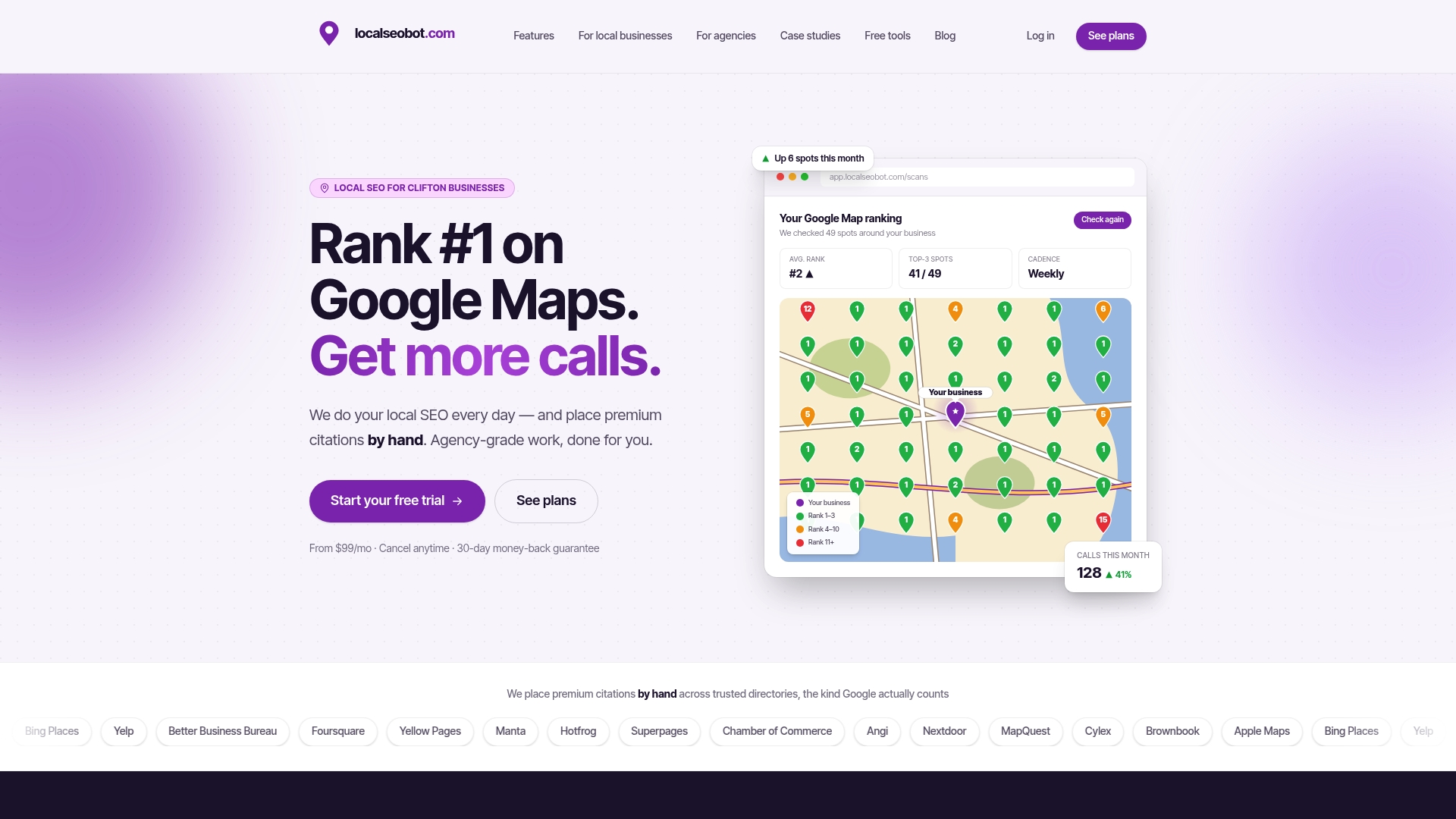
Our platform is designed to handle automated Google Business Profile optimization, posting, and review replies, paired with manually built premium citations on high-authority directories. Users regularly report stronger Google Maps rankings and more inbound calls, and plans include a 30-day money-back guarantee if rankings don’t improve. See current plans on our pricing page or explore Google Maps SEO to get started.
FAQ
What is GBP optimization and how does it work?
GBP optimization is the process of completing and improving your Google Business Profile, including products, photos, categories, and posts, so it ranks better and converts more visitors. It works by giving Google clearer, more complete signals about what you offer and where, which the algorithm uses alongside reviews and citations to rank local results.
What does GBP mean in marketing?
In marketing, GBP stands for Google Business Profile, the free listing businesses manage to appear in Google Search and Maps. It covers everything from business hours and photos to products, services, and customer reviews.
What does GBP stand for in business?
GBP stands for Google Business Profile, the tool Google provides for businesses to manage how they appear in local search results. It replaced the earlier name Google My Business and now includes features like Product Editor and the Local Inventory app.
How do I optimize my Google Business Profile?
Start by claiming and verifying your profile, then fill in accurate categories, hours, photos, and the right product or service listings for your business type. From there, add UTM-tagged links to your products, monitor Insights for product views and profile actions, and keep the listing current with a regular audit cadence.
Sources
For details straight from Google, review the Product Editor help page, Local Inventory eligibility, and Insights documentation. For deeper practice, Search Engine Land’s 2026 guide and our GBP setup guide are worth bookmarking. Readers exploring course-based learning can also check the Local SEO Academy.
- Get listed on Google - Google Business Profile
- About product editor - Google Business Profile Help
- About eligibility for adding in-store products to Google - Google Business Profile Help