Small Businesses: When a Google Posts Scheduler Is Worth Paying For
Published September 10, 2026
Small Businesses: When a Google Posts Scheduler Is Worth Paying For

Yes, you can schedule Google Business Profile posts natively, and it costs nothing. Use the built-in scheduler for most single-location needs, and reserve a paid google posts scheduler for bulk publishing, team approvals, or multi-location scale. This guide covers the exact steps first, then the decision framework for when a paid tool actually earns its price.
TL;DR:
- Native scheduling in Google Business Profile works well for single-location, low-volume posting, but requires individual management for multiple locations.
- Paid schedulers become cost-effective for agencies managing numerous profiles, offering bulk uploads, approval workflows, and cross-platform posting.
- Most small businesses can maintain a consistent posting cadence of two posts per week without needing paid tools, focusing on batching content monthly.
- Using the Business Profile API allows developers to automate posts at scale, but its complexity is justified mainly for large, multisite operations.
- Upgrading to paid scheduling tools is justified when manual management starts to become operationally burdensome or significantly hampers efficiency.
Table of Contents
- How Do You Schedule Posts in Google Business Profile?
- When Should You Use a Paid Google Posts Scheduler Instead?
- What’s a Good Posting Workflow for a Small Business?
- Can Developers Automate Google Posts With an API?
- Native Scheduling Works Until Your Business Outgrows It
- Automate Your Google Business Profile Posting With Localseobot
- Sources
- FAQ
How Do You Schedule Posts in Google Business Profile?
Google added native scheduling to Business Profile in November 2025, and it works right from the dashboard on desktop. No plugin, no third-party sign-up. Here’s the flow, confirmed by Google’s own support documentation:
- Sign in at business.google.com and select the location you’re posting for.
- Click Posts in the left menu, then Add post.
- Choose your post type: Update (What’s New), Offer, or Event.
- Write your copy, add a photo, and select a call-to-action button if the post type supports one.
- Toggle Schedule this post and pick your future date and time.
- Click Post. Google queues it and publishes automatically at the scheduled moment.
To make a post recurring, use the schedule settings inside the Event or Offer post type and set a repeat pattern. Recurring posts display on the profile during their active window and drop off automatically once the schedule ends, so you don’t need to manually clean up expired promotions.
Scheduled but unpublished posts sit in a “Scheduled” tab inside the Posts section. You can edit the copy, image, or timing any time before publication, or delete the post outright. Once it goes live, editing is more limited, so review carefully before the scheduled time hits.
A few practical limits to know before you build a queue:
- Post text tops out around 1,500 characters, and Google typically displays only a portion before truncating.
- Images need a minimum resolution (roughly 400x300 pixels) or they get rejected outright.
- Phone numbers and certain promotional phrasing in post copy can trigger silent rejection.
- If you manage more than one location, native scheduling still requires posting to each profile individually. There’s no bulk multi-location publish in the free dashboard.
For guidance on writing posts that actually convert once they’re live, our Google posts checklist walks through what belongs in each post type.
When Should You Use a Paid Google Posts Scheduler Instead?
The native tool covers single-location, low-volume posting well. Where it runs out of road is scale: managing ten locations, routing every post through a manager’s approval, or publishing the same offer to Google, Instagram, and Facebook without retyping it three times.
Third-party schedulers close those gaps with features vendor comparisons consistently highlight, including Buffer’s own feature breakdown:
- Bulk CSV upload — load a month of posts across multiple locations in one file instead of clicking through each profile.
- Visual content calendar — see every scheduled post across every location on one screen.
- Approval workflows — a manager or client signs off before anything goes live, which matters for agencies posting on a client’s behalf.
- Cross-posting — push one piece of content to Google and other social channels simultaneously.
- Analytics and reporting — track post views, clicks, and calls in one dashboard instead of digging through GBP Insights location by location.
Some dedicated tools, like RecurPost, also re-check posts after Google publishes them, because Google occasionally rejects or silently pulls a post without notifying you. That re-check step matters more for agencies managing dozens of client profiles than for a single owner checking their own feed once a week.
For a solo business posting twice a week, a paid tool rarely earns its cost. The math tends to favor native scheduling unless you specifically need cross-network posting or bulk upload. For an agency running 20+ locations, the time saved on approvals and bulk uploads usually justifies the subscription within the first month.
Pro Tip: Before paying for any scheduler, run its free trial against your worst-case week, your highest post volume, your most complicated approval chain, and your longest post copy. If the trial handles that cleanly, it’ll handle a normal week without issue.
What’s a Good Posting Workflow for a Small Business?
Consistency beats frequency. A profile that posts twice a week, every week, outperforms one that posts daily for a month and then goes silent for three.
Start with a simple cadence: one update post and one offer or event post per week. That’s enough to keep your profile active without spamming your audience or burning hours on content creation. Once that rhythm feels easy, scale up gradually rather than jumping straight to daily posting.
Batching is where the real time savings show up. Vendor guidance across the scheduling space points to the same habit: sit down once a month, write four to eight posts in one session, and schedule them all at once. You’re in a planning mindset once, instead of scrambling for an idea every Tuesday morning.
A simple monthly rotation looks like this:
- Week 1: Update post highlighting a product, service, or recent project.
- Week 2: Offer post tied to a seasonal promotion or slow-period discount.
- Week 3: Event post for a workshop, sale, or community appearance.
- Week 4: Social proof post featuring a recent review or customer story.
For the mechanics of building that calendar out, this content calendar planning guide covers how to structure a month of content in a single sitting.
Track performance with GBP Insights: post views, website clicks, and call button taps. Tag your post titles with a short code (like the month and post type) so you can trace which content actually drove calls, not just views.
Pro Tip: If an Event post includes a booking link, pair it with a properly configured Google Calendar appointment setup so the CTA button leads somewhere that actually converts, not a dead scheduling page.
Can Developers Automate Google Posts With an API?
Yes. The Business Profile API lets developers create localPosts programmatically, which matters for teams publishing at a scale no dashboard can handle efficiently.
A typical localPost payload includes languageCode, summary, media, topicType, and for Event posts, an event object with schedule fields. Call-to-action buttons map to actionType values like BOOK, ORDER, SHOP, LEARN_MORE, SIGN_UP, or CALL.
The API earns its complexity when you’re integrating posting into an existing CMS, publishing to dozens of locations from one internal system, or needing custom error handling the dashboard doesn’t expose. For everyone else, dashboard tools remain simpler.
Before building against it, confirm your team has covered:
- OAuth setup and location-level verification for every profile you’ll post to.
- A test location to validate payloads before touching live client profiles.
- A monitoring step that re-checks post status, since Google can reject a post after acceptance without a webhook notification.
Native Scheduling Works Until Your Business Outgrows It
Most small businesses don’t need a paid scheduler. The free native tool handles routine posting well, and the moment you’re paying for software you’re barely using, that’s wasted budget better spent elsewhere.
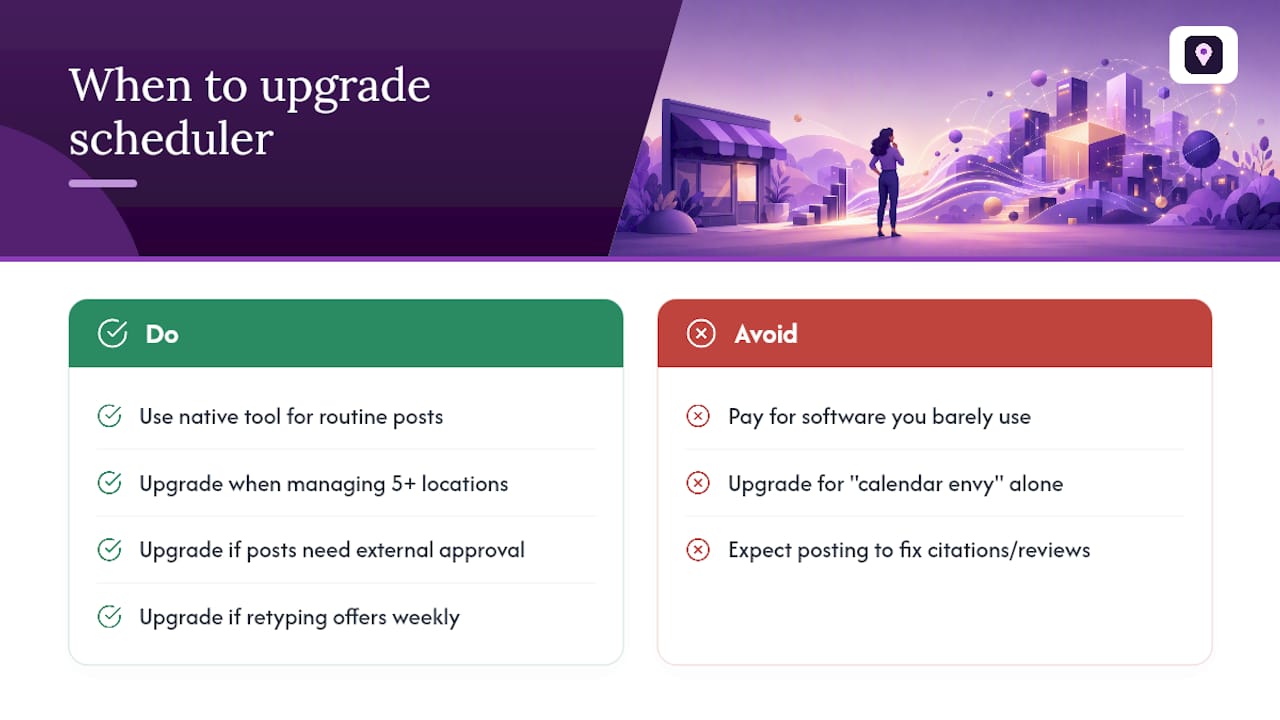
The signal to upgrade isn’t calendar envy, it is operational friction: you’re managing five or more locations, routing posts through someone else for approval, or manually retyping the same offer into three different platforms every week. When posting starts eating an afternoon instead of twenty minutes, a paid tool has already paid for itself.
Consistent posting won’t fix a profile with thin citations or a weak review count. It’s one input among several, not a shortcut around the rest.
— Local
Automate Your Google Business Profile Posting With Localseobot
There are tools available that automate Google Business Profile activity across multiple locations from a single dashboard, avoiding the need for per-location manual posting in the native tool.
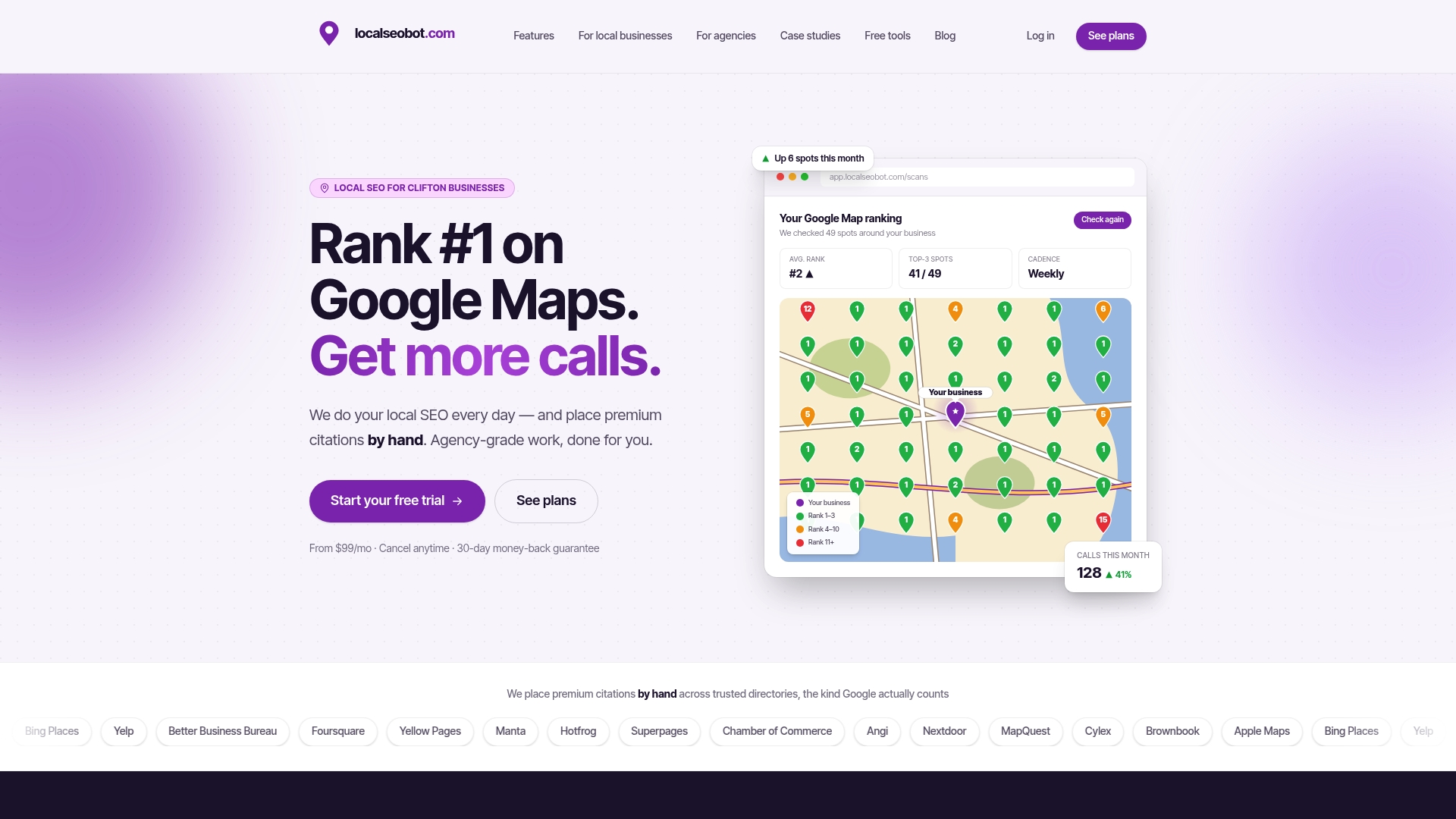
The Google Business Profile Optimizer handles automated posting alongside profile optimization, so posts, citations, and ranking signals work together instead of living in separate tools. These services can fit agencies managing multiple client locations and business owners wanting posting that connects with ranking improvements. Some providers offer satisfaction guarantees, such as a 30-day money-back policy if rankings do not improve.
If you’re managing more than one location or want posting that connects directly to visibility tracking, start by checking your current standing with the Google Maps Visibility Score Calculator, then explore the optimizer to see how automated posting fits your setup.
Sources
- Create & manage posts on your Business Profile
- How to Schedule Google My Business posts: Free & Paid Methods 2026
- The Best Social Media Scheduling Tools in 2026 (Buffer resources)
FAQ
Does Google Have Its Own Post Scheduler?
Yes. Google added a native scheduler to Business Profile in November 2025, letting you schedule and set recurring posts directly from the dashboard at no cost.
Is a Google Posts Scheduling Tool Free?
The native Google scheduler is free for every Business Profile. Third-party tools range from free trial tiers to paid monthly plans, depending on features like bulk upload and multi-location management.
How Do I Schedule Posts on My Business Profile?
Go to Posts in your dashboard, select a post type, write your content, toggle “Schedule this post,” and choose your date and time before publishing.
What Is Google’s 20% Rule?
Consistency, not a fixed ratio, is what profile guidance consistently points to as the driver of engagement.
When Is a Paid Scheduler Worth It Over Google’s Native Tool?
Paid tools make sense when you’re managing multiple locations, need approval workflows for a team, or want bulk CSV uploads and cross-network posting that the free dashboard doesn’t offer.