Survive 28×28 px: 720×720 Google Business Logo for Local Businesses
Published September 24, 2026
Survive 28×28 px: 720×720 Google Business Logo for Local Businesses

Use a square 720×720 px JPG or PNG between 10 KB and 5 MB for your Google Business Profile logo, and never go below 250×250 px. Google typically crops the image into a circle and may render it at tiny final sizes on some placements, so treat centering and contrast as part of the spec, not an afterthought.
TL;DR:
- Upload a square logo at 720×720 px for optimal quality, ensuring it remains clear at sizes as small as 28×28 px in some placements.
- Keep critical elements inside the center circle of the logo, avoiding small text and thin lines to prevent detail loss after cropping and shrinking.
- Verify your business profile’s eligibility and account access before attempting to upload, as these factors determine logo visibility.
- Export multiple versions of your logo, including a master file, a smaller fallback, and an icon-only variant, then preview across devices and platforms before publishing.
- A sharp, correctly cropped logo improves local recognition, but it must be combined with accurate business details and high-quality profile assets to effectively boost rankings.
Table of Contents
- What Size Should a Google Business Logo Be?
- How Do I Change My Logo on a Google Business Profile?
- Why Does Google Crop Logos Into a Circle?
- Why Isn’t My Business Logo Showing Up on Google?
- Export, Test, and Version: Practical Tips That Save Rework
- Why Logo Accuracy Actually Moves the Needle Locally
- Get Your Business Profile Assets Right the First Time
- Sources
- FAQ
What Size Should a Google Business Logo Be?
The specs are short enough to memorize. Google’s own photo guidelines call for a recommended resolution of 720×720 px, with 250×250 px as the absolute floor before quality starts to suffer.
Here’s the full checklist:
- Recommended resolution: 720×720 px
- Minimum resolution: 250×250 px
- Aspect ratio: 1:1 (perfectly square, no exceptions)
- File formats: JPG or PNG (PNG if you need a transparent background around an icon mark)
- File size: between 10 KB and 5 MB
Pro Tip: If your logo has fine text or a tagline baked into the file, drop it. Google’s own guidance says the photo should be in focus, well lit, and free of heavy filters or AI touch-ups, and a cluttered logo fails that test before it even gets cropped.
One number worth remembering: Google can shrink your logo down to roughly 28×28 px in some ad and search placements, according to its advertising policy documentation. A 720×720 master file gives you the resolution headroom to survive that shrink without turning to mush.

How Do I Change My Logo on a Google Business Profile?
Before touching any files, confirm you’re actually managing the verified listing and not a duplicate or an unclaimed profile. Google’s help documentation notes that image controls only work when you’re signed into the account tied to the verified profile.
Then follow these steps:
- Via Google Search: Sign in and search your business name. Click Photos, then choose Add a logo (or Change logo if one already exists).
- Via Google Maps: Open Maps, find your business profile, tap Photos, then Add a logo or Change logo.
- Confirm the upload: Google will show a crop preview, typically circular, before the change goes live.
- Check both interfaces: Google notes that management features can differ by device and operating system, so if you can’t find the logo control on your phone, try a desktop browser or the alternate interface.
Pro Tip: Export two files before you touch the upload button: a polished 720×720 px master and a simplified 250×250 px fallback with the fine detail stripped out. If the platform compresses your primary file harder than expected, you’ve already got a backup that still reads clearly.
Why Does Google Crop Logos Into a Circle?
Google renders most business logos as circular icons across Search, Maps, and ad placements, and that default crop has quietly ruined more square-cornered designs than any other single factor. A logo that looks sharp as a full square can lose its wordmark, its border, or half its icon the moment Google clips the corners.
Design around it instead of fighting it:
- Keep every critical element (icon, initials, symbol) inside an invisible center circle, not spread toward the corners.
- Skip small text entirely; at 28×28 px final render sizes, letters below icon scale just blur into noise.
- Favor thicker strokes and high contrast over thin lines or subtle gradients, which disappear at small sizes.
- If your brand mark relies on a tagline or a horizontal lockup, create a stacked or icon-only variant just for this upload.
Pro Tip: Open your logo file in any basic photo editor, draw a circular mask over it, and delete everything outside that circle. What’s left is exactly what Google will show. If it still looks like your brand, you’re set.
Why Isn’t My Business Logo Showing Up on Google?
A missing or broken logo is almost always one of four things, and none of them require redesigning the artwork.
- Eligibility, not the image. Google is explicit that a logo upload can’t make an ineligible business eligible for a Business Profile. If your profile isn’t verified or doesn’t meet the eligibility rules for your business type, no image will serve.
- Wrong interface or wrong account. Try the alternate platform. If Maps won’t show the upload control, switch to Search (or vice versa), and double check you’re signed into the account that actually manages the listing.
- File outside the limits. Anything under 10 KB, over 5 MB, or below 250×250 px risks rejection or a blurry render. Re-export as PNG if compression artifacts are visible in your current JPG.
- Profile completeness gaps. Incomplete hours, an unverified phone number, or flagged policy issues can suppress image display even when the file itself is fine.
Work through that list in order. Eligibility first, then account access, then the file itself.
Export, Test, and Version: Practical Tips That Save Rework
Treat your logo the way a designer treats a favicon: build once, export many. Keep a source vector file (AI, EPS, or SVG) as the master, then export a clean 720×720 px PNG for the actual upload and a simplified 250×250 px PNG or JPG as a fallback if the platform ever needs a smaller asset.
Build a third variant too: an icon-only mark, centered, with no wordmark at all. That’s the version that survives a 28×28 px circular crop on a crowded search results page.
Before you call it done, preview the upload on both a phone and a desktop, in both Maps and Search. Rendering can differ enough between them that a logo looking fine on one looks cropped or pixelated on the other. Running your file through a tool like the Google Business Profile Optimizer alongside a broader profile setup checklist catches gaps you’d otherwise only find after the logo has been live, and looking wrong, for weeks.

Why Logo Accuracy Actually Moves the Needle Locally
A sharp, legible logo is a recognition shortcut. Customers scanning a map full of pins or a search results page full of similar businesses lock onto a familiar mark faster than they read a business name. That’s worth more than most owners give it credit for.
But a logo is one piece of profile quality, not the whole picture. It works alongside accurate hours, a real phone number, and current photos, not instead of them. Get the logo right; it’s a fast win. Just don’t mistake it for full profile optimization.
— Local
Get Your Business Profile Assets Right the First Time
A practical alternative to guessing your way through Google’s crop behavior pairs manual, hands-on profile work paired with the kind of asset checks most business owners skip: confirming your profile is verified and eligible, auditing photo and logo quality, and building premium citations that actually move Maps rankings.
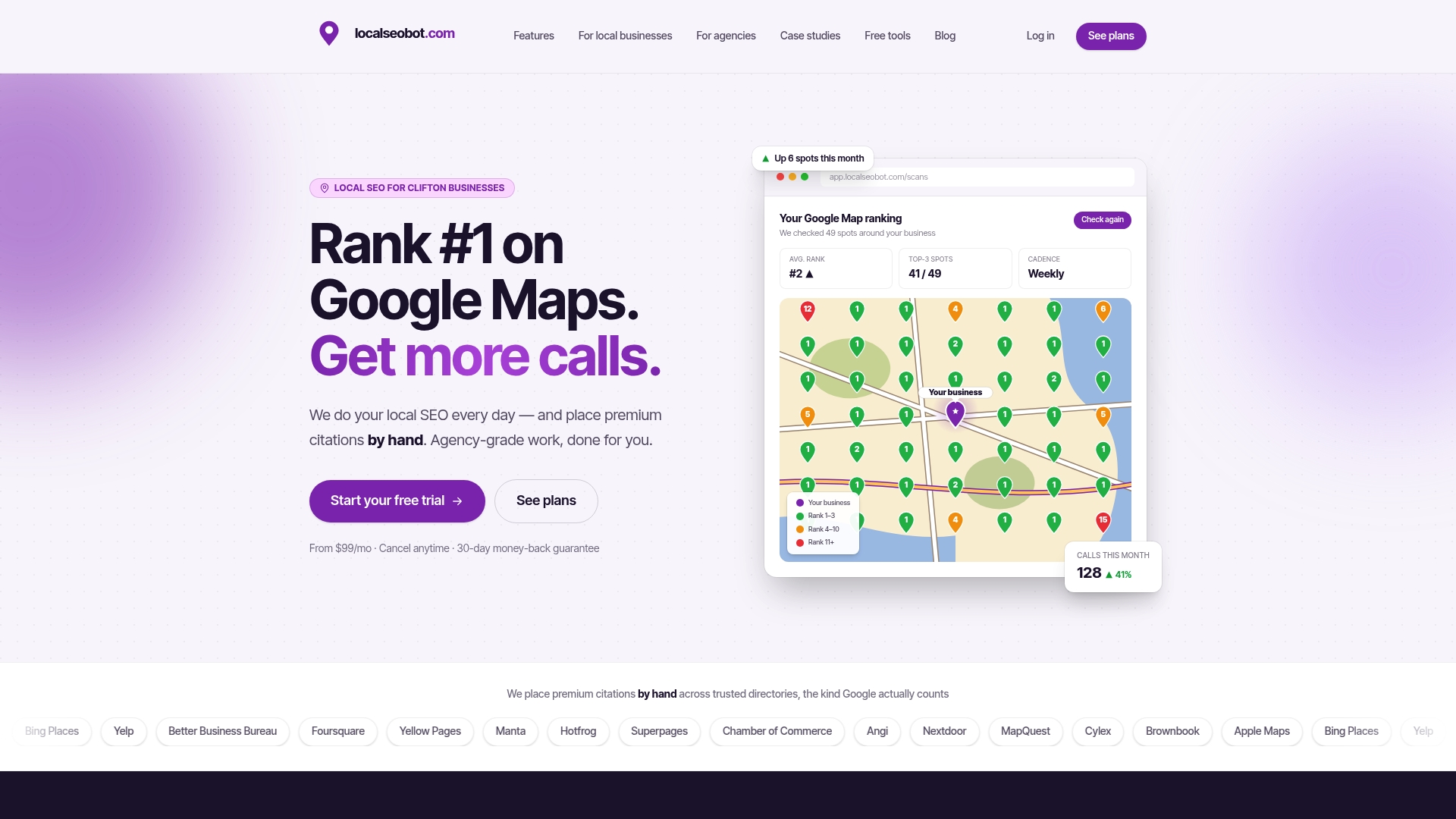
That manual, high-authority citation work is the differentiator. Automated citation blasts flood low-quality directories; Localseobot builds citations by hand on the directories that carry real weight with Google. Combine that with a properly cropped, center-safe logo and a complete profile, and you’re not leaving ranking signals on the table.
Plans start with Foundation and Growth on the pricing page, and if your Maps ranking doesn’t improve, Localseobot backs it with a 30-day money-back guarantee. Check your current plan fit and get started today.
FAQ
What is the recommended size for a Google Workspace logo?
Google Workspace uses a separate logo spec from Business Profile, typically requesting a square image for admin console and product branding. For a Google Business Profile logo specifically, stick with the 720×720 px recommendation covered above; the two systems don’t share the same requirement.
How big does Google render a business logo?
It varies by placement, but Google’s own advertising policy documentation notes some final renders drop to roughly 28×28 px in a circular crop. That’s why uploading a high-resolution 720×720 px source file matters even though the display size looks tiny.
What is a good size for a business logo overall?
A square 1:1 file is the safest universal choice across platforms, and for Google specifically, 720×720 px hits the sweet spot between file size and display clarity. Anything below 250×250 px risks looking blurry once Google compresses and crops it.
How do I edit my Google Business Profile logo?
Search your business name on Google, open Photos, and select Change logo, or do the same from the Photos section in Google Maps. If the option doesn’t appear, confirm you’re signed into the account that manages the verified profile and try the other platform.