Keep LCP Under 2.5s When Embedding Google Maps for Local Businesses
Published September 22, 2026
Keep LCP Under 2.5s When Embedding Google Maps for Local Businesses

Embedding a Google Map helps visitors find you but does not by itself boost local ranking. Done correctly, it supports local SEO indirectly by improving user signals and giving search engines crawlable location data. The catch is implementation: reserve the map’s height and lazy load it to protect Core Web Vitals, restrict your API key by domain, and never let the iframe replace your actual HTML address and phone number. Use the Maps Embed API or a simple share iframe, then test the page afterward.
TL;DR:
- Embedding a Google Map does not directly improve your local search ranking but can increase user engagement signals and click-throughs.
- Use the share/embed iframe for simplicity or the Maps Embed API for control; always reserve space to prevent layout shifts that harm Core Web Vitals.
- Restrict your API key to your domain and test restrictions regularly to prevent unauthorized usage that could incur unexpected costs.
- The main factors influencing local SEO are Google Business Profile accuracy, reviews, citations, and content, not the map embed itself.
- Prioritize technical optimization by lazy loading maps, setting explicit heights, and monitoring page performance to support search visibility efforts.
Table of Contents
- How to Embed a Google Map on Your Website
- Iframe, API, or Static Map: Which Should You Use?
- Does Embedding a Google Map Improve Local SEO?
- Protecting Core Web Vitals When You Add a Map
- Where an Embedded Map Actually Helps
- Pre-Launch Checklist for Map Embeds
- How This Fits Into a Real Local SEO Program
- Get Help Optimizing Your Google Maps Visibility
- Sources
- FAQ
How to Embed a Google Map on Your Website
Before you touch any code, confirm your Google Business Profile matches what will live on the page. If your profile lists “123 Main Street, Suite 4” but your contact page just says “123 Main St,” that mismatch creates the kind of inconsistency that undermines the prominence signal Google uses to rank local results. Fix that first. Everything else is downstream.
Once your address, phone number, and hours are consistent, you have two practical paths to get a map onto the page.
- Grab the share/embed iframe. Open Google Maps, search your business, click “Share,” then “Embed a map,” and copy the HTML snippet. No API key, no billing setup, no code beyond pasting.
- Build a Maps Embed API URL. This gives you control over parameters like
place,q, andplace_id, and it supports multiple modes: place, view, directions, streetview, and search. It requires an API key, per the Maps Embed API documentation.
A properly built iframe looks like this:
<iframe
  src="https://www.google.com/maps/embed/v1/place?key=YOUR_API_KEY&q=Your+Business+Name,Address"
  width="[100%](https://forsethingvild.medium.com/the-difference-between-width-auto-and-width-100-a58e2ac7832f)"
  height="450"
  style="border:0"
  loading="lazy"
  referrerpolicy="strict-origin-when-cross-origin"
  allowfullscreen>
</iframe>
Three attributes matter more than the rest: loading="lazy" defers the request until the map is near the viewport, referrerpolicy="strict-origin-when-cross-origin" sends Google the base domain it needs to validate your API key without leaking full URLs, and style="border:0" keeps the frame from adding unwanted visual weight.
To make it responsive, wrap the iframe in a container and control the aspect ratio with CSS instead of fixed pixel values:
- Set the wrapper to
position: relativewithpadding-bottom: 56.25%for a 16:9 ratio. - Set the iframe itself to
position: absolute; width: 100%; height: 100%;. - Never leave height unset. An iframe with no reserved space is one of the most common causes of layout shift on local business pages.
If you go the API route, create your key in the Google Cloud Console under “Credentials,” then apply an HTTP referrer restriction limiting it to your actual domains (including www and non-www variants, and any staging subdomains you test on). Skipping this step means anyone can copy your key and rack up usage under other Maps Platform SKUs, even though the Embed SKU itself doesn’t charge you.
Pro Tip: Test your API key restriction by loading the page from a domain that isn’t whitelisted. If the map fails to render, the restriction is working. If it loads fine everywhere, you haven’t actually restricted anything.
Iframe, API, or Static Map: Which Should You Use?
The right choice depends on how much control you need and how much maintenance you’re willing to take on.
- Share/embed iframe is the fastest option. No API key, no billing console, no referrer restrictions to manage. It’s the right call for a simple contact page where you just need to show “here’s where we are” without any customization.
- Maps Embed API gives you parameterized control over mode, zoom, and markers, and it supports directions and Street View embeds that the basic share link doesn’t offer. This is the better fit for production sites, multi-location businesses, or any page where you want the map to do something specific, like show a route from a landmark.
- Static maps or plain screenshots work best when performance is the priority or interactivity adds nothing. A static image with a “Get Directions” link often loads faster than any iframe and still gives visitors what they need.
On cost: the Embed SKU is billed as free and unlimited according to Google’s Embed API usage and billing documentation. Other Maps Platform SKUs, like the JavaScript API for interactive custom maps, are billed separately, so don’t assume “Maps” means “free” across the board.
Pro Tip: If you manage more than a handful of locations, the operational risk isn’t the embed choice itself, it’s key management. A restricted key that breaks after a domain change or a new subdomain can take maps down sitewide without anyone noticing for weeks.
Does Embedding a Google Map Improve Local SEO?
Not directly. Google’s local ranking system runs on relevance, distance, and prominence, according to Google Business Profile guidance, and none of those three factors reference whether your website has an embedded map. Prominence is built from Business Profile completeness, review volume and quality, and consistent citations across the web, not from iframe code on your contact page.
Where an embed can help is downstream of the click. A map that renders correctly and loads fast can increase clicks to directions, drive more calls, and keep visitors on the page longer. Those are real engagement signals, but they’re secondary effects, not the mechanism Google uses to rank you in the map pack itself.
The numbers that actually move rankings live in your Business Profile, not your website’s code:
Google Business Profile completeness, review signals, and citation consistency carry far more ranking weight than any on-page widget, according to Google’s own local ranking guidance.
What should you actually prioritize?
- Keep your Google Business Profile categories, hours, and attributes accurate and current.
- Build citations on high-authority directories with consistent name, address, and phone data.
- Collect and respond to reviews regularly, since review recency and volume both factor into prominence.
- Publish localized content that mentions your service area by name, not just your street address.
- Add structured data (LocalBusiness schema) so search engines have a second, machine-readable confirmation of your location details.
Treat the embed as a courtesy for your visitors, not a lever for your rankings. That distinction changes how you prioritize your time.
Protecting Core Web Vitals When You Add a Map
An unoptimized map embed is one of the easier ways to tank your page experience scores, and Google now folds page experience directly into how it evaluates search results, per its Core Web Vitals guidance.
- Reserve the map’s height before it loads. Use
aspect-ratioin CSS or a padding-bottom trick on a wrapper div, and set width to 100% so it resizes cleanly across screen sizes. An iframe that pops into existence without reserved space is a textbook cause of layout shift. - Use native lazy loading correctly. Add
loading="lazy"to any iframe positioned below the fold. Avoid patterns that only load the map after a user click if you need the map’s presence and surrounding text indexed, since Google’s guidance on lazy-loaded content warns that overly aggressive deferral can hide content from crawlers entirely. - Set the referrer policy explicitly.
referrerpolicy="strict-origin-when-cross-origin"on the iframe ensures Google’s servers get the base domain needed to validate a restricted API key, per Mozilla’s Referrer-Policy documentation. Skipping this attribute is a common reason maps mysteriously stop rendering after a security header change. - Restrict your API key by domain, and revisit that restriction every time you add a subdomain, migrate hosting, or change your content security policy. A key that isn’t updated alongside your domain setup can silently break every embed on the site.
- Run PageSpeed Insights and check Search Console after deployment. Watch specifically for LCP staying under 2.5 seconds, INP under 200 milliseconds, and CLS under 0.1, the thresholds Google’s Core Web Vitals documentation sets for a good page experience.
Accessibility deserves equal attention. Put your full address, phone number, and hours in real, crawlable HTML text near the map, not just inside the iframe’s visual display, and add an aria-label describing the map’s purpose for screen reader users.
Pro Tip: If your CLS score is fine on desktop but poor on mobile, check whether your aspect-ratio container is set with a fixed pixel height instead of a percentage. Mobile viewports expose fixed-height mistakes that desktop testing often misses.
Where an Embedded Map Actually Helps
Placement matters more than most site owners assume. A map dropped onto every page of a website adds weight without adding value, but a map placed with intent solves a real problem for a real visitor.
- Contact pages are the obvious fit. Someone looking for your address wants to see it confirmed visually, not just typed out.
- Individual location pages for multi-location businesses benefit most, provided each page also carries unique, location-specific content. Duplicating the same map style across dozens of thin pages with little unique text does nothing for rankings and can actually work against you if it makes pages look interchangeable.
- Store locator tools and event or directions pages are strong use cases, since the map is doing functional work: helping someone actually get somewhere.
- Street View embeds work well for landmark-based businesses where visual recognition matters, like a venue near a distinctive building.
Where it doesn’t help: a slow-loading interactive map on a mobile connection with weak signal is often worse than a static image with a “Get Directions” link that opens the native Maps app. If your analytics show a high percentage of mobile visitors on a rural or budget-carrier network, a static fallback frequently outperforms the live embed on actual user experience, even though it looks less impressive in a demo.
Pre-Launch Checklist for Map Embeds
Run through this before you consider the embed finished.
- Confirm the address, phone number, and hours in your page’s HTML match your Google Business Profile exactly.
- Test your API key restrictions on every hostname the site actually uses, including
www, non-www, and staging domains. - Run PageSpeed Insights and check Search Console for any Core Web Vitals regression tied to the page.
- Test the map on mobile, with keyboard-only navigation, and with a screen reader to confirm it doesn’t trap focus or go unlabeled.
- Add analytics tracking for map clicks, “Get Directions” taps, and any click-to-call button near the embed.
Pro Tip: Set a calendar reminder to re-test your API key restrictions every time you change hosting providers or add a CDN. That single overlooked step causes more “why did our map disappear” support tickets than any other cause.
How This Fits Into a Real Local SEO Program
A map embed is a small piece of a much larger visibility puzzle. At Localseobot, we treat it as a checklist item inside a broader program that includes manually built citations on high-authority directories, ongoing Google Business Profile optimization, and structured review generation, not as a standalone fix.
That framing matters because a business can implement every technical recommendation in this article and still see no ranking movement if its Business Profile is thin or its citation profile is inconsistent. Some SEO providers build citations manually rather than through automated blasts, and may offer money-back guarantees if client’s Google Maps rankings don’t improve. Businesses have reported improvement in Maps position and more inbound calls after such work is in place, consistent with how Google weights prominence.
If you’re auditing your own setup, start with your Google Business Profile Optimizer results before you spend more time tweaking iframe attributes.
— Local
Get Help Optimizing Your Google Maps Visibility
If reading through API keys, referrer policies, and CLS thresholds sounds like more than you want to manage alongside running your business, that’s exactly the gap Localseobot fills. Instead of leaving you to DIY the technical side while guessing at what actually moves your Maps ranking, Localseobot combines manually built premium citations, Google Business Profile optimization, and geo-grid rank tracking into one managed program.
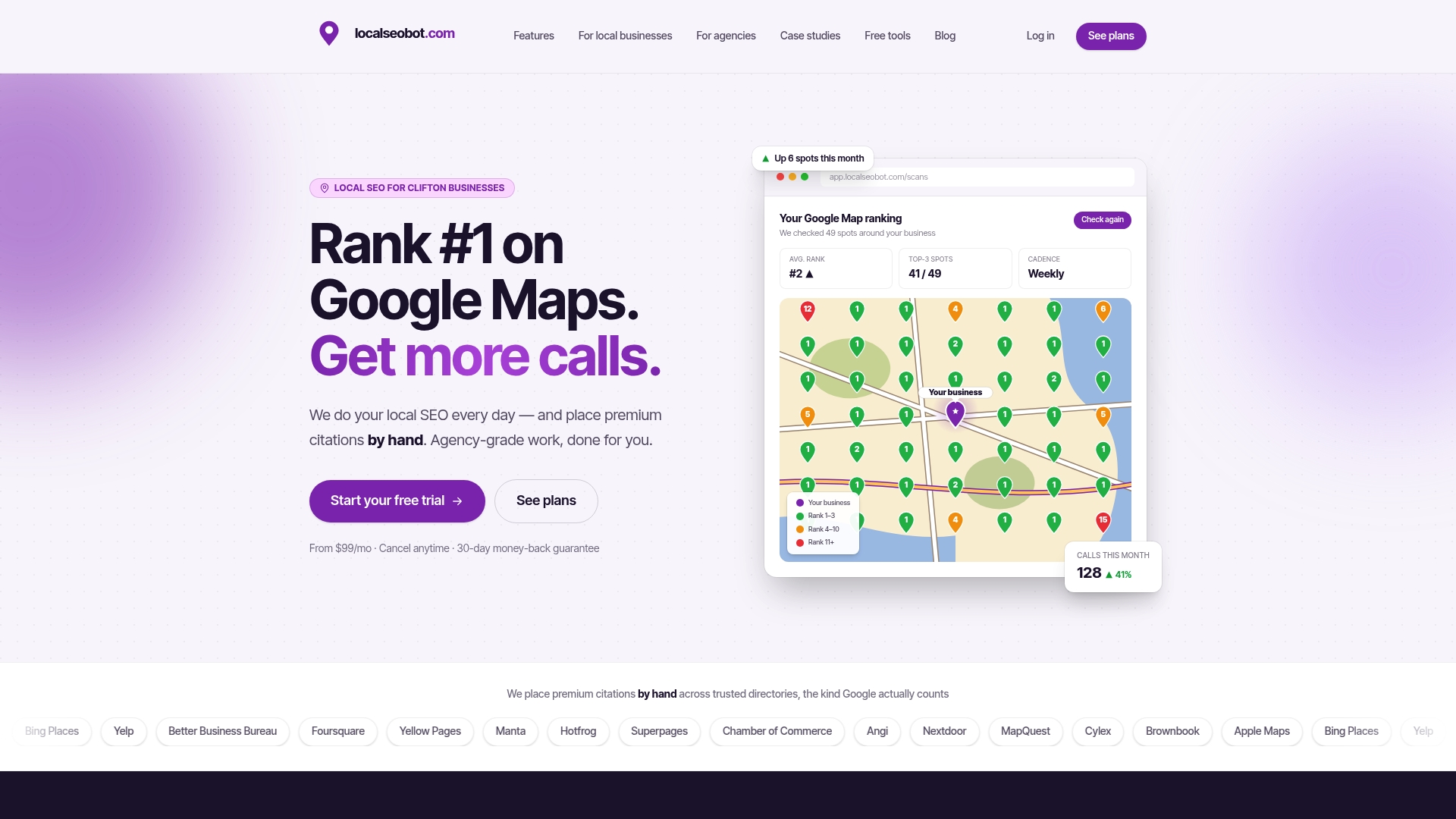
The Maprank tool shows you exactly where you rank across a grid of locations around your business, so you can see whether your citation and profile work is actually translating into visibility, not just guess based on where you personally see yourself in search results. Plans start with Foundation at $99 per month per location, scaling up to Growth and Pro tiers for agencies managing multiple client accounts. Every plan carries the same 30-day money-back guarantee: if your Google Maps rankings don’t improve, you don’t pay for the work.
Check current pricing and start a trial on the Localseobot pricing page to see which plan matches your location count and goals.
Sources
- Tips to improve your local ranking on Google - Google Business Profile Help
- Understanding Core Web Vitals and Google search results | Google Search Central
FAQ
Is There SEO Value in Using Google Maps?
Google Maps itself doesn’t rank your website higher for embedding it, but an accurate, complete Google Business Profile directly influences your position in the map pack. The SEO value comes from profile optimization, citations, and reviews, not from the embed code on your site.
Can You Embed Google Maps on a Website?
Yes. You can copy the share/embed iframe directly from Google Maps with no coding required, or build a custom embed using the Maps Embed API for more control over mode and parameters. Both methods require reserving the frame’s height to avoid layout shift.
Is the Google Maps Embed API Free?
Yes, the Embed SKU is billed as free and unlimited according to Google’s usage and billing documentation. Other Maps Platform SKUs, like the JavaScript API for custom interactive maps, are billed separately, so confirm which feature you’re actually using before assuming cost-free access.
How Do I Know if My Map Embed Is Hurting My Rankings?
Run PageSpeed Insights and check Search Console’s Core Web Vitals report for LCP, INP, and CLS regressions tied to the page. If your embed lacks reserved height or lazy loading, it’s a likely contributor to poor scores, and fixing those technical issues matters more for rankings than the embed’s presence itself. Tools like Localseobot’s Local SEO Checker can help flag broader visibility gaps alongside the technical fix.