Apple Maps Listing Guide for Small Businesses
Published August 5, 2026
Apple Maps Listing Guide for Small Businesses

Claim or add your place card at Apple Business (formerly Apple Business Connect), verify ownership, then complete the key fields — NAP, hours, primary category, photos, and Action Links — to make your business discoverable across Apple Maps, Siri, and Wallet.
Verification typically happens by phone PIN for single locations or by document upload when Apple needs proof of ownership. The fields that matter most first: your exact business name, address, phone number, website URL, and primary category. Get those right before anything else.
Your 48-hour checklist:
- Go to business.apple.com and sign in with your Apple ID
- Search for your business to claim an existing place card, or start a new location if none exists
- Confirm your phone number is correct before requesting verification
- Upload at least three photos (exterior, interior, and one product or service shot)
- Set your primary category as specifically as possible (e.g., “Italian Restaurant” over “Restaurant”)
- Submit for verification and watch your email for next steps
Table of Contents
- What is Apple Business and where does your place card appear?
- How do you claim or add your Apple Maps business listing?
- How does Apple verify listings, and what do you do when it stalls?
- Which fields and features actually improve your Apple Maps visibility?
- How do you manage Apple Maps for multiple locations at scale?
- How do you fix duplicate listings and handle incorrect place cards?
- Is Apple Maps free, and what paid features are coming?
- Key Takeaways
- Why Apple Maps deserves a spot in your local SEO strategy
- Localseobot makes Apple Maps management easier at any scale
- Useful sources for Apple Maps listing management
What is Apple Business and where does your place card appear?
Apple Business is the free portal Apple provides for managing your business presence across its ecosystem. The platform was previously called Apple Business Connect; Apple has since consolidated those features under the Apple Business umbrella. You configure everything — your place card content, photos, Showcases, and Action Links — from a single dashboard at business.apple.com.
According to the Apple Business Connect User Guide, the place card is the central unit of your presence, and it surfaces across multiple Apple services simultaneously. That reach is broader than most business owners realize.
Your place card appears in:
- Maps app — on iPhone, iPad, Mac, and CarPlay — the primary discovery surface when someone searches for a business type near them
The Maps User Guide confirms that Apple Business helps customers find your business across Maps, Wallet, Siri, and more. For a local business, that is direct access to every iPhone user in your area without spending a dollar on ads.
Pro Tip: Siri pulls your business category and description to answer voice queries. Write your description in plain language that matches how customers would ask for your service out loud — “family-owned Italian restaurant in downtown Austin” beats “upscale dining establishment offering Mediterranean-inspired cuisine.”
How do you claim or add your Apple Maps business listing?
The starting point is always business.apple.com. Sign in with an Apple ID — ideally one tied to your business email rather than a personal account. From there, the process splits into two flows depending on whether your business already has a place card.
Claiming an existing place card
- In the Apple Business dashboard, go to Locations and use the search bar to find your business by name and address
Adding a new location
- In the dashboard, navigate to Brands > Locations > Add a Location.
- Place a pin on the map at your exact address, then enter your full NAP: business name, street address, city, state, ZIP code, and phone number.
- Add your website URL, primary category, secondary categories, and business hours.
- Upload photos and write your business description.
- Submit the location for verification.
The official Apple support documentation covers both flows in detail and outlines the documentation options Apple accepts for verification.
Managing multiple locations
For businesses with several locations, Apple Business uses a Brands > Locations hierarchy. You can add locations one at a time or, for larger operations, request bulk import options through the dashboard. Each location gets its own place card and verification process, though they all live under a single brand account.
Before you submit, confirm these fields are complete:
- Exact legal business name (no keyword stuffing)
- Full street address with suite or unit number if applicable
- Local phone number (not a call center or 800 number)
- Website URL that resolves correctly
- Primary category (be as specific as Apple’s list allows)
- Up to three secondary categories
- Full weekly hours, including holiday and special hours
- Business description (up to 500 characters)
- At least three photos
- Action Links if your business supports online reservations, ordering, or bookings
Pro Tip: Before submitting, gather your verification documents: a business license, utility bill showing your business address, or proof of domain ownership via a DNS TXT record. Having these ready cuts days off the verification timeline when Apple requests them.
How does Apple verify listings, and what do you do when it stalls?
Apple uses three primary verification methods, and the one you encounter depends on your situation.
Phone PIN verification is the most common path for single-location businesses. Apple calls the phone number on the place card and reads a PIN. You enter it in the dashboard to confirm ownership. This usually completes within minutes, assuming the number is correct and answered.
Document verification applies when you are claiming an existing listing, transferring management from a previous owner, or when Apple needs additional proof. Acceptable documents include a business license, a utility bill with the business name and address, or a government-issued registration certificate. Apple reviews these manually, so expect a window of several business days to a few weeks.
Domain TXT verification is an option for businesses that can add a DNS record to their domain. It is faster than document review and works well for tech-savvy owners or agencies managing multiple accounts.
If your verification is stalled, the most common culprits are a mismatched phone number (the number on the place card must be the one Apple calls), an address conflict with an old listing at the same location, or missing documentation. Check the dashboard for any status messages, and if the issue persists, use the support request option within Apple Business to escalate directly.
Troubleshooting checklist:
- Confirm the phone number on the place card matches your active business line
- Search Apple Maps for your address to check whether a duplicate or old listing exists at the same location
- If a duplicate exists, claim the authoritative one first, then request a merge or removal of the duplicate
- For document submissions, use clear scans or photos — blurry or cropped documents are a common rejection reason
- Make sure your business name on documents matches the name on the place card exactly
- If Apple edits your listing based on customer reports, review the dashboard alert and accept or contest the change promptly
Which fields and features actually improve your Apple Maps visibility?
Getting verified is step one. Getting found is step two, and it requires filling out your place card completely and strategically.
NAP consistency is the foundation. Your business name, address, and phone number must match exactly across your website, your Google Business Profile, and your Apple Maps place card. Even small differences — “St.” versus “Street,” a missing suite number — fragment your local search signals. Shopify’s guide to adding a business to Apple Maps specifically flags NAP consistency as a critical factor for visibility. Use Localseobot’s citation consistency analyzer to audit your NAP across directories before you finalize your place card.

Category selection shapes who finds you. Apple Maps uses your primary category to match your business to relevant searches. Choose the most specific category available. A nail salon should select “Nail Salon,” not “Beauty Salon.” You can add secondary categories to capture adjacent searches, but the primary category carries the most weight for Siri and Maps retrieval.
Photos drive conversion. Upload a minimum of five photos across these types:
- Exterior shot (helps customers recognize your location from the street)
- Interior shot (sets expectations and builds trust)
- Product or service photo (shows what you actually offer)
- Team photo (optional but adds credibility for service businesses)
- Menu or price board (for restaurants and retail)
According to optimization guidance from Local SEO Skills, profiles with Showcases and Action Links convert better than bare listings. Photos are the first visual signal a customer sees before clicking through.
Showcases and Action Links are the most underused features on Apple Maps. A Showcase is a promotional card that appears on your place card — think of it as a mini-ad for a current offer, seasonal promotion, or new product. Action Links are direct buttons that let customers take an action without leaving Maps: reserve a table, place an order, book an appointment, or view a menu. These create a direct conversion path from the moment someone finds your business.
Businesses that add relevant Action Links — “Reserve,” “Order,” “Book” — remove friction from the customer journey. A customer who can book directly from your place card is more likely to convert than one who has to navigate to your website first.
Testing your Siri visibility is straightforward. Ask Siri on an iPhone: “Find [your business type] near me” or “Where is [your business name]?” If your place card is verified and complete, Siri should surface it. Allow two to four weeks after any major update for full propagation across Apple’s systems before drawing conclusions.
Pro Tip: Use Localseobot’s local keyword research tool to find the exact phrases your customers use when searching for businesses like yours. Weave those terms naturally into your business description to improve Siri and Maps retrieval.
How do you manage Apple Maps for multiple locations at scale?
Single-location owners can manage everything directly in the Apple Business dashboard without much friction. The calculus changes once you cross five or more locations.
Apple Business organizes locations under a Brands > Locations hierarchy, which means all your place cards live under one brand account. You can add locations individually or work with Apple’s support team to explore bulk import options for larger inventories. Each location still requires its own verification, which is the main bottleneck at scale.
When to manage in-house vs. when to use a third-party tool:
- In-house management works well for businesses with fewer than five locations, a dedicated marketing person, and stable NAP data that rarely changes.
- Third-party listing management makes sense when you have many locations, frequent data changes (seasonal hours, address updates, new openings), or when NAP consistency across dozens of directories is a recurring problem.
Bulk rollout checklist:
- Maintain a single canonical data source (a spreadsheet or CRM field) for each location’s NAP — never let individual managers update their own address data independently
- Validate all addresses against USPS standards before importing
- Use consistent photo templates so every location has the same photo types at launch
- Batch verification requests where possible and track status by location in a shared document
- Set a monthly review cadence to catch Apple-initiated edits before they go uncontested
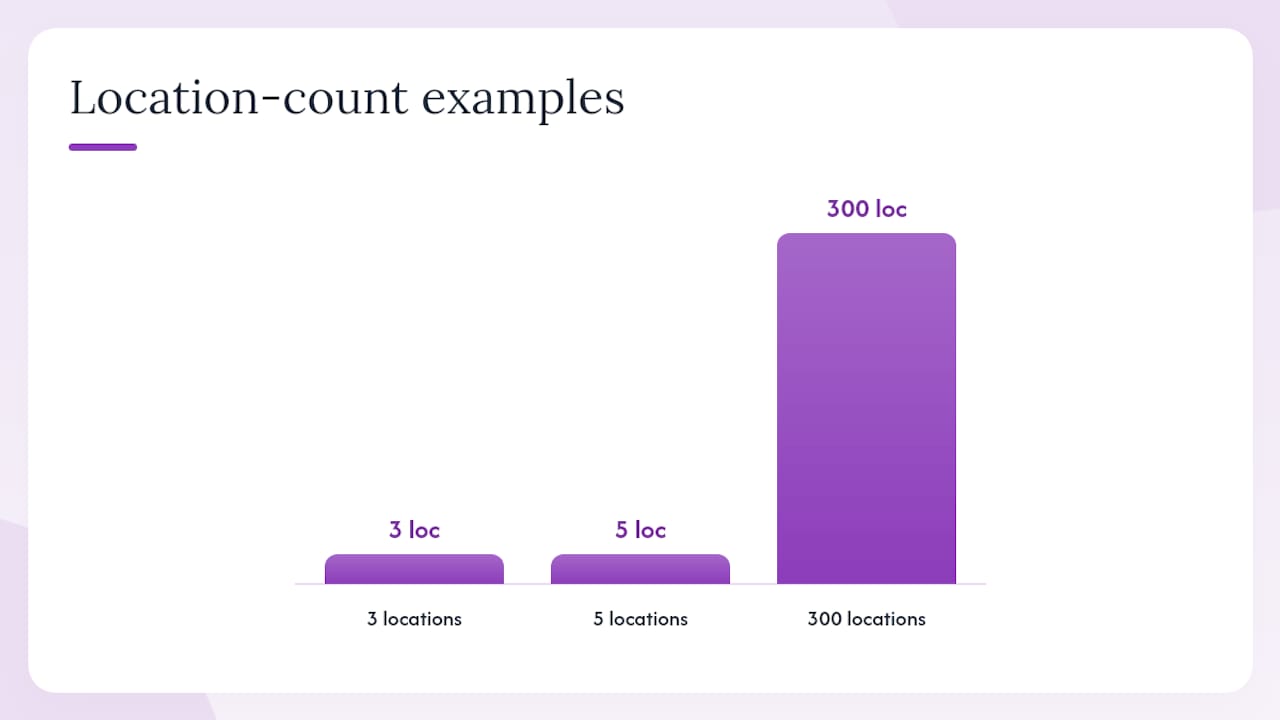
For NAP management across multiple locations, the discipline is the same whether you have 3 locations or 300: one authoritative data source, consistent formatting, and a process for catching drift before it compounds.
How do you fix duplicate listings and handle incorrect place cards?
Duplicate place cards are more common than most business owners expect. Apple sometimes creates listings from third-party data sources, which means your business might already have a place card you never set up — and it might have the wrong address, phone number, or hours.
Finding duplicates:
- Search Apple Maps for your business name and your address separately.
- Look for any place card that shows your location but is not under your management.
- Note the exact name and address on the duplicate.
Claiming or merging duplicates:
- Sign in to Apple Business and search for the duplicate listing.
- Claim it using the standard claim flow, providing verification proof.
- Once you control both listings, contact Apple Business support to request a merge, keeping the listing with the most accurate data as the primary.
- If you cannot claim the duplicate (for example, a previous business owner still controls it), submit a support request through the Apple Business dashboard with documentation proving your current occupancy.
Handling customer-reported edits is an ongoing responsibility. Apple actively monitors listings and applies edits based on customer reports through the Maps app. The Apple support page on maintaining location accuracy explains how Apple notifies businesses about proposed changes and how to accept or contest them in the dashboard. Check your dashboard at least once a month for pending edit notifications.
When a previous business still appears at your address, the fastest resolution is to claim your own listing with documentation showing your current lease or business license, then report the old listing as closed using the Maps “Report an Issue” flow available directly in the Maps app on iPhone.
Common questions:
What if someone else claimed my listing? Submit a support request through Apple Business with proof of ownership. Apple will review the claim and can transfer management to you.
Can I transfer my listing to a new Apple ID? Yes. Contact Apple Business support with documentation confirming you are an authorized manager of the business.
Is Apple Maps free, and what paid features are coming?
The core Apple Maps listing is completely free. Claiming a place card, adding photos, creating Showcases, setting Action Links, and managing your hours costs nothing. Apple Business has no subscription fee for standard listing management.
That said, Apple has announced paid features for Maps, including ads on Maps and promoted place cards. These are rolling out as Apple expands its local advertising capabilities. The exact pricing and targeting options for Maps ads are not yet publicly listed in full detail, but the direction is clear: Apple is building a paid discovery layer on top of the free listing infrastructure.
What this means for your strategy:
- Claim and fully optimize your free listing now, before paid placement becomes the norm
- Businesses with complete, well-optimized place cards will have a stronger foundation when ads launch — quality signals built into the free listing likely influence ad relevance
- Agencies managing client listings should document current organic performance as a baseline for measuring paid lift later
Claiming your Apple Maps place card today is the equivalent of securing prime shelf space before the store opens to paid promotions. The businesses that optimize early will have both organic visibility and a head start on paid features when they become widely available.
Free features summary:
- Place card creation and management
- Photo uploads
- Showcases and Action Links
- Business description and category fields
- Hours management including special hours
- Apple Business dashboard analytics
Key Takeaways
Claiming and optimizing your Apple Maps place card through Apple Business is free, takes less than an hour to start, and puts your business in front of every iPhone user searching locally via Maps, Siri, and Spotlight.
| Point | Details |
|---|---|
| Start at Apple Business | Go to business.apple.com, sign in, and claim or add your place card before doing anything else. |
| Verification requires preparation | Have your business license, utility bill, or DNS TXT record ready to speed up document verification. |
| NAP consistency is non-negotiable | Your name, address, and phone must match exactly across your website, Google Business Profile, and Apple Maps. |
| Showcases and Action Links convert | Adding “Reserve,” “Order,” or “Book” buttons creates a direct conversion path from your place card. |
| Localseobot supports the full workflow | Localseobot’s citation management, NAP auditing, and listing tools help single locations and agencies maintain accurate, optimized place cards at scale. |
Why Apple Maps deserves a spot in your local SEO strategy
Most small business owners treat Apple Maps as an afterthought — something to set up after Google Business Profile is sorted. That is a mistake worth correcting in 2026.
Apple Maps is the default navigation and local search app on every iPhone, iPad, and Mac. Siri routes voice queries directly through place card data. When someone asks their iPhone to find a plumber, a coffee shop, or a dentist nearby, Apple Maps is the answer engine. Businesses that have complete, verified place cards with photos, Action Links, and accurate hours show up in those results. Businesses that do not are simply invisible to that segment of searchers.
The conversion upside from Action Links is particularly underappreciated. A customer who can tap “Reserve a Table” or “Order Online” directly from a place card skips the step of navigating to your website, finding the right page, and figuring out how to book. That friction reduction is real and measurable in direction requests, calls, and reservation volume.
Maintaining consistent NAP across your website, Google Business Profile, and Apple Maps is the single highest-leverage habit for local visibility. It costs nothing and compounds over time.
Localseobot makes Apple Maps management easier at any scale
Managing a single Apple Maps place card is manageable. Managing NAP consistency across Apple Maps, Google Business Profile, Yelp, and dozens of other directories — while keeping photos current, Showcases fresh, and verification documents on file — is where most small business owners fall behind.
Localseobot handles the citation infrastructure that makes your Apple Maps listing more effective. The platform manually builds premium citations on high-authority directories, keeping your NAP consistent across the web so Apple’s systems see a coherent, trustworthy business signal. For agencies, the white-label dashboard lets you manage and monitor listings for hundreds of client locations from one place.
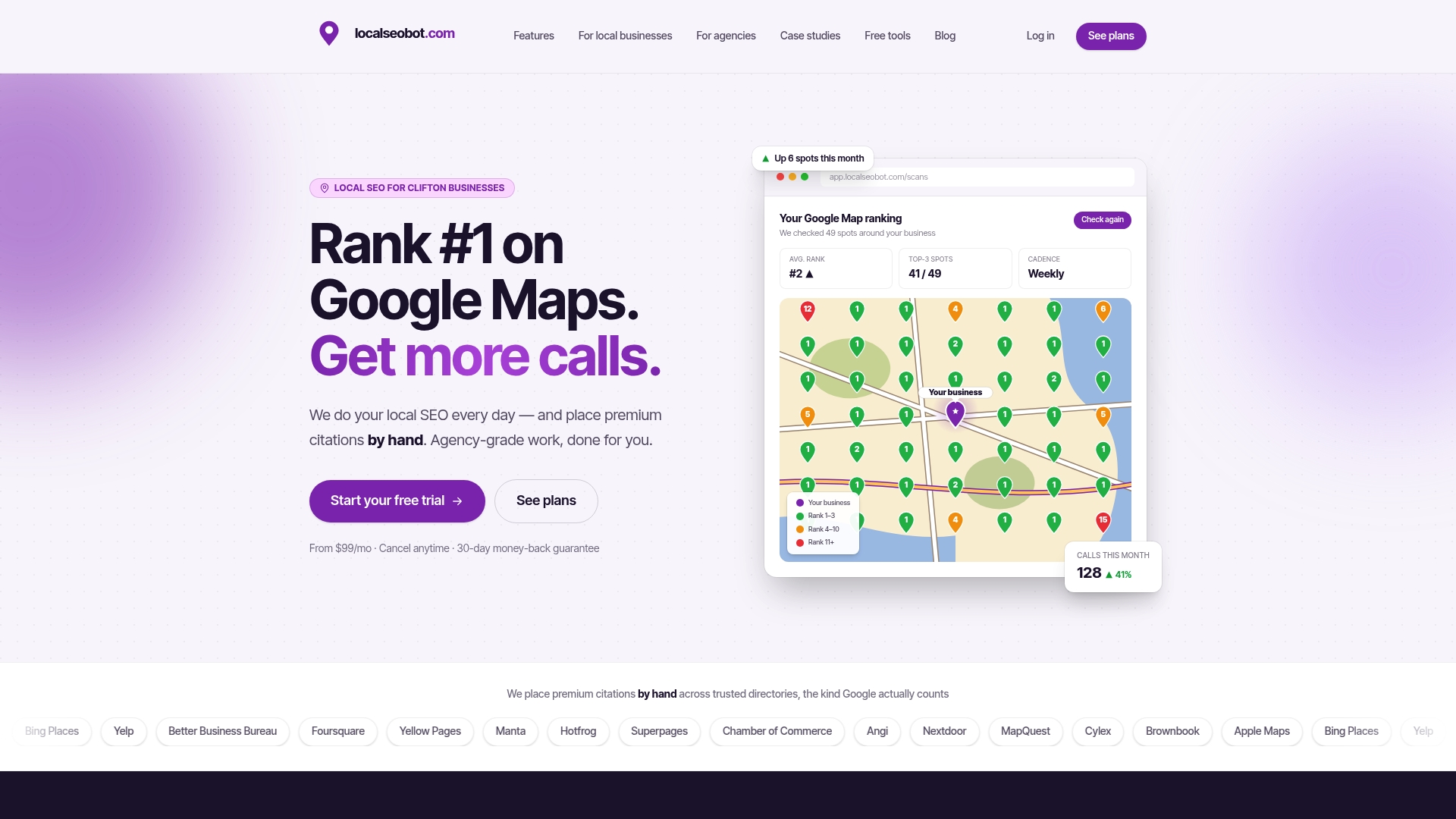
The local SEO checklist tool gives you a structured execution plan that covers Apple Maps alongside every other local visibility channel. For businesses that want a managed approach, Localseobot’s citation building and listing management services come with a 30-day money-back guarantee if you do not see a ranking improvement. Start your free trial at localseobot.com and see where your listings stand today.
Useful sources for Apple Maps listing management
Official Apple documentation:
- Add a location in Apple Business - Apple Support
- Maintain location information accuracy with Apple Business - Apple Support
- Apple Business Connect User Guide - Apple Support
- Add or update your business information in Maps on Mac - Apple Support
- Better Business Management Ahead - Apple Business
- How To Add Your Retail Business to Apple Maps in 2025 - Shopify
- How to Rank on Apple Maps: Complete Optimization Guide
- If Maps isn’t working on your Apple device - Apple Support
- Inside Apple Maps — how to get the most out of your iPhone’s navigation app - AppleInsider
Practical optimization guides:
- How to Add Your Retail Business to Apple Maps (Shopify) — practical walkthrough with NAP consistency guidance and photo best practices
- How to Rank on Apple Maps: Complete Optimization Guide (Local SEO Skills) — covers Showcases, Action Links, photo counts, and Siri testing queries
- Inside Apple Maps (AppleInsider) — explains Apple Maps features including Siri suggestions and on-device discovery